I’ve helped a lot of people get into their router settings for the first time, and the number one stumbling block is always the same — they type the IP address into Google instead of the browser’s address bar. If you’re here because 10.1.1.1 isn’t doing anything for you, there’s a good chance that’s exactly what happened. Don’t worry — this guide walks you through everything from first login to changing your Wi-Fi password, locking down your security, and fixing the most common problems that come up along the way.
10.1.1.1 – Router Login Admin Page
What Is 10.1.1.1?
10.1.1.1 is a private IP address — the kind that only works inside your home or office network. It’s not a website you visit on the internet. It’s the local address your router assigned to itself so you can access its settings panel from any device on the same network.
This address falls within the 10.0.0.0/8 block defined in RFC 1918 private address ranges — the same standard that covers addresses like 192.168.1.1 and 10.0.0.1. The key difference between 10.1.1.1 and those more common IPs is the brand of router you’re probably dealing with (more on that in a moment).
Because it’s a local address, 10.1.1.1 only responds when you’re connected to that router’s network — either over Wi-Fi or via an Ethernet cable. It won’t load from a coffee shop, a friend’s house, or anywhere outside your own network. That’s by design — it’s a security feature, not a flaw.
Most people don’t know this, but what happens behind the scenes is that how DHCP assigns IP addresses to your devices is actually separate from the router’s own admin IP. The admin IP (10.1.1.1 in this case) is fixed — it’s the router talking to itself. Your laptop, phone, and smart TV each get temporary addresses from the router via DHCP. The admin page lives at a permanent address so you can always find it.
Default Login Credentials for 10.1.1.1
Before you can change any settings, you need to log in. Here are the default credentials for the most common routers that use 10.1.1.1:
| Brand | Default Username | Default Password |
|---|---|---|
| Belkin | admin | (blank — leave empty) |
| iiNet | admin | admin |
| Optus | admin | admin |
| TP-Link | admin | admin |
| Linksys | admin | admin |
| D-Link | admin | (blank — leave empty) |
| Tenda | admin | admin |
| Cisco | cisco | cisco |
| Netgear | admin | password |
| Asus | admin | admin |
Most reliable source: The sticker on the bottom or back of your router. Manufacturers sometimes change default credentials between firmware versions, and the label on your specific unit is always accurate. The table above is a good starting point, but when in doubt — flip the router over.
If the username or password field says “blank” or “none,” that means leave it completely empty. Don’t type the word “blank.” Just click past it.
How to Log Into 10.1.1.1 on a PC or Mac
- Make sure your computer is connected to the router — either plugged in with an Ethernet cable or connected over Wi-Fi.
- Open any web browser (Chrome, Firefox, Edge, Safari — it doesn’t matter which).
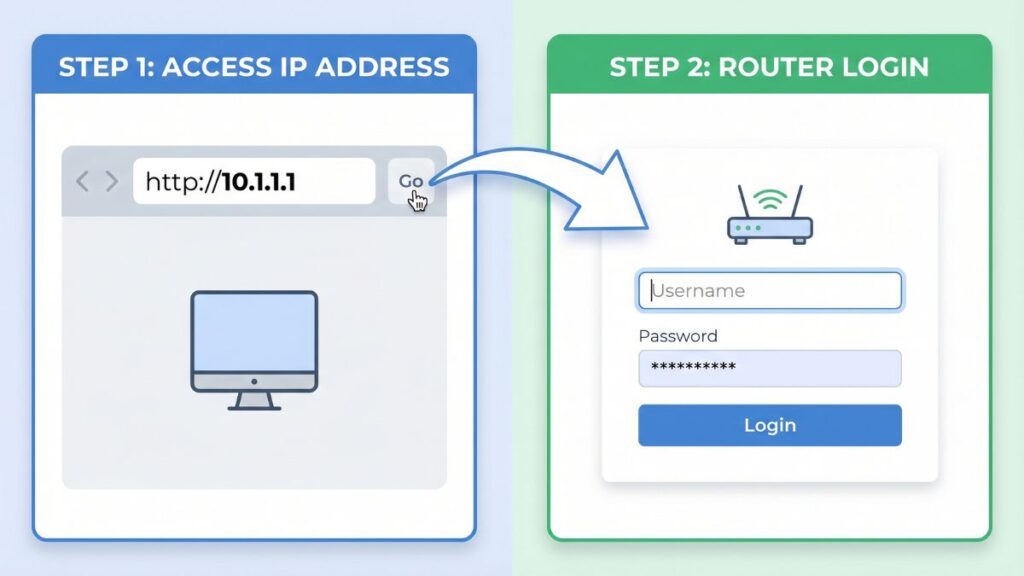
- Click in the address bar at the top — the long bar where URLs go, not the search box.
⚠️ Important: Typing 10.1.1.1 into the search box (Google or Bing) will just run a search. You need to type it directly into the address bar and press Enter.
- Type
http://10.1.1.1and press Enter. - A login screen should appear. Enter your router’s username and password.
- Click Login or Sign In.
That’s it. If the page loads, you’re in. If it doesn’t, skip to the troubleshooting section below.
How to Log Into 10.1.1.1 on a Phone
Competitors usually lump iPhone and Android together here. They’re not the same — here’s how each one works.
On iPhone (iOS)
- Go to Settings → Wi-Fi.
- Make sure you’re connected to your home network (not mobile data).
- Tap the ⓘ icon next to your network name to confirm the router IP.
- Open Safari (recommended — it handles router pages better than Chrome on iOS).
- Tap the address bar at the top and type
10.1.1.1, then tap Go. - Enter your credentials on the login page.
Tip: If Safari auto-fills something or the page doesn’t load, try typing http://10.1.1.1 with the full http:// prefix.
On Android
- Go to Settings → Wi-Fi (or Connections → Wi-Fi on Samsung).
- Long-press your network name or tap the gear/info icon next to it.
- You’ll see the Gateway address — confirm it’s 10.1.1.1.
- Open Chrome and type
10.1.1.1in the address bar, then tap Enter. - If Chrome searches instead of navigating, type
http://10.1.1.1with the prefix. - Log in with your credentials.
Troubleshooting: 5 Problems and How to Fix Them
If you’re unable to access the 10.1.1.1 router login page, you’re not alone. Below are the most common issues users face and how to fix them quickly.
1. The Page Just Won’t Load
Cause: You’re not connected to the right network, or your router uses a different default IP.
Fix: First, confirm you’re actually on that router’s Wi-Fi — not a neighbor’s network or a mobile hotspot. Then run a quick check: on Windows, open Command Prompt and type ipconfig. Look for the Default Gateway value under your active connection. On Mac, go to System Settings → Network → your connection → Details. The Default Gateway is your router’s actual IP. If it’s something other than 10.1.1.1, use that address instead.
2. The Login Page Loads but My Password Doesn’t Work
Cause: Someone changed the credentials from the defaults, or you’re using the wrong defaults for your router brand.
Fix: Try all the default combinations from the table above. If none work, check the label on your router — it may have been customized at the factory. If you’ve changed it yourself and forgotten it, a factory reset (see below) is your best option. Don’t panic — it takes about two minutes and won’t affect your internet service.
3. Browser Shows a Security Warning
Cause: Your router uses a self-signed SSL certificate, and your browser doesn’t trust it. This is normal and expected.
Fix: Click Advanced (Chrome/Edge) or Show Details (Safari/Firefox), then click Proceed to 10.1.1.1 or Visit this website anyway. The warning doesn’t mean anything malicious is happening — it just means the certificate isn’t from a public certificate authority.
4. I’m Logged In but My Changes Won’t Save
Cause: Session timeout, browser cache conflict, or the router requires a wired connection to save admin changes.
Fix: Use a wired Ethernet connection when making configuration changes. Some routers (especially older Belkin models) drop your Wi-Fi session when saving settings, which boots you off mid-save. Also try clearing your browser cache or switching browsers entirely.
5. 10.1.1.1 Loads a Search Page Instead of My Router
Cause: Your browser interpreted the IP as a search query.
Fix: Make sure you’re typing in the address bar, not the search bar. On Chrome, you can tell the difference because the address bar shows a lock icon or “Not secure” — the search bar won’t navigate to local IPs. Adding http:// before the address (i.e., http://10.1.1.1) forces the browser to treat it as a URL. If that still doesn’t work, try a different browser.
How to Factory Reset a Router Using 10.1.1.1
A factory reset wipes all your custom settings — Wi-Fi name, password, port forwarding rules, everything — and restores the router to its original out-of-the-box state. It’s a last resort, but it works.
Before you reset: Write down (or take a screenshot of) your current Wi-Fi name and any custom settings you want to keep. After the reset, you’ll be building from scratch.
What gets wiped:
- Wi-Fi name (SSID) and password
- Admin username and password
- Port forwarding rules
- DNS settings
- Any parental controls or firewall rules you’ve set
How to reset by brand (approximate hold times):
| Brand | Reset button location | Hold time |
|---|---|---|
| Belkin | Rear pinhole | 10–15 seconds |
| iiNet / Optus | Rear pinhole | 10 seconds |
| TP-Link | Rear pinhole | 10 seconds |
| Linksys | Rear or bottom pinhole | 10 seconds |
| D-Link | Rear pinhole | 10–15 seconds |
| Tenda | Rear pinhole | 8 seconds |
Use a straightened paperclip or a SIM tool to press and hold the recessed reset button. The router’s lights will blink, go dark, and come back on. That usually signals the reset is complete. Wait 60 seconds before trying to log in.
What to Do After You Log In
Getting in is step one. Here’s what actually matters once you’re inside.
1. Change Your Admin Password
The most important thing you can do. Default admin passwords are publicly listed online (you’re literally reading a list of them right now). Leaving yours unchanged is an open door.
- Log in at 10.1.1.1 with your current credentials.
- Look for Administration, Advanced, or Management in the menu.
- Find Admin Password or Router Password.
- Enter a new password — use something you won’t forget but that’s at least 12 characters long. Following NIST password guidelines, a passphrase (three or four random words) is both secure and memorable.
- Save and log back in with the new password.
2. Change Your Wi-Fi Password
- Go to Wireless Settings or Wi-Fi Settings.
- Find your network name (SSID) and the password field.
- Update both if you want. Something personal that you’ll remember.
- Save. Your devices will disconnect and need to reconnect with the new password.
There’s an important distinction worth knowing: your Wi-Fi password is what guests and devices use to join your network. Your admin password is what you use to log in to 10.1.1.1 and change settings. They’re completely separate. Changing one doesn’t change the other.
3. Set WPA3 (Or WPA2 at Minimum)
Under Wireless Security or Security Mode, you’ll see options like WPA2, WPA3, or WPA2/WPA3 mixed mode. If your router supports WPA3 security standard, use it — it’s the current gold standard for home Wi-Fi encryption. If not, WPA2-PSK (AES) is solid. Avoid WEP and WPA (original) — those are outdated and crackable.
4. Check Connected Devices
Look for Device List, Connected Devices, or DHCP Client List in the menu. This shows every device currently on your network with its IP address and MAC address. If you see something you don’t recognize, that’s worth investigating — it could be a neighbor using your Wi-Fi. Knowing what is a MAC address helps here: every device has a unique hardware identifier, so you can cross-reference unfamiliar entries.
5. Set Up a Guest Network
If your router supports it (most modern ones do), a guest network is a separate Wi-Fi zone that gives visitors internet access without letting them see your main network’s devices. I keep ours set up year-round — guests get the guest password, and my work laptop stays completely separate. Navigate to Guest Network in your router menu and follow the prompts. Use a different password than your main network.
6. Check Port Forwarding and Firmware
Under Advanced settings, you’ll find Port Forwarding (useful for gaming consoles, home servers, or remote access tools) and Firmware Update. Knowing how to update router firmware is worth doing — manufacturers push security patches that fix real vulnerabilities. Most newer routers can check for updates automatically right from the admin panel.
Common Misspellings of 10.1.1.1
People land on this page after searching these variations — all of them incorrect, all of them won’t load:
10.1.1.l
10.l.1.1
10.1.1.1/
10.11.1
101.1.1
10.1.1.0
http//10.1.1.1
www.10.1.1.1
Correct address:
10.1.1.1
— If you’ve been typing any of those, that’s why it’s not working.
Which Brands and ISPs Use 10.1.1.1?
Routers That Commonly Use 10.1.1.1
Always or frequently:
- Belkin (many consumer models, especially older N-series)
- iiNet (Australian ISP-issued gateways — common in the US for people with imported or gray-market hardware)
- Optus-branded gateways
Sometimes:
- TP-Link (some regional or ISP-locked models)
- Linksys (older Cisco-era models)
- Tenda (select models)
Use a different IP:
- Xfinity/Comcast — uses 10.0.0.1
- AT&T — typically uses 192.168.1.254
- Verizon Fios — typically uses 192.168.1.1
- Spectrum — typically uses 192.168.0.1
If you’re a Xfinity, AT&T, Verizon, or Spectrum customer and 10.1.1.1 isn’t working, your router likely uses a different default gateway. Run ipconfig on Windows or check your phone’s Wi-Fi details to find the correct address.
Frequently Asked Questions
Why does 10.1.1.1 not load anything?
You’re probably not connected to the right router, or your router uses a different admin IP. Open Command Prompt (Windows) or Terminal (Mac) and type ipconfig or ifconfig to find the correct Default Gateway.
Is 10.1.1.1 safe to use?
Yes. It’s a private IP that only works inside your local network. No one on the internet can reach it directly.
What’s the difference between my Wi-Fi password and my admin password?
Your Wi-Fi password is what your devices use to join the wireless network. Your admin password is what you type at the 10.1.1.1 login screen to access router settings. They’re completely separate. A lot of people confuse them — if you’re being asked for a password at 10.1.1.1, it’s the admin password, not your Wi-Fi password.
I typed 10.1.1.1 and Google loaded instead of my router. What’s wrong?
You typed in the search bar instead of the address bar. The address bar is the long bar at the very top of your browser. Click there, type http://10.1.1.1, and press Enter.
How do I log in if I forgot my admin password?
Factory reset the router (see the factory reset section above). That wipes all custom settings including your changed admin password and restores the default credentials printed on the router label.
How do I find my Wi-Fi password from the router settings?
Log in to 10.1.1.1 and go to Wireless Settings. The password field will either show your current password or give you the option to reveal it. Some routers show it in plain text; others require you to create a new one.