You’ve searched for 172.31.255.254 — and you’re probably in one of a few situations: you’re seeing it as your Default Gateway and want to access the admin panel, you’re an AWS user wondering why this IP showed up in your VPC, or you’ve encountered it in an enterprise or ISP network context. This guide covers all three.
172.31.255.254 is genuinely unusual. It sits at the very end of the 172.16.0.0/12 private address block — the least-used of the three RFC 1918 private ranges. I’ll explain what that means, why you’re seeing this address, and how to access the admin panel or network device behind it if one exists.
Router Access Panel
Type
172.31.255.254
in your browser or click the link to access the router admin page.
It works only when you’re connected to the same Wi-Fi network.
172.31.255.254 is a private IP address at a very specific location in the IP address space: it’s the last usable host address in the entire 172.16.0.0/12 private address block. That block spans from 172.16.0.0 all the way to 172.31.255.255 — and 172.31.255.254 is the final address in that range that can be assigned to a device (172.31.255.255 is the broadcast address and can’t be used).
This is a meaningful distinction. Most people encounter private IPs in the 192.168.x.x range. The 172.16.x.x–172.31.x.x range is the “Class B” private block defined in RFC 1918 private address ranges, and it’s far less common in home networks. You’re much more likely to encounter it in three specific contexts:
1. AWS Default VPC (Most Common Reason)
Amazon Web Services automatically creates a default VPC in every region, and that default VPC uses a 172.31.0.0/16 subnet. When you launch an EC2 instance in that default VPC, your instance gets an IP in the 172.31.x.x range — and your gateway is typically 172.31.255.254. This is why many developers and cloud engineers encounter this address.
If you’re seeing 172.31.255.254 as a default gateway inside an AWS EC2 instance or container, that’s normal AWS VPC routing. The “admin panel” in this context is not a router web interface — it’s the AWS Management Console or the AWS CLI. There’s no browser-based login page at 172.31.255.254 from inside an AWS instance.
2. Enterprise and ISP Network Deployments
Some enterprise networks deliberately assign gateway addresses at the high end of their chosen subnet — placing the router at 172.31.255.254 of a large 172.16.0.0/12 block. ISPs like Plusnet (UK) use the 172.16.x.x–172.31.x.x range for internal PPP/WAN addressing, and some router configurations assign 172.31.255.254 as a gateway address.
3. Network Equipment Configured to Use This Address
Certain routers, managed switches, and network appliances are configured — either by default or by an administrator — to use 172.31.255.254 as their LAN management IP. In this case, a browser-based admin panel exists at this address, accessible from devices on the same subnet.
Before going further: Run ipconfig on Windows or check System Preferences → Network → TCP/IP on Mac. Look at the Default Gateway field. If it shows 172.31.255.254, then a device is reachable at that address from your network. If you’re inside an AWS instance, check your VPC routing in the AWS Console instead.
Default Credentials for 172.31.255.254
If a router or network device is genuinely using 172.31.255.254 as its gateway, the credentials depend entirely on the hardware. There are no factory defaults specifically associated with this IP — unlike 192.168.1.1 (which is almost always TP-Link or Asus) or 10.0.0.1 (which is usually Xfinity or Cisco), 172.31.255.254 appears on devices that were manually configured to use this address.
Try these defaults based on the hardware you have:
Brand
Default Username
Default Password
Cisco (IOS / small business)
admin
admin
Cisco (some models)
(blank)
(blank)
Netgear
admin
password
TP-Link
admin
admin
Asus
admin
admin
D-Link
admin
(blank)
Linksys
admin
admin
Ubiquiti / UniFi
ubnt
ubnt
MikroTik
admin
(blank)
Juniper (SRX)
root
(blank)
Fortinet / FortiGate
admin
(blank)
Palo Alto
admin
admin
pfSense
admin
pfsense
Huawei
admin
admin
Belkin
(blank)
(blank)
Check the label first. The sticker on the back or bottom of your device lists the exact factory-default credentials for your model. For enterprise equipment (Cisco, Juniper, Fortinet, Palo Alto), the credentials were likely set by your IT team rather than left as factory defaults — contact your network administrator if you don’t know the password.
AWS note: If you’re inside an AWS VPC instance and 172.31.255.254 is your gateway, there are no login credentials because there’s no browser-accessible admin panel at that address. Manage your VPC through the AWS Management Console instead.
How to Log Into 172.31.255.254 on a PC
If you’ve confirmed via ipconfig that 172.31.255.254 is your Default Gateway and a web-based admin panel exists at that address, here’s how to access it.
The most common failure before credentials are tried: typing the IP into the search bar instead of the address bar. The search bar sends your input to Google. The address bar navigates your browser directly to the page.
Confirm your device is connected to the network where 172.31.255.254 is the gateway — via Ethernet cable or Wi-Fi. Ethernet is preferred for configuration changes.
Open any browser — Chrome, Firefox, Edge, or Safari.
Click the address bar at the very top of the browser window — where URLs normally appear (like https://google.com).
⚠️ Not the search bar. If pressing Enter takes you to a Google results page, you used the wrong field. Click the address bar at the top, clear it, and type fresh.
Type 172.31.255.254 and press Enter.
A login page should load. Enter your username and password.
Click Login.
If you’re on enterprise or managed network equipment, your browser may show a security warning (self-signed HTTPS certificate). Click Advanced → Proceed to 172.31.255.254 (unsafe) to continue — this is normal for network device admin pages.
How to Log Into 172.31.255.254 on a Phone
Here are platform-specific steps for iPhone and Android, which no other guide for this IP provides.
On iPhone (Safari)
Connect your iPhone to the Wi-Fi network where 172.31.255.254 is the gateway. Make sure you’re on the correct network — a guest zone, mobile data, or a different SSID won’t have access to this address.
Open Safari. Tap the URL address bar at the top — not Spotlight search.
Type 172.31.255.254 and tap Go.
The admin login page should load. Enter your credentials and tap Login.
If Safari routes your input to a Google search, try typing http://172.31.255.254 with the full prefix. That forces Safari to treat it as a URL. If you get a certificate warning, tap Show Details → Visit This Website to proceed.
On Android
Connect your Android phone to the correct Wi-Fi network. Android sometimes keeps mobile data active in the background even when Wi-Fi is connected — local addresses like 172.31.255.254 are only reachable through your local network, not through mobile data.
Open Chrome or your preferred browser.
Tap the address bar at the top.
Type 172.31.255.254 and tap Go.
If a certificate warning appears, tap Advanced → Proceed to 172.31.255.254 (unsafe).
Enter your credentials and tap Login.
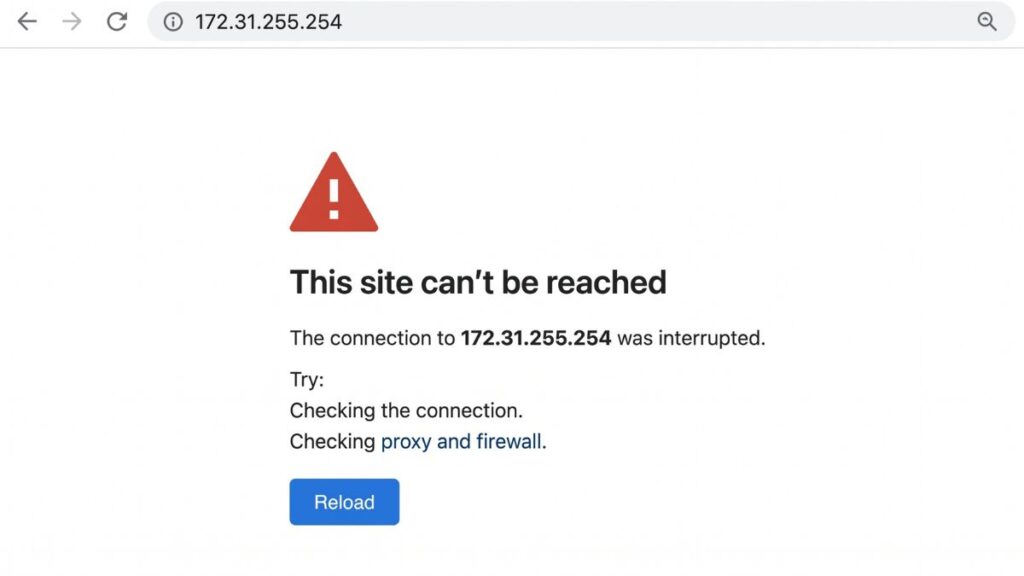
If Chrome shows “This site can’t be reached,” confirm mobile data is off and Wi-Fi is your active connection. Also verify your phone is on the network segment that has 172.31.255.254 as its gateway.
172.31.255.254 Router Login Error – Site Can’t Be Reached
If you’re trying to reach 172.31.255.254 but can’t access a browser admin panel, you’re not alone. Below are the most common situations users hit and how to fix or understand them quickly. [web:17][web:24]
1. You’re inside an AWS VPC — there’s no browser admin panel here
Cause: If you’re working inside an AWS EC2 instance, Lambda function, container, or any other AWS compute resource in the default VPC, 172.31.255.254 is your VPC router address — not a device with a web interface. No browser‑based admin page exists at this address from within the AWS environment. [web:21][web:24]
Fix: Manage your AWS VPC through the AWS Management Console (console.aws.amazon.com), the AWS CLI, or AWS SDK. If you’re trying to manage your EC2 instance networking (security groups, subnets, route tables), that’s all done from the AWS console, not from 172.31.255.254 directly. The how DHCP assigns IP addresses guide helps clarify the difference between a network gateway (routing function) and a router admin panel (web management interface).
2. You’re not on the right network segment
Cause: 172.31.255.254 only responds to devices on the same subnet or a routed segment that has access to it. If your device is on a guest network, a different VLAN, or mobile data is overriding Wi‑Fi — this address won’t respond. [web:17][web:23]
Fix: Run ipconfig on Windows or check TCP/IP settings on Mac. Look at the Default Gateway field. It must show 172.31.255.254 for this address to be reachable. Also check for an active VPN — VPNs tunnel traffic away from your local network and prevent access to local gateway addresses. Disable the VPN and try again.
3. There’s a typo in the address
Cause: 172.31.255.254 is a long address with repeating patterns that make it typo‑prone. The 172.31 beginning is already unfamiliar to most people, and the 255.254 ending is easy to reverse or truncate. [web:17][web:23]
Fix: Type it one segment at a time: 172 . 31 . 255 . 254. The second octet is 31, the third is 255, and the last is 254 — not 255, not 245, not 25. Verify the full address in the browser bar before pressing Enter. To confirm your actual gateway, run ipconfig on Windows or check the Router field in Mac TCP/IP settings.
4. Your browser has cached a previous failure
Cause: Browsers cache failed requests and serve the stored error even after the underlying problem is fixed. [web:17][web:19]
Fix: Press Ctrl + Shift + R on Windows or Cmd + Shift + R on Mac for a hard refresh. Or open a new incognito/private window and try 172.31.255.254 from scratch. If it loads in the private window, clear your browser cache and cookies in the regular window.
5. The device needs a restart or is unreachable
Cause: Network equipment configured to use 172.31.255.254 can become unresponsive after extended uptime or a configuration change that left the management interface inaccessible. [web:17][web:23]
Fix: Power‑cycle the device — unplug, wait 30 seconds, plug back in, wait 60–90 seconds for full boot. For enterprise equipment with out‑of‑band management (console port, IPMI, iDRAC, iLO), use that access path instead of trying to reach the web interface. If you have CLI access via SSH, verify the management interface configuration with show ip interface brief (Cisco) or the equivalent for your platform.
Factory Reset Guide for 172.31.255.254 Devices
Factory reset procedures vary widely because 172.31.255.254 appears on many different types of hardware. Here are the general approaches.
Warning for enterprise equipment: A factory reset on a Cisco router, FortiGate, Palo Alto, or similar enterprise device will wipe all configuration — ACLs, routing tables, VPN tunnels, firewall policies, VLANs, and everything else. This will take down your network. Never reset enterprise equipment without authorization from your network team and a backup of the current configuration.
Back up your configuration first if you can still log in. Use the device’s export or backup functionality before resetting. Most enterprise platforms (Cisco, Fortinet, pfSense) have explicit configuration backup options.
What gets wiped in a factory reset:
Admin credentials (reverted to factory defaults)
All network interface configurations
Routing tables and static routes
Firewall and ACL rules
VPN configurations
VLAN assignments
Any custom management IP (may revert to 172.31.255.254 or a different factory default)
Reset approaches by device type:
Device Type
Reset Method
Consumer/SOHO router
Hold Reset pinhole 10–15 seconds
Cisco small business
Hold Reset button 10–15 seconds
Cisco IOS router/switch
Console port → rommon → confreg 0x2142
Juniper SRX
Console port → boot media → load factory-default
Fortinet FortiGate
Console port → exec factoryreset
pfSense / OPNsense
Console → Option 4 (Reset to factory defaults)
Ubiquiti / UniFi
SSH → syswrapper.sh restore-default or Reset button
MikroTik
Reset button or console → /system reset-configuration
Hold times for consumer/SOHO brands (if one of these is using this address):
Brand
Hold Time
Cisco (small business)
10–15 seconds
Netgear
7–10 seconds
TP-Link
10 seconds
Asus
10 seconds
Linksys
10–15 seconds
Ubiquiti
10 seconds
MikroTik
5 seconds (LED flashes)
What to Do After You Log In
1. Change Your Admin Password
Whatever platform is at 172.31.255.254, change the default credentials immediately. Factory defaults are public knowledge. On enterprise equipment especially, leaving default passwords in place is a serious security vulnerability.
Log into 172.31.255.254.
Find Administration, Management, System, or Security in the navigation.
Change the admin password to something long and unique. Following NIST password guidelines is sound practice: length matters more than complexity, and passphrases outperform short random strings for both security and memorability.
Save and log back in.
2. Review Network Interfaces and Routing
On enterprise equipment, go to Network → Interfaces or IP → Addresses (MikroTik) to review which interfaces are active and what addresses are assigned. Confirm the 172.31.255.254 address is intentional and that routing tables reflect your expected topology. Understanding what is a subnet mask is useful here — the subnet mask defines which addresses are local vs. routed.
3. Check Firewall Rules and ACLs
On any device with firewall capabilities, review the access control lists (ACLs) or firewall policies. Make sure management access (172.31.255.254 itself) is restricted to authorized source IPs or management networks, not open to all interfaces.
4. Review Connected Devices
Under DHCP, ARP Table, or Connected Clients, you’ll find devices that have received IPs in the 172.31.x.x range. Each entry shows a what is a MAC address — a unique hardware identifier. Review for unexpected devices. On enterprise equipment, cross-reference against an authorized device inventory.
5. Set Wi-Fi Encryption (If Applicable)
If the device at 172.31.255.254 includes wireless radios, verify the Security Mode is at minimum WPA2. If the platform supports it, consult WPA2 vs WPA3 to decide whether WPA3 is appropriate for your environment. Never leave WEP or open authentication in place.
6. Port Forwarding and NAT
If this device provides internet access for a network behind it, configure port forwarding under Port Forwarding, NAT, or Virtual Server. Understanding how port forwarding works is essential before making changes — misconfigured NAT rules are among the most common causes of connectivity failures in 172.16.x.x network environments.
7. Update Firmware
Check for firmware updates under Administration or System. Enterprise platforms typically require downloading firmware from the vendor’s portal (Cisco.com, support.fortinet.com, etc.) and uploading manually. Consumer/SOHO devices often have a built-in update checker. Stay current — firmware updates patch CVEs that are actively exploited in the wild.
Common Misspellings of 172.31.255.254
172.31.255.254 is a long and unfamiliar address that generates significant typo traffic. Here are the most common variants:
172.31.255.25
172.31.255.245
172.31.255.255
172.31.254.254
172.31.255.254.
172.31.25.254
172.31.255.
172.31255.254
17231255254
http//172.31.255.254
www.172.31.255.254
172.13.255.254
The correct address:172.31.255.254
— four numbers, three dots, second group is 31, third group is 255, last group is 254.
The 172.16.0.0/12 Private Block — Why 172.31.255.254 Exists
Most people recognize 192.168.x.x as the typical home network range. Fewer are familiar with the 172.16.x.x block. Here’s a quick primer because it’s directly relevant to understanding where 172.31.255.254 comes from.
RFC 1918 reserves three private IP ranges:
Range
Block Size
Common Usage
10.0.0.0/8
~16.7 million addresses
Large enterprises, cloud platforms (AWS, Azure)
172.16.0.0/12
~1 million addresses
Medium enterprises, ISP infrastructure, AWS default VPC
192.168.0.0/16
~65,000 addresses
Home networks, small offices
The 172.16.0.0/12 block runs from 172.16.0.0 to 172.31.255.255. That makes 172.31.255.254 literally the last assignable IP address in the entire block (the .255 broadcast address at the end isn’t assignable to a device). Network engineers sometimes deliberately place gateways at the highest available address in a block — just as home routers often use .254 as the gateway host — which is why this address ends up assigned to routers and gateways in 172.16.x.x environments.
Where You Encounter 172.31.255.254
AWS Default VPC — The Most Common Source
Every AWS account comes with a default VPC in each region, and that default VPC uses 172.31.0.0/16 as its CIDR block. The VPC router (which handles traffic between subnets and to the internet gateway) has the reserved address 172.31.255.254. You can’t ping or connect to it — it’s an internal routing address, not an accessible management interface.
If you’re seeing 172.31.255.254 in your EC2 instance’s network configuration, you’re in AWS’s default VPC. Manage everything through the AWS Management Console or AWS CLI — there’s no web UI at this address from inside the instance.
Enterprise Networks Using the 172.16.0.0/12 Block
Organizations that need more address space than 192.168.x.x provides, but aren’t using the full 10.x.x.x range, often deploy 172.16.x.x subnets. A network admin placing the gateway at 172.31.255.254 is using the high end of the block — a common convention for gateway addresses in managed networks.
Frequently Asked Questions
What is 172.31.255.254?
It’s a private IP address at the very end of the 172.16.0.0/12 RFC 1918 private address block. In practice, it most commonly appears as the internal VPC router address in AWS default VPCs, or as a manually configured gateway address on enterprise network equipment.
Why is 172.31.255.254 my default gateway in AWS?
AWS assigns 172.31.0.0/16 as the CIDR block for the default VPC in each region. The .255.254 address is reserved as the VPC router. It handles traffic routing between subnets and the internet gateway. You can’t access a web admin panel at this address from inside an EC2 instance — manage your VPC through the AWS Management Console instead.
Can I access 172.31.255.254 in a browser from inside AWS?
Not through a standard browser request from within an EC2 instance. The VPC router at 172.31.255.254 doesn’t expose a web management interface. All VPC configuration (route tables, security groups, subnets, internet gateways) is managed through the AWS Console or CLI.
What’s the difference between 172.31.255.254 and 172.31.255.255?
172.31.255.255 is the broadcast address for the 172.31.255.x/24 subnet — it’s not assignable to any device and is used to send packets to all devices on that subnet. 172.31.255.254 is the last usable host address in that same subnet and can be assigned to a router or device. More broadly, 172.31.255.255 is also the last address in the entire 172.16.0.0/12 private block, meaning 172.31.255.254 is the block’s final assignable address.
What’s the 172.16.0.0/12 private block?
It’s one of three private IP ranges reserved by RFC 1918. It spans 172.16.0.0 through 172.31.255.255 — approximately 1 million addresses. Less commonly used in home networks than 192.168.x.x, it’s prevalent in enterprise deployments, cloud platforms, and ISP infrastructure that needs more address space.