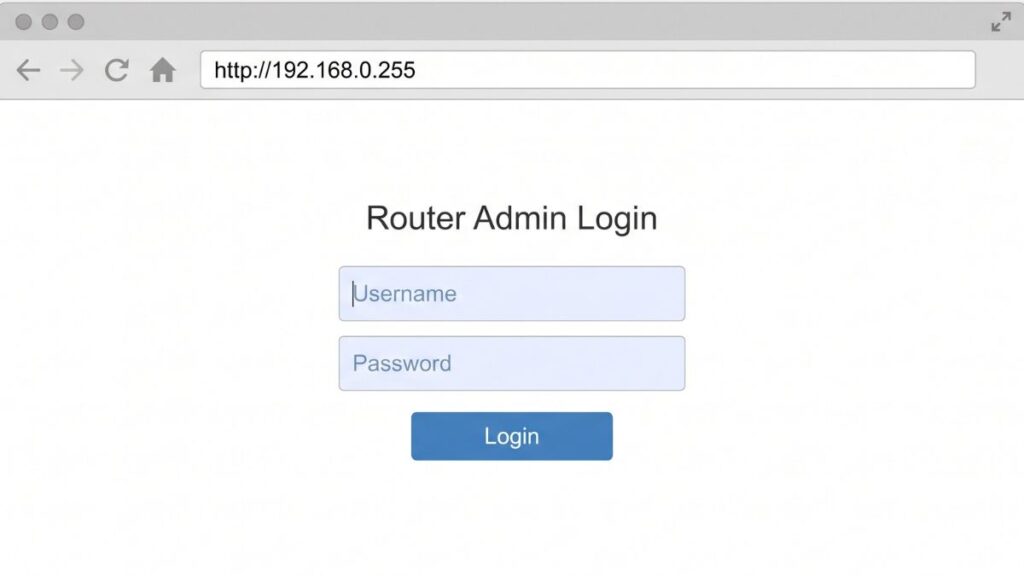
If you typed 192.168.0.255 into your browser and got no login page — or something totally unexpected — this guide explains why, and what to do about it. I’ve seen a lot of people land on this address expecting a router admin panel and getting confused when nothing loads. The reason is actually pretty interesting, and once you understand it, you’ll know exactly what to do next.
Let’s get into it.
Router Access Panel
Type
192.168.0.255
in your browser or click the link to access the router admin page.
It works only when you’re connected to the same Wi-Fi network.
192.168.0.255 is a private IP address, but it plays a very specific role that makes it different from most addresses in the 192.168.0.x range.
Here’s the thing most people don’t know: in a standard home network using the 192.168.0.x subnet with a default subnet mask of 255.255.255.0, the address 192.168.0.255 is the broadcast address for that subnet. That means it isn’t assigned to any specific device — it’s a reserved address that the network uses to send packets to all devices on the subnet simultaneously. Your router won’t respond to admin login requests sent to a broadcast address.
That’s why typing 192.168.0.255 into a browser almost never loads a login page. It’s not broken. The address just isn’t meant for that.
All private IP addresses — including everything in the 192.168.0.x range — fall under the RFC 1918 private address ranges, which reserve specific IPv4 blocks for use inside local networks only. These addresses are never routable on the public internet.
So why do people search for this address?
A few reasons:
They saw it listed in their network settings and assumed it was the router’s admin address.
They typed the wrong IP (192.168.0.1 is the much more likely admin address in this subnet).
Their router or network software explicitly listed it and they want to understand what it is.
Some specialized router configurations or firmware use non-standard addresses, and someone directed them here.
If you’re trying to reach your router’s admin panel, your actual gateway is almost certainly 192.168.0.1 — and the login steps are covered in full below.
192.168.0.255 Router Admin Login Interface
Default Login Credentials by Router Brand
If you do have a device or a custom network configuration accessible at 192.168.0.255, here are the most common default credentials by brand. The sticker on the back or bottom of your device is always the most reliable source — manufacturers vary defaults between models and firmware versions.
Brand
Default Username
Default Password
TP-Link
admin
admin
Asus
admin
admin
Linksys
admin
admin
D-Link
admin
(blank — leave empty)
Netgear
admin
password
Cisco
cisco
cisco
Tenda
admin
admin
Belkin
admin
(blank — leave empty)
ZTE
admin
admin
Huawei
admin
admin
Note:If none of these work, the password was likely changed by whoever set up the network. Check the device sticker first — it takes five seconds and saves you from an unnecessary factory reset.
How to Log In on a PC or Laptop
Whether you’re reaching a standard router admin page or a device with a custom static IP, these steps apply on any browser and any operating system.
Make sure your computer is connected to the local network — either by Wi-Fi or Ethernet cable. Use Ethernet if you’re making changes; you won’t get dropped mid-session.
Open your web browser — Chrome, Firefox, Edge, or Safari all work.
Click the address bar at the top of the browser — not the search box. This is the single most common mistake people make. Typing an IP into the search bar just Googles it.
Type http://192.168.0.255 and press Enter.
If a login page appears, enter your username and password.
Click Login or press Enter.
⚠️ Address bar, not search bar. If you see search results instead of a login page, you typed in the wrong place. The address bar is the field at the very top of your browser — click there and try again.
If nothing loads, see the troubleshooting section. There’s a good chance your actual admin address is 192.168.0.1, not .255.
How to Log In on Mobile
Competitors almost never cover mobile login steps, but plenty of people manage their networks entirely from a phone. Here’s how to do it on both platforms.
iPhone (iOS)
Open Settings → Wi-Fi → confirm you’re connected to your home network.
Open Safari — it handles router admin pages more cleanly than other iOS browsers.
Tap the address bar at the top.
Type 192.168.0.255 and tap Go.
Enter your username and password on the login screen.
Tap Login.
Tip: If Safari prompts you to save the password, skip it. Router admin passwords shouldn’t go into iCloud Keychain — keep them in a dedicated password manager instead.
Android
Go to Settings → Network & Internet → Wi-Fi → verify you’re on your home network.
Open Chrome or your default browser.
Tap the address bar.
Type 192.168.0.255 and tap Go or hit enter.
Enter your credentials and tap Login.
Note: Some Android browsers auto-search IP addresses instead of navigating to them. If you see search results, add http:// before the address: http://192.168.0.255.
Troubleshooting: 5 Common Problems (and Fixes)
If you’re trying to access 192.168.0.255 and the router login page won’t load, you’re not alone. Below are the most common issues and how to fix them quickly.
1. Page Doesn’t Load — Just Times Out or Says “Unable to Connect”
Cause: 192.168.0.255 is the broadcast address for the 192.168.0.x subnet and doesn’t serve a login page in standard configurations. No router or device will typically respond to HTTP requests at a broadcast address. [events.health.novartis.co](https://events.health.novartis.co.uk/understanding-192-168-1-255-the-broadcast-address-in-your-network/)
Fix: Find your actual router gateway. On Windows: open Command Prompt and type ipconfig — look for Default Gateway. On Mac: System Preferences → Network → select your active connection → Advanced → TCP/IP. iPhone: Settings → Wi-Fi → tap your network name → look for “Router”. Your gateway is almost certainly 192.168.0.1. Use that address instead. [192-168-1-1ip](https://192-168-1-1ip.mobi/find-router-ip-address/)
2. Login Page Shows But Credentials Don’t Work
Cause: The default password was changed at some point, or you’re trying the wrong brand defaults.
Fix: Check the label on the bottom or back of your device — credentials are almost always printed there. If that’s gone and you can’t remember the password, a factory reset is the next step. Don’t panic — it’s a straightforward process.
3. Browser Shows a Security Warning / Certificate Error
Cause: Many router admin pages use self-signed SSL certificates that browsers flag as untrusted. This is normal and not a sign that something is wrong.
Fix: Click Advanced → Proceed anyway (or equivalent for your browser). You’re accessing a local device on your own network — the warning is a technicality, not a real threat.
4. You Can Log In but Settings Won’t Save
Cause: Wireless connections can drop mid-session when the router applies changes, kicking you out before saving completes.
Fix: Connect via Ethernet cable before making changes. This is worth making a habit — it takes 30 seconds and eliminates a whole category of frustration.
5. What Is a Subnet Mask and Why Does It Affect This?
Cause: The reason 192.168.0.255 is a broadcast address — and not a usable device address — is determined by the subnet mask. With the standard /24 mask (255.255.255.0), the last octet identifies individual hosts, and .255 is reserved as broadcast. If your network uses a different mask (like /23 or /16), the broadcast address changes too, and .255 might actually be assignable. [scribd](https://www.scribd.com/document/891392373/What-is-the-use-of-broadcast-IP-eq-192-168-1-255-address-in-networking-Quora)
Fix: If you’re on a non-standard subnet and specifically need to assign 192.168.0.255 to a device, log into your router admin panel (at 192.168.0.1 or your actual gateway) and check your LAN/DHCP settings. Look at the subnet mask in use before assuming .255 is available.
Factory Reset Guide
If you’re locked out of a device at this address and can’t recover the password, a factory reset gets you back in. Before you do it, understand what you’re wiping:
Wi-Fi name and password (reset to factory defaults)
Admin username and password
Any port forwarding rules
Custom DNS settings
Guest network configuration
Parental controls
Back up first if you still have any access — most routers have a backup/export option under System or Administration.
To reset:
Locate the reset button — usually a small recessed hole on the back or bottom. You’ll need a paperclip or pin to press it.
With the device powered on, press and hold the reset button.
Hold time by brand:
TP-Link: 10 seconds
Netgear: 7 seconds (until the Power LED flashes amber)
D-Link: 10 seconds
Asus: 5–10 seconds (until the power LED blinks)
Tenda: 5 seconds
Linksys: 10–15 seconds
Release and wait 60–90 seconds for the device to fully reboot.
Log in with the factory default credentials on the sticker.
What to Do After You Log In
Once you’re inside the admin panel — whether at 192.168.0.255 or your actual gateway — here’s what to take care of.
1. Change the Admin Password
The default admin password is the same for every device of the same brand and model. Anyone who gets onto your network can look it up in about ten seconds. Change it now.
Go to Administration, System, or Management (the label varies by brand).
Find Admin Password or Router Password.
Enter your current password.
Enter a new one — at least 12 characters, mixing uppercase, lowercase, numbers, and symbols. Running it through a tool like how to create a strong password helps you understand what “strong” actually means.
Save and log back in.
2. Change Your Wi-Fi Password
Go to Wireless or Wi-Fi Settings.
Select your network (2.4GHz and 5GHz are usually listed separately).
Update the WPA Pre-Shared Key or Password field.
Save and reconnect your devices.
3. Switch to WPA2 or WPA3 Security Mode
If your router is still running WEP or the original WPA, your network is vulnerable to attacks that take minutes to execute. WPA2 vs WPA3 explains the differences — WPA3 is the current standard and worth using if your devices support it.
Go to Wireless → Security → change the Encryption setting to WPA2 or WPA3 and save.
4. See Who’s Connected to Your Network
Under Connected Devices, LAN, or Device List, you’ll find every device on your network along with its IP address and MAC address. If you spot something unfamiliar, how to see who’s on your network walks you through identifying devices. An unknown device is a reason to change your Wi-Fi password.
5. Set Up a Guest Network
A guest network lets visitors get online without access to your main network or the devices on it. I set one up years ago and never looked back — guests get internet, and my main devices stay separate. Look under Wireless → Guest Network to enable it. It’s usually one toggle and a password.
6. Port Forwarding
If you run a game server, a home NAS, or any service that needs to be reachable from outside your home network, you’ll need port forwarding. Find it under NAT or Advanced → Port Forwarding. Getting the internal IP of your target device right is the part people most often mess up — make sure you’re pointing the rule at the right device.
7. Update the Firmware
Router firmware updates patch security holes and fix bugs. Check for updates under Administration → Firmware Update at least once a year. How DNS works is worth understanding if you’re also setting up custom DNS servers — a common reason people visit the admin panel.
Common Misspellings of 192.168.0.255
Typos happen. Here are the most common wrong variations of this address — if you searched one of these, you meant 192.168.0.255:
192.168.O.255
192.168.0.25
192.168.0.2255
192.168.0.255.1
192.168.00.255
192.168.0,255
19216802255
Correct address:192.168.0.255
or http://192.168.0.255 — watch for letters vs. zeros, missing/extra digits/dots/commas.
Which Brands and ISPs Use 192.168.0.255
Unlike 192.168.0.1 or 192.168.1.1 — which are common factory default gateway addresses — 192.168.0.255 is not a standard router admin address. Here’s how to make sense of where this address appears:
As a broadcast address (standard behavior): On any network using the 192.168.0.x subnet with a /24 mask, 192.168.0.255 is automatically reserved as the broadcast address. No router brand assigns it as a default admin IP. It’s used by the network itself to communicate with all connected devices at once.
As a static IP on specialized equipment: Some enterprise routers, ISP-provided CPE, or custom network configurations may statically assign 192.168.0.255 to a specific device — but this is uncommon and done intentionally by network administrators, not by consumer router manufacturers.
FAQ
Why won’t 192.168.0.255 load a login page?
Because in a standard 192.168.0.x network, .255 is the broadcast address — reserved for sending data to all devices at once, not for serving web pages. Your router ignores login requests sent to this address. Use 192.168.0.1 instead.
What’s the difference between my Wi-Fi password and my router admin password?
They’re completely separate. Your Wi-Fi password is what you type on your phone or laptop to join the wireless network. Your router admin password is what you enter on the browser login page at your gateway IP — it controls the admin interface itself. Changing one doesn’t affect the other.
Can someone from the internet access 192.168.0.255?
No. Private IP addresses like 192.168.0.255 only exist inside your local network. No outside device can reach them — your router uses NAT (Network Address Translation) to handle the boundary between your private network and the public internet.
Is 192.168.0.255 dangerous to have on my network?
No. It’s a normal reserved address that every 192.168.0.x network has by default. Seeing it in your network logs just means your router or devices are using broadcast packets, which is completely standard behavior.
What should I do if 192.168.0.1 doesn’t work either?
Run ipconfig on Windows or check your iPhone/Android network settings to find the actual “Default Gateway” your device is using. That’s your real admin address. Common alternatives include 192.168.1.1, 10.0.0.1, and 192.168.1.254.
My router’s admin page is at 192.168.0.255 — is that normal?
It would be very unusual. Double-check by running ipconfig (Windows) or checking your network settings — what does it say for Default Gateway? Almost certainly it’s 192.168.0.1. If it genuinely says .255, your router has a non-standard configuration.