If you’ve found yourself staring at a login screen after typing 192.168.16.1 into your browser — or if you’re trying to get there and it’s just not loading — you’re in the right place. I’ve helped a lot of people get into their router access panel for the first time, and I’ll walk you through everything from logging in to actually making your network more secure once you’re in.
192.168.16.1 – Router Login Admin Page
What Is 192.168.16.1?
192.168.16.1 is a private IP address that some routers use as their default gateway — basically the “door” to your router’s control panel. When you type it into your browser, you’re not visiting a website on the internet. You’re connecting directly to the little box sitting on your desk or shelf.
This address falls inside the RFC 1918 private address ranges — a set of IP blocks reserved exclusively for private local networks. That means 192.168.16.1 is invisible to the outside internet. Only devices connected to your specific network can reach it, which is a good thing for security.
Here’s something most people don’t know: your router actually has two IP addresses — this private one that only you can see, and a public one assigned by your ISP that the rest of the internet uses to find you. The 192.168.16.1 address is strictly for managing your router from inside your home or office network.
This IP is less common than heavyweights like 192.168.1.1 or 192.168.0.1. It’s primarily used by LB-LINK (also sold under the B-LINK brand) routers and some Repotec models, along with a handful of business-grade and regional ISP-supplied equipment. If you’re not sure this is your router’s IP, check the label on the bottom or back of the device — it’ll be printed right there.
Default Login Credentials for 192.168.16.1
Before you type anything, grab the router itself and flip it over. There’s almost always a sticker on the bottom listing the default username, password, and gateway IP. That’s your most reliable source — manufacturers sometimes ship units with slightly different defaults than what’s published online.
That said, here are the most common defaults by brand:
| Brand | Default Username | Default Password |
|---|---|---|
| LB-LINK / B-LINK | admin | admin |
| Repotec | admin | admin |
| TP-Link | admin | admin |
| Asus | admin | admin |
| Linksys | admin | admin |
| D-Link | admin | (blank) |
| Netgear | admin | password |
| Cisco | cisco | cisco |
| Tenda | admin | (blank) |
| Belkin | admin | (blank) |
If none of these work, the password was probably changed at some point — either by you, a family member, or whoever set up the network. In that case, skip to the factory reset section below.
How to Log In on a PC or Mac
- Make sure your computer is connected to the router — either via Wi-Fi or an Ethernet cable. An Ethernet connection is more reliable for this.
- Open any web browser (Chrome, Firefox, Edge, Safari — doesn’t matter).
- Click into the address bar at the very top of the browser window.
⚠️ Important: Type 192.168.16.1 into the address bar, not the search box. If you type it into Google’s search bar, you’ll get search results instead of your router login page. The address bar is where URLs go — it usually shows the current site’s address.
- Type
192.168.16.1and press Enter. - You should see a login page. Enter your username and password.
- Click Login or OK.
That’s it. If the page loads, you’re in. If it doesn’t load at all, jump to the troubleshooting section.
How to Log In on a Phone
iPhone (iOS)
- Open Settings → tap Wi-Fi → make sure you’re connected to your home network.
- Tap the (i) icon next to your network name.
- Scroll down — you’ll see the Router address listed. Confirm it says 192.168.16.1.
- Open Safari (other browsers sometimes redirect to search).
- Tap the address bar, type
192.168.16.1, and hit Go. - Enter your login credentials on the page that appears.
Android
- Go to Settings → Network & Internet (or Connections) → Wi-Fi.
- Long-press or tap the gear icon next to your connected network.
- Look for Gateway or Router — it should show 192.168.16.1.
- Open Chrome or your preferred browser.
- Tap the address bar, type
192.168.16.1, and press Enter. - Log in with your credentials.
One thing to watch out for on Android: some versions of Chrome automatically turn typed IP addresses into search queries if you don’t format them correctly. If that happens, try typing http://192.168.16.1 with the http:// prefix — that forces the browser to treat it as a direct address.
Troubleshooting: 5 Reasons 192.168.16.1 Isn’t Working
1. You’re Not Connected to the Right Network
Cause: Your device is connected to a neighbor’s network, a mobile hotspot, or a different network in your home.
Fix: Check your Wi-Fi or Ethernet connection and make sure you’re on the right network. The router admin page is only accessible from devices connected to that specific router.
Fix: Check your Wi-Fi or Ethernet connection and make sure you’re on the right network. The router admin page is only accessible from devices connected to that specific router.
2. 192.168.16.1 Isn’t Your Router’s IP
Cause: Not all routers use this address. Some use 192.168.1.1, 192.168.0.1, or others.
Fix: Don’t panic — this is actually really common. Check the label on your router. Alternatively, on Windows, open Command Prompt and type ipconfig. Look for Default Gateway — that’s your router’s actual IP. On Mac, go to System Settings → Network → your connection → Details → TCP/IP tab.
Fix: Don’t panic — this is actually really common. Check the label on your router. Alternatively, on Windows, open Command Prompt and type ipconfig. Look for Default Gateway — that’s your router’s actual IP. On Mac, go to System Settings → Network → your connection → Details → TCP/IP tab.
3. The Page Times Out or Shows “This Site Can’t Be Reached”
Cause: The browser is trying to reach the IP as if it’s on the internet, not locally. Or the router is rebooting.
Fix: Try adding http://192.168.16.1 before the address. Also make sure your router is fully powered on — wait 2 minutes after plugging it in before trying again.
Fix: Try adding http://192.168.16.1 before the address. Also make sure your router is fully powered on — wait 2 minutes after plugging it in before trying again.
4. Wrong Username or Password
Cause: The default credentials were changed, or you’re using the wrong ones for your router brand.
Fix: Try the defaults from the table above. If those don’t work, you’ll need to do a factory reset (see next section). Also make sure Caps Lock is off — passwords are case-sensitive.
Fix: Try the defaults from the table above. If those don’t work, you’ll need to do a factory reset (see next section). Also make sure Caps Lock is off — passwords are case-sensitive.
5. You’re Seeing the Login Page But Can’t Get Past It
Cause: The browser has cached an old session, or there’s a cookie conflict.
Fix: Try opening an incognito/private browsing window and navigating to 192.168.16.1 from there. That clears any stale session data. If that works, try clearing your browser’s cache and cookies.
Fix: Try opening an incognito/private browsing window and navigating to 192.168.16.1 from there. That clears any stale session data. If that works, try clearing your browser’s cache and cookies.
Factory Reset: When You’re Locked Out Completely
If you’ve tried everything and still can’t log in, a factory reset is your last resort. Fair warning: this wipes all your custom settings — Wi-Fi name, password, port forwarding rules, everything. You’ll need to set it all up again from scratch.
Before you reset: If you have access to any settings at all, write them down or take screenshots. Especially your ISP login credentials if you have a PPPoE connection.
How to reset:
- Find the Reset button on your router — it’s usually a small pinhole on the back or bottom.
- Use a paperclip, toothpick, or SIM ejector tool to press and hold it.
- Hold for 10–15 seconds (LB-LINK and most common brands) — you’ll see the lights flash or cycle.
- Release and wait about 60 seconds for the router to reboot.
- Log in using the default credentials from the label on the router.
Some brands require slightly different hold times: Cisco typically needs about 15 seconds, while Tenda models often reset in under 10. When in doubt, hold until you see the lights change.
What to Do After You Log In
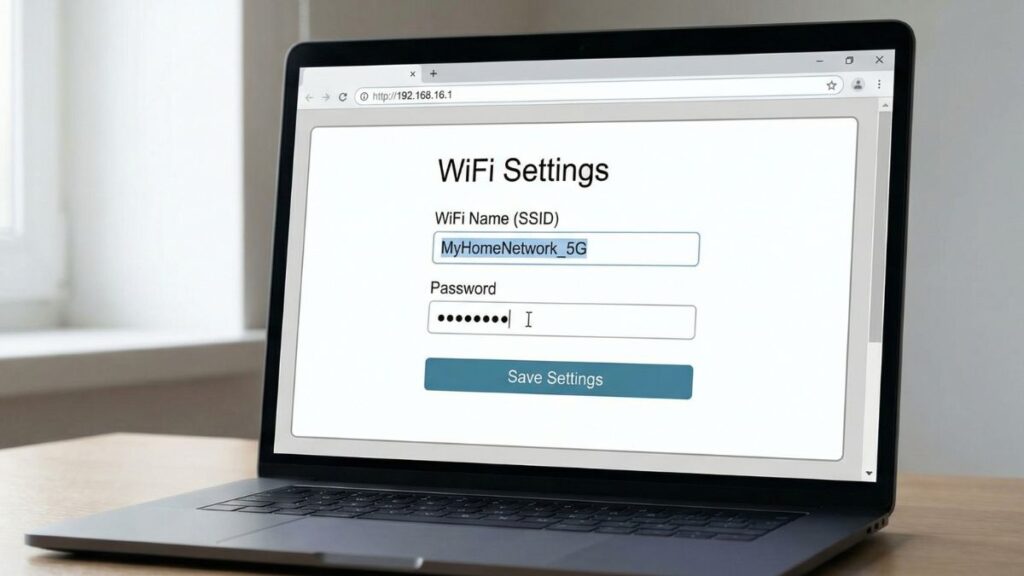
Getting into the admin panel is just the start. Here’s what I recommend doing right away:
1. Change Your Admin Password
The single most important thing. If someone on your network knows you’re using the default admin/admin, they can change your router settings without you knowing.
- Look for Administration, System Tools, or Management in the router menu.
- Find Admin Password or Change Password.
- Enter the current password, then your new one twice.
- Save and log back in with the new password.
Use something you’ll actually remember but that isn’t obvious. A strong password is one that’s at least 12 characters and mixes letters, numbers, and symbols.
2. Change Your Wi-Fi Password
Go to Wireless or Wi-Fi Settings. Change both the 2.4GHz and 5GHz network passwords if your router has dual-band. Pick something strong that you’d be comfortable giving to guests (or don’t — set up a guest network instead).
3. Set Your Security Mode to WPA2 or WPA3
In the same Wireless settings area, find Security Mode or Encryption. Set it to WPA2-PSK (AES) at minimum. If your router and devices support it, choose WPA3 — it’s the newer and more secure standard. Avoid WEP and WPA — those are old protocols that can be cracked fairly quickly.
4. Check Connected Devices
Find DHCP Client List, Connected Devices, or Device Management in your router menu. This shows every device currently on your network — including their MAC addresses. If you see something you don’t recognize, you can block it or change your Wi-Fi password to kick it off.
5. Set Up a Guest Network
Most routers support a separate guest Wi-Fi network. I use one for visitors and for smart home devices — it keeps them isolated from my main computers and files. Look for Guest Network or Guest Wi-Fi in the Wireless section. Give it a different name and password than your main network.
6. Check Port Forwarding and Update Firmware
If you run any servers, gaming consoles, or smart home hubs, you might need port forwarding for them to work properly from outside your network. And don’t forget firmware — check the Administration or Advanced section for a Firmware Update option. Keeping your router’s software current patches security vulnerabilities.
Common Misspellings of 192.168.16.1
People mistype this IP more often than you’d think. Here are the variants that won’t work:
192.168.16.l
192.168.l6.1
192-168-16-1
192.168.16.1/
http://192.168.16.1.1
19216816 1
192.168.61.1
192.168.16.10
The correct address is always:
192.168.16.1
— four numbers separated by three dots, typed into your browser’s address bar
Which Brands and ISPs Use 192.168.16.1?
Routers That Commonly Use This IP:
Primary brands:
- LB-LINK — This is probably the brand you have if 192.168.16.1 is your gateway. LB-LINK (sold as B-LINK in some markets) manufactures budget-friendly routers sold widely in Asia and available in the US through online retailers.
- Repotec — A Taiwanese networking brand that uses this IP on several of its router and access point models.
- B-LINK — Essentially the same product line as LB-LINK under a slightly different brand name.
Occasionally uses this IP:
- Some small business routers from lesser-known OEM manufacturers
- Certain ISP-supplied equipment in specific regional markets
- Custom VLAN configurations where a network admin manually set the gateway to 192.168.16.1
If you’re in the US and your ISP gave you the router, it’s unlikely to use 192.168.16.1 unless a technician or a previous owner changed the default gateway. If you bought your own router and it uses this IP, it’s almost certainly an LB-LINK or Repotec unit.
Frequently Asked Questions
Why does 192.168.16.1 say “connection refused” instead of loading a login page?
This usually means either your device isn’t on the same network as the router, or the router’s web interface is disabled or running on a different port. Try connecting via Ethernet and make sure the router is fully booted up before trying again.
What’s the difference between my Wi-Fi password and my router admin password?
These are two completely separate things — and mixing them up is one of the most common mistakes people make. Your Wi-Fi password is what you enter to connect devices to your network. Your router admin password is what you enter at 192.168.16.1 to access the router’s settings panel. You can have two completely different passwords for these, and you should.
Can someone from outside my home access 192.168.16.1?
No. Because it’s a private IP address, it’s only reachable from devices physically connected to your network (via Wi-Fi or Ethernet). The public internet can’t route traffic to 192.168.16.1.
I logged in but I don’t understand any of the settings. Should I change things?
Only change settings you understand. The most important ones to update are your admin password, Wi-Fi password, and security mode (to WPA2 or WPA3). Leave other settings alone unless you have a specific reason to change them.
How do I know if my LB-LINK or Repotec router needs a firmware update?
Log in at 192.168.16.1 and navigate to Administration or Advanced settings. Look for a Firmware Update or Software Update section. You can also check the LB-LINK or Repotec support websites and compare the listed firmware version to what’s installed on your router.
Conclusion
Logging into 192.168.16.1 is straightforward once you know the steps — connect to your network, open a browser, type the IP into the address bar (not the search box), and use your default credentials. If things go sideways, the troubleshooting steps above cover the most common problems. And once you’re in, take five minutes to change your admin password and bump your Wi-Fi security to WPA2 or WPA3 — your future self will thank you.
Got questions or ran into something not covered here? Drop a comment below and I’ll do my best to help.