I’ve helped a lot of people get into their router settings over the years, and 192.168.7.1 trips people up more than most IPs — partly because it’s less common than 192.168.1.1, so there’s less guidance out there. This guide walks you through the full login process on PC and phone, covers the most common problems that block access, and shows you exactly what to do once you’re in the admin panel.
192.168.7.1 Router Login Admin Page
What Is 192.168.7.1?
192.168.7.1 is a private IP address used by certain routers as their default gateway — the internal address you visit in a browser to reach the router’s settings dashboard.
It falls within the 192.168.0.0/16 block defined by RFC 1918 private address ranges, a set of address ranges reserved exclusively for use inside private networks. That’s why 192.168.7.1 only works when you’re connected to the specific network your router manages. Type it into a browser at a coffee shop or on mobile data and nothing will load — it’s invisible to the public internet by design.
Here’s something most people don’t know: your router actually has two IP addresses at all times. The private one (like 192.168.7.1) is what your devices on the home network use to talk to the router itself. The public IP is what websites see when you browse. They’re entirely separate, and 192.168.7.1 only ever exists inside your local network.
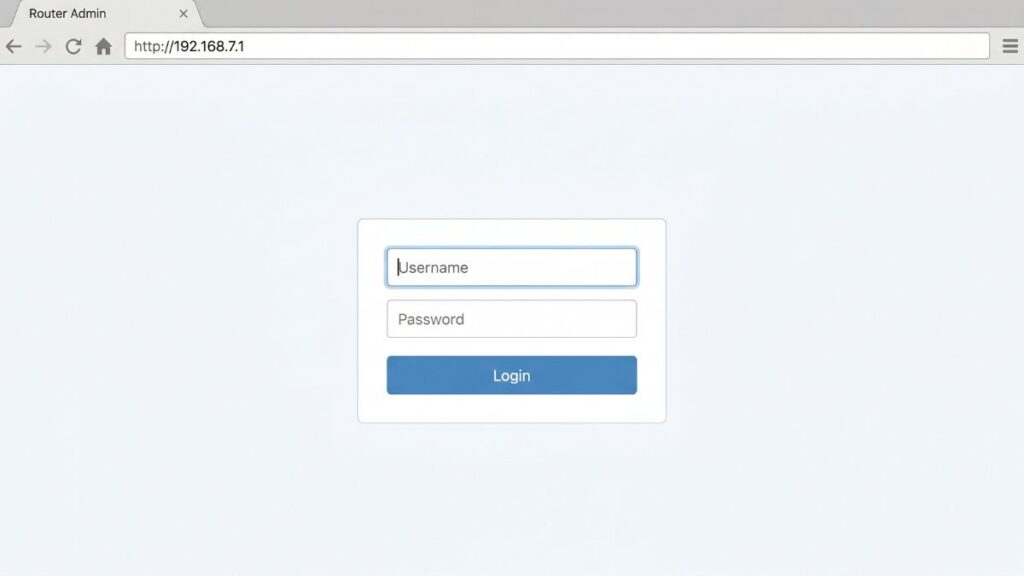
Default Login Credentials for 192.168.7.1 Routers
Different manufacturers ship their routers with different default usernames and passwords. Here are the most common combinations for routers that use 192.168.7.1:
| Brand | Default Username | Default Password |
|---|---|---|
| TP-Link | admin | admin |
| Tenda | admin | admin |
| D-Link | admin | (blank) |
| Asus | admin | admin |
| Linksys | admin | admin |
| Netgear | admin | password |
| Cisco | cisco | cisco |
| Belkin | admin | (blank) |
| ZTE | admin | admin |
| Huawei | admin | admin |
Most reliable method:Flip your router over. There’s almost always a sticker on the bottom or back with the exact IP, username, and password printed on it. Manufacturers sometimes change defaults between firmware versions, so the label beats any list online.
How to Log In on a PC or Laptop
- Connect to your network. Use Wi-Fi or plug directly into the router with an Ethernet cable. A wired connection is better here — if you’re making setting changes and you’re on Wi-Fi, you risk getting disconnected mid-save.
- Open your browser. Chrome, Firefox, Edge, Safari — any of them work.
- Type the IP into the address bar — not the search bar.
⚠️ Common mistake: People type 192.168.7.1 into the Google search bar and wonder why they get search results instead of a login page. The address bar is at the very top of the browser window. Type http://192.168.7.1 there and press Enter.
- The router login page should appear. Enter your username and password. If you haven’t changed them, try the defaults from the table above, or check your router’s label.
- Click Login (or Sign In). You’re in.
How to Log In on a Mobile Phone
iPhone (iOS)
- Open Settings → tap Wi-Fi
- Make sure you’re connected to your home network (not mobile data)
- Tap the ⓘ icon next to your network name
- You’ll see your Router address listed — confirm it says 192.168.7.1
- Open Safari (or any browser)
- Tap the address bar at the top and type
192.168.7.1, then tap Go - Enter your router credentials on the login page
💡 One iPhone-specific tip: If Safari redirects you to a search instead of loading the page, make sure you’ve typed the full http://192.168.7.1 including the http:// — Safari can be finicky about bare IP addresses.
Android
- Open Settings → tap Wi-Fi (or Connections → Wi-Fi depending on your phone)
- Tap and hold your connected network name, then tap Manage Network Settings or Modify Network
- Tap Advanced or look for Gateway — it should show 192.168.7.1
- Open Chrome or any browser
- Type
192.168.7.1in the address bar and tap the arrow/Go button - Enter your credentials on the login page that loads
💡 Android tip: On some Samsung phones running One UI, you may need to tap the Wi-Fi network name once and select View More to see the gateway address listed.
Troubleshooting: 5 Reasons 192.168.7.1 Isn’t Loading
If you’re trying to access 192.168.7.1 and the router login page won’t load, you’re not alone. Below are the most common issues and how to fix them quickly.
1. You’re Not Connected to the Router’s Network
Cause: Your device is connected to a neighbor’s Wi‑Fi, a mobile hotspot, or has Wi‑Fi turned off entirely.
Fix: Open your Wi‑Fi settings and confirm you’re on the correct network. 192.168.7.1 only responds to devices on its own local network — it’s unreachable from anywhere else.
2. 192.168.7.1 Isn’t Actually Your Router’s IP
Cause: Not all routers use this address. Your router might use 192.168.1.1, 192.168.0.1, or something else.
Fix: On Windows, open Command Prompt and type ipconfig. Look for the line that says Default Gateway — that’s your router’s real IP. On Mac, go to System Preferences → Network → Advanced → TCP/IP. On iPhone, tap the ⓘ next to your network in Wi‑Fi settings. That address is the one to use.
3. The Browser Cache Is Serving a Stale Page
Cause: Sometimes your browser caches a failed page or redirect that keeps loading instead of the live router page.
Fix: Clear your browser cache, or open a private/incognito window and try again. This fixes the issue more often than you’d expect.
4. You’re Typing the Address Into the Search Bar
Cause: Browsers increasingly intercept non-standard input and treat it as a search query.
Fix: Click specifically in the URL/address bar at the very top of the browser, type http://192.168.7.1, and hit Enter. Don’t press Enter after typing — wait until you see it’s in the address bar format.
5. The Router Is Using a Non-Standard Management Port
Cause: Some routers, especially business-grade or customized ISP-provided ones, run the admin interface on a different port like 8080 or 8443.
Fix: Don’t panic — just try http://192.168.7.1:8080 or https://192.168.7.1:8443. If your ISP installed the router, check any documentation they provided or call their support line for the correct access URL.
How to Factory Reset a Router Using 192.168.7.1
Before you reset, know what you’re losing: your Wi-Fi name and password, any custom DNS settings, port forwarding rules, parental controls — everything goes back to factory defaults. Log into the admin panel first and screenshot or write down your current settings if any of that matters to you.
To reset:
- Find the Reset button on your router — it’s usually a small pinhole on the back or bottom, labeled RESET
- With the router powered on, use a straightened paperclip or SIM ejector tool to press and hold the button
- Hold it for 10–30 seconds (varies by brand — TP-Link is typically 10s, some Tenda models need 30s)
- The router’s lights will flash or go off, then come back on — that’s the reboot happening
- Wait 60–90 seconds for it to fully restart
- Connect to the default Wi-Fi network (usually printed on that same label) and navigate to
192.168.7.1to set everything up fresh
What to Do After You Log In
Getting into the admin panel is just the start. Here’s what you should actually do once you’re in.
1. Change the Admin Password
The default admin password is the same for every router of your model out of the box. Anyone who gets on your network can log in with it. Change it now.
- Look for Administration, System, or Management in the menu
- Find the option for Admin Password or Login Password
- Enter the current password, then your new one twice
- Save/Apply
Use a unique password you don’t use anywhere else. How to create a strong password has a good breakdown of what actually makes a password hard to crack.
2. Change Your Wi-Fi Password
Under Wireless or Wi-Fi Settings, you’ll find the WPA Key, Pre-Shared Key, or Wi-Fi Password field. Change it to something you’ll remember but that isn’t obvious. Your old devices will need to reconnect with the new password.
3. Set Your Security Mode to WPA2 or WPA3
While you’re in the wireless settings, check the Security Mode or Encryption dropdown. Set it to WPA2-PSK (AES) at minimum. If your router supports it, WPA3 security standard is the current gold standard for home Wi-Fi. Older devices (pre-2018 mostly) may not support WPA3 — if you mix WPA3 devices with older ones, use WPA2/WPA3 Mixed mode if it’s available.
4. Check Connected Devices
Look for a section called Attached Devices, Client List, or DHCP Clients. This shows every device currently connected. It’s worth scanning this list occasionally — an unfamiliar device could mean an unauthorized user is on your network. Most routers show the device name and what is a MAC address alongside the assigned IP, which can help you identify things.
5. Set Up a Guest Network
If you have guests over regularly, a guest network keeps them on a separate Wi-Fi segment that can’t access your main devices. Look under Wireless → Guest Network. Our guest network is literally called “GuestWiFi” — simple works. For a full walkthrough, how to set up a guest network is a helpful reference.
6. Check for a Firmware Update
Firmware updates patch security holes. Under Administration or Advanced → Firmware Update (exact label varies), check if there’s a newer version available. Some routers do this automatically; most don’t. Worth doing once after initial setup and every few months after that. How to update router firmware walks through this for most major brands.
7. Port Forwarding (For Advanced Users)
If you’re running a game server, NAS device, or need to access a home camera remotely, you’ll need port forwarding. It’s under Advanced → Port Forwarding or Virtual Server on most routers. How port forwarding works explains the concept well if you’re new to it.
Common Misspellings of 192.168.7.1
People land on this page from all kinds of typos. Here are the invalid formats that won’t work — and what you should type instead:
192.168.7.l
192.168.71
192 168 7 1
192,168,7,1
1921687.1
168.192.7.1
192.168.7.1.
http//192.168.7.1
Correct address:
192.168.7.1
— The correct format is always:
http://192.168.7.1 — four numbers separated by three dots, no spaces, no letters.
Which Brands and ISPs Use 192.168.7.1?
Brands That Commonly Use This IP
192.168.7.1 is used by a smaller set of manufacturers compared to the more common 192.168.1.1 or 192.168.0.1 ranges. Brands you’re most likely to see using it:
- Tenda — Many Tenda home routers default to 192.168.7.1, particularly older FH and F-series models
- ZTE — Some ZTE modem-routers issued by ISPs in certain regions
- Huawei — Certain Huawei HG-series ADSL gateway devices
- Some OEM/white-label ISP routers — ISPs sometimes ship custom firmware on generic hardware with non-standard default IPs
Major US ISPs and Their Default IPs
For context, here’s what the big US providers typically use:
- Xfinity/Comcast → 10.0.0.1
- AT&T → 192.168.1.254
- Verizon Fios → 192.168.1.1
- Spectrum → 192.168.0.1 or 192.168.100.1
If your ISP is one of those above and you’re trying 192.168.7.1, it’s probably not the right address for your setup. Use the ipconfig / gateway lookup trick from the troubleshooting section to find the correct one.
Frequently Asked Questions
Can I access 192.168.7.1 from outside my home?
No. This is a private IP, which means it only exists inside your local network. You can’t reach it over the internet or from a different Wi-Fi network. That’s actually a security feature — your router admin page is only accessible to devices physically connected to your network.
What’s the difference between my Wi-Fi password and my router admin password?
These are two completely separate passwords. Your Wi-Fi password (also called the WPA key or pre-shared key) is what you enter to connect a device to the wireless network. Your router admin password is what you enter at 192.168.7.1 to access the settings dashboard. You could change one without affecting the other.
I changed the admin password and forgot it — now what?
Factory reset the router (see the reset section above). This clears the custom password and restores the default credentials printed on the router label.
Why does my browser say “This site can’t be reached”?
Usually means either you’re not connected to that router’s network, or 192.168.7.1 isn’t the correct IP for your router. Run ipconfig (Windows) or check your gateway in Wi-Fi settings to confirm the right address.
What does “admin/admin” mean in the credentials table?
It means the default username is the word admin and the default password is also the word admin. Both lowercase, no spaces. It’s the single most common default credential combination on home routers worldwide — which is exactly why you should change it.