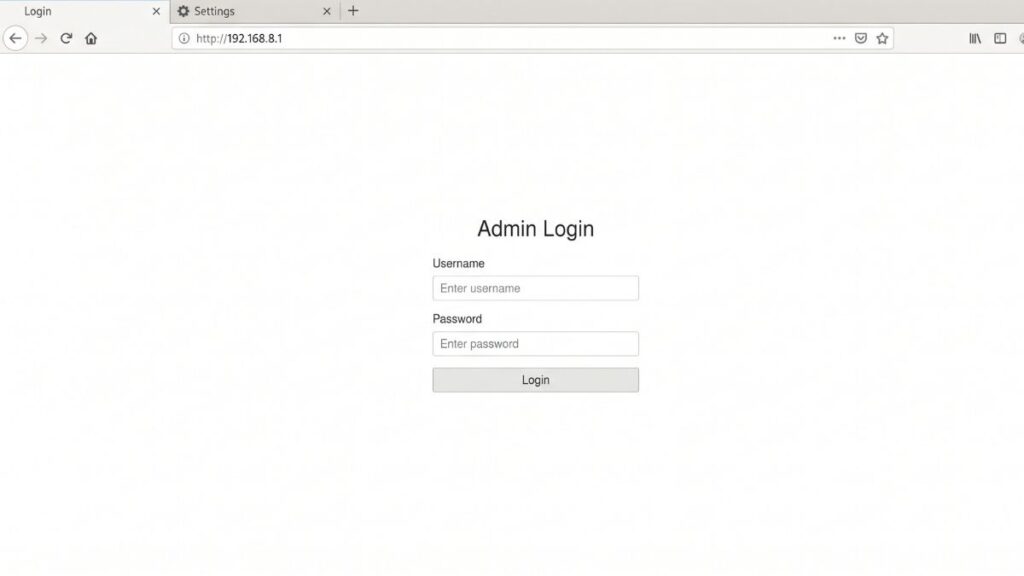
If you’re staring at 192.168.8.1 wondering why it’s not 192.168.1.1 like everything else on the internet says — you’re not alone. This IP is the default gateway for a specific set of routers, and it comes up most often with Huawei home routers, Huawei 4G mobile Wi-Fi hotspots, and GL.iNet travel routers. All slightly different login experiences, and most guides online don’t explain the difference. This one does.
Here’s everything you need: how to log in on PC and mobile (iPhone and Android separately), what to do when the page won’t load, how to reset the router, and what to actually configure once you’re in the admin panel.
Router Access Panel
Type
192.168.8.1
in your browser or click the link to access the router admin page.
It works only when you’re connected to the same Wi-Fi network.
192.168.8.1 is a private IP address that certain routers use as their default gateway — the address you type into a browser to open the router’s admin settings panel.
It sits inside the 192.168.0.0/16 block of addresses defined by RFC 1918 private address ranges for private networks. That means it’s invisible to the public internet — you can only reach it when you’re connected to the specific router that uses it. Open it on mobile data or at a friend’s house and you’ll get nothing.
Here’s something worth knowing: 192.168.8.1 is less common than 192.168.1.1 or 192.168.0.1, which is why a lot of generic router guides send you to the wrong address. This IP is most strongly associated with Huawei — both their home broadband routers and their portable 4G/LTE mobile Wi-Fi devices (MiFi). GL.iNet, a popular brand for travel and VPN routers, also uses it by default. If you’ve got one of those devices, you’re in the right place.
192.168.8.1 Router Admin Login Page
Default Login Credentials for 192.168.8.1 Routers
Try the credentials below based on your router brand. If nothing works, check the sticker on the bottom or back of the device — it always has the actual username and password printed on it, and that beats any list online.
Brand
Default Username
Default Password
Huawei (home router)
admin
admin
Huawei (4G MiFi/mobile Wi-Fi)
admin
admin
GL.iNet
root
(set on first login)
Medialink
admin
1234
Nexx
admin
nexx1234
Adaptec
admin
password
Eminent
admin
admin
ZTE
admin
admin
Gaoke
admin
admin
Beelink
admin
admin
GL.iNet note:GL.iNet routers don’t ship with a preset admin password — you create one the very first time you log in. If you’ve never set one, just navigate to 192.168.8.1 and you’ll be taken directly to the setup wizard.
Huawei MiFi note: Huawei’s mobile hotspot devices (like the E5577, E5785, and similar models) often show a web interface at 192.168.8.1 that looks more like an app dashboard than a typical router admin page. The default login is admin / admin, but some units shipped by carriers (like Zain, STC, Telenor, Zong, or Telcel) may have carrier-specific credentials printed on the device label instead.
How to Log In on a PC or Laptop
Connect to the router’s network — via Wi-Fi or an Ethernet cable plugged into one of the LAN ports. If it’s a Huawei MiFi device, connect to its Wi-Fi network.
Open any web browser — Chrome, Firefox, Edge, or Safari all work fine.
Click in the address bar at the top of the browser — not the search bar.
⚠️ Critical mistake to avoid: Typing 192.168.8.1 into the Google search bar gives you search results, not your router. The address bar is the bar at the very top of the browser window. Type http://192.168.8.1 there and press Enter.
The login page loads. Enter your username and password. Try the defaults from the table above, or check the device label.
Click Login. You’re in.
If you’re logging into a GL.iNet router for the first time, the page will prompt you to set a password before proceeding. Do it — and write it down somewhere.
How to Log In on a Mobile Phone
iPhone (iOS)
Open Settings → tap Wi-Fi
Connect to your router or Huawei hotspot network if you haven’t already
Tap the ⓘ icon next to the connected network name
Scroll down to find Router — it should show 192.168.8.1
Open Safari (recommended on iOS — Chrome sometimes handles bare IPs oddly)
Tap the address bar and type http://192.168.8.1, then tap Go
Enter your credentials on the login page
iPhone-specific tip:If Safari opens a blank page or redirects to a search, try typing the full http://192.168.8.1 including the http:// prefix. Without it, Safari may interpret the IP as a search query.
Android
Open Settings → tap Wi-Fi (or Connections → Wi-Fi)
Tap your connected network name to view its details
Look for Gateway or Router — it should say 192.168.8.1
Open Chrome or your preferred browser
Tap the address bar, type 192.168.8.1, and hit Go
The router login page will appear — enter your credentials
Android + Huawei MiFi tip: Huawei also has an official mobile app (HUAWEI AI Life, or older HiLink) that can manage their hotspot devices without needing to open a browser at all. If you have a Huawei MiFi and the web login feels clunky on Android, the app is a smoother experience. That said, the browser interface at 192.168.8.1 still works and gives you access to every setting the app does.
If you’re trying to access 192.168.8.1 and the router login page won’t load, you’re not alone. Below are the most common issues and how to fix them quickly.
1. You’re Not on the Router’s Network
Cause: Your phone is using mobile data, your laptop is connected to a different Wi-Fi network, or you’re on a VPN that’s routing traffic elsewhere.
Fix: Confirm your device is connected to the correct router’s network. Disable your VPN temporarily. On mobile, turn off cellular data and connect to Wi-Fi before trying again.
2. 192.168.8.1 Isn’t Your Router’s Actual IP
Cause: Not every router uses this address. If you bought a new router or someone changed the default gateway IP, this address may not respond.
Fix: On Windows, open Command Prompt and run ipconfig — the Default Gateway line is your router’s real IP. On Mac, go to System Preferences → Network → Advanced → TCP/IP. On iPhone, tap the ⓘ next to your network in Wi-Fi settings and look for Router. Use that address instead of 192.168.8.1.
3. Browser Cache or Extension Is Interfering
Cause: A cached redirect, a browser extension (especially ad blockers or privacy tools), or HTTPS-forcing extensions can prevent the router page from loading.
Fix: Open a private/incognito window and try again. If that works, disable browser extensions in your main window. Clearing your browser cache also fixes this more often than you’d think.
4. You’re Typing in the Search Bar Instead of the Address Bar
Cause: Modern browsers increasingly blur the line between the search bar and address bar, and some will interpret an IP address as a search query rather than a URL.
Fix: Click specifically at the very top of the browser window — the long bar that shows the current page URL. Type http://192.168.8.1 there and press Enter. The http:// prefix tells the browser to treat it as a URL.
5. The Router Is Using a Non-Default Port
Cause: Some routers, especially business models or carrier-customized firmware, run the admin interface on port 8080 or 8443 instead of the default port 80.
Fix: Don’t panic — just try http://192.168.8.1:8080 or https://192.168.8.1:8443. Check any paperwork that came with your device. If an ISP provided the router, their support line can confirm the correct access URL.
How to Factory Reset a Router Using 192.168.8.1
Before you reset, take a moment to log in and note down any settings you’d want to restore: your Wi-Fi name, any port forwarding rules, custom DNS settings. A reset wipes all of that.
Standard reset procedure:
Find the Reset button — usually a pinhole on the back or underside of the device, labeled RESET or RST
With the router powered on and running, use a straightened paperclip or SIM tool to press and hold the button
Hold for 10–15 seconds for most Huawei and GL.iNet models — hold until lights flash or turn off, then release
Wait 60–90 seconds for the device to fully reboot
Reconnect to the default network (name is usually on the device label) and navigate to 192.168.8.1
GL.iNet special case: GL.iNet routers have a slightly different reset behavior — three quick button presses can trigger a “uboot” recovery mode on some models. For a simple factory reset, use the Admin Panel → System → Reset Firmware option if you can still log in. The physical button hold method also works.
Huawei MiFi special case: On Huawei mobile hotspots, there’s sometimes a reset option inside the web interface under Settings → Device → Restore Factory Settings. This is cleaner than the physical button method if you have access.
What to Do After You Log In
Getting into the admin panel is the start, not the finish. Here’s what actually matters.
1. Change the Admin Password
The default admin / admin combination is the same on every router of your model that shipped from the factory. It takes about ten seconds for anyone on your network to try it. Change it now.
Look for Administration, System, Management, or Device in the menu
Find Admin Password, Login Password, or Account Settings
Enter the current password, set your new one, confirm it, and save
Pick something you don’t use anywhere else. NIST password guidelines recommend length over complexity — a passphrase like three or four random words is both strong and memorable.
2. Change Your Wi-Fi Name and Password
Under Wireless or Wi-Fi Settings, you’ll find the SSID field (your network name) and the WPA Key / Pre-Shared Key / Wi-Fi Password field. Rename the network to something you’ll recognize, and set a strong password. Your devices will need to reconnect with the new credentials.
3. Set Encryption to WPA2 or WPA3
While you’re in wireless settings, check the Security Mode or Encryption dropdown. Set it to WPA2-PSK (AES) at minimum. If your router supports it, WPA2 vs WPA3 explains the difference well — WPA3 is meaningfully more resistant to brute-force attacks and worth using if all your devices support it.
4. Check Which Devices Are Connected
Under Attached Devices, Client List, or DHCP Clients, you’ll see every device currently on your network. Scan the list occasionally. An unfamiliar device name or MAC address could mean someone unauthorized is using your connection. On Huawei routers, this is usually under the Home Network section of the dashboard. How to see who’s on your network has a solid walkthrough if you want to dig deeper.
5. Set Up a Guest Network
A guest network creates a separate Wi-Fi segment for visitors that can’t access your main devices, shared printers, or NAS drives. Most Huawei and GL.iNet routers support this. Look for Guest Network under the Wireless settings. It’s one of those features that sounds like overkill until you actually need it. How to set up a guest network covers the setup steps for most router brands.
6. Update the Firmware
Firmware updates patch security vulnerabilities. On Huawei routers, look for Settings → Device → Update. On GL.iNet, it’s under Upgrade in the left sidebar. GL.iNet is particularly good about pushing updates for its open-source firmware — worth checking every few months. How to update router firmware explains the process in detail.
7. Port Forwarding
If you need remote access to a home server, camera, or gaming setup, you’ll need to configure port forwarding under Advanced → Port Forwarding or Virtual Server. How port forwarding works is the clearest beginner explanation I’ve found. GL.iNet users: port forwarding is under Firewall in the GL admin panel.
Common Misspellings of 192.168.8.1
These are the typos that won’t load — and what you actually need to type:
192.168.8.l
192.168.81
192.168.8.1.
192 168 8 1
192,168,8,1
1921688.1
168.192.8.1
http//192.168.8.1
Correct address:192.168.8.1
or http://192.168.8.1 — four groups of numbers separated by dots, no spaces/letters/trailing characters. HTTPS rarely works on routers.
Which Brands and ISPs Use 192.168.8.1?
Brands That Commonly Default to This IP
Huawei is the biggest name here. Both Huawei home broadband routers and their range of portable 4G LTE mobile hotspot devices (the E-series MiFi units) default to 192.168.8.1. This is one thing competitors get wrong — they list it as a minor IP, but for the significant share of users on Huawei hardware it’s the primary address.
GL.iNet is the other major brand. GL.iNet makes small, open-source-firmware travel routers popular with developers, frequent travelers, and VPN power users. Their entire lineup — including the MT300N, AR750, AX1800, and newer Beryl and Slate models — defaults to 192.168.8.1. The admin interface looks quite different from a standard router panel (it’s much cleaner and more modern).
Other brands using this IP include Medialink, Nexx, Adaptec, Eminent, Gaoke, Beelink, Hi-Link, and EasyAcc.
Carrier-Issued Devices Using This IP
Several mobile carriers issue Huawei MiFi devices preconfigured with 192.168.8.1:
Zain (Saudi Arabia, Kuwait, and other Middle East/Africa markets)
STC (Saudi Telecom Company)
Telenor (Pakistan and other markets)
Zong (Pakistan)
Telcel (Mexico)
If you received a pocket Wi-Fi or mobile hotspot from any of these carriers, 192.168.8.1 is almost certainly the admin address.
Frequently Asked Questions
Can I access 192.168.8.1 from outside my home network?
No. It’s a private IP — it only exists on your local network. Accessing it over the internet isn’t possible unless you’ve set up specific remote management features (and even then, the access method is different). This is by design and actually a layer of security.
What’s the difference between my Wi-Fi password and my router admin password?
They’re completely separate. Your Wi-Fi password is what you type to connect a phone or laptop to the network. Your router admin password is what you use to log in at 192.168.8.1 to change settings. Changing one doesn’t affect the other.
I forgot my GL.iNet admin password — what now?
GL.iNet’s only recovery option is a factory reset. Press and hold the reset button until the LED indicator changes, then wait for the reboot. After that, navigate to 192.168.8.1 and set a new password in the setup wizard.
Is it safe to change router settings over Wi-Fi?
For most changes, yes. The exception is changing the Wi-Fi password itself — doing that over Wi-Fi can disconnect you before the page saves. Use an Ethernet cable if you’re changing the wireless password.
My Huawei MiFi keeps kicking me off the 192.168.8.1 page. Why?
Huawei hotspot admin sessions time out quickly — often within 3–5 minutes of inactivity. It’s a security feature to prevent someone from walking up to your open laptop and changing your hotspot settings. Just log back in; your settings are saved.