You typed an IP address into your browser, hit Enter, and got nothing. That’s the most common experience people have when they first try to log into a Google Nest WiFi router — and it happens because Nest WiFi doesn’t work like a standard router.
Most routers give you a web page at something like 192.168.1.1 where you enter a username and password. Google Nest WiFi skips all of that. Your login happens through the Google Home app on your phone, not a browser tab on your computer.
Once you know that, the process is actually faster than any traditional router login. This guide walks you through the exact steps on iPhone and Android, explains what you can access at 192.168.86.1, and covers the fixes for every common Google Nest WiFi login problem.
How to Log Into Google Nest WiFi
The Google Nest WiFi router login works entirely through the Google Home app. There’s no web-based admin panel the way there is for a Netgear or TP-Link router — Google made a deliberate decision to move everything into the app. That means your phone is your router’s control panel.
Here’s what you need before you start:
- The Google Home app installed on your phone (iOS or Android)
- A Google account — the same one you used to set up the router
- Your phone connected to the Nest WiFi network (not mobile data)
Step 1 — Download the Google Home App
If you don’t have it already, grab the Google Home app from the App Store (iPhone) or Google Play (Android). It’s free. Sign in with the Google account linked to your Nest WiFi router. If you’re not sure which account you used during setup, check the bottom of the router — the setup code there corresponds to the account that registered it.
Step 2 — Open Your WiFi Settings
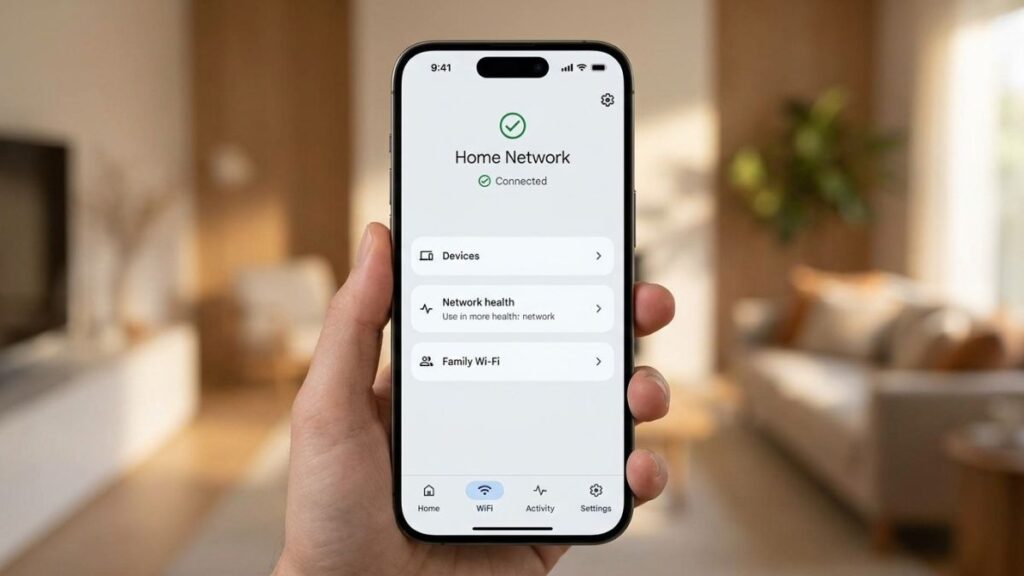
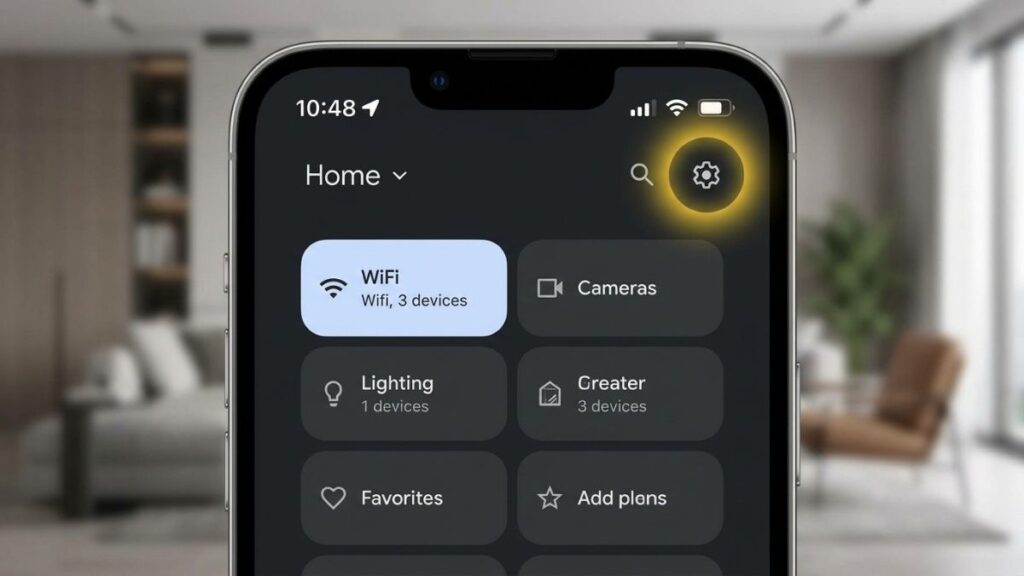
Once you’re in the app, tap the WiFi tab at the bottom of the screen. You’ll see your network name and a list of connected devices. Tap the gear icon or Settings to get into the router’s configuration.
Step 3 — Navigate to Network Settings
From the Settings screen, you’ll see options for your network name, password, guest network, and advanced settings. This is your Google Nest WiFi admin panel — it’s just inside an app rather than a browser window.
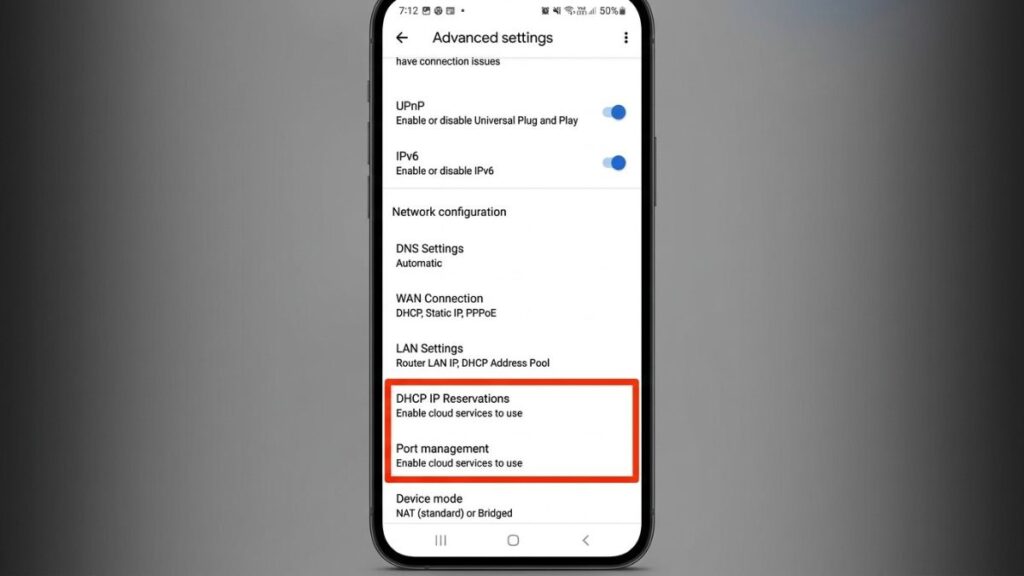
Tap Advanced Networking to access DHCP settings, port forwarding, DNS configuration, and IP reservations.
Google Nest WiFi Login on iPhone (iOS)
The steps are the same as above, but here’s the exact tap path for iOS users:
- Open the Google Home app
- Tap WiFi at the bottom of the screen
- Tap the Settings gear icon (top right)
- Select Network & general
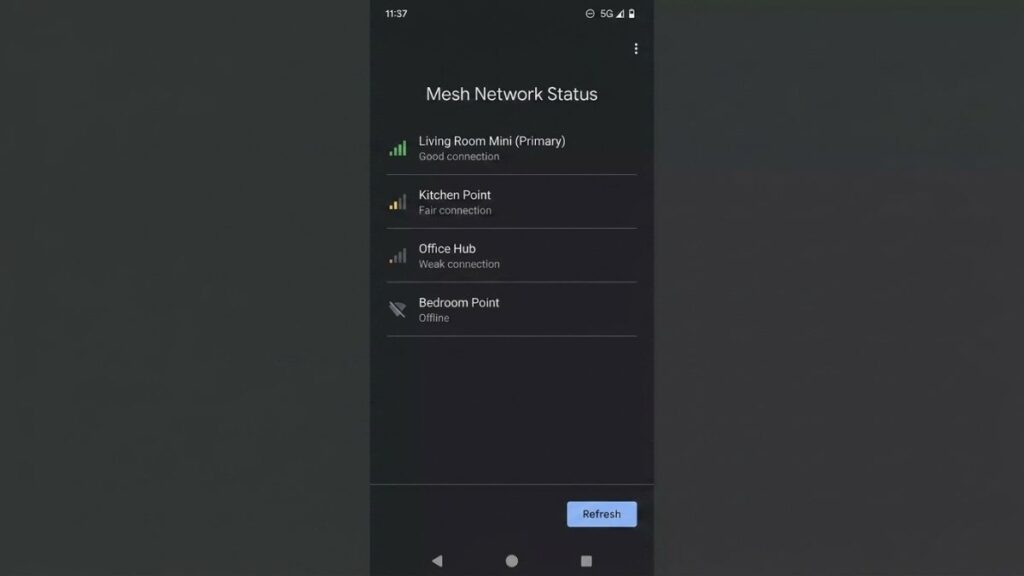
- Tap Network to see your WiFi points
- Tap any individual point to check its status, IP address, or signal strength
To change your WiFi password on iPhone: Settings → WiFi name & password → Edit
To set up a guest network on iPhone: Settings → Guest WiFi → toggle on
Google Nest WiFi Login on Android
Android users follow the same general flow, but the app layout can vary slightly depending on your Android version:
- Open Google Home
- Tap WiFi at the bottom
- Tap the Settings icon
- Select Network settings
- Choose your network or a specific WiFi point
If you have multiple Nest WiFi points (a mesh network), you can tap any individual point to check which devices are connected to it, view its IP address, and check signal quality.
Can You Log In at 192.168.86.1?
Yes — but only to a limited status page, not a full admin panel.
Type http://192.168.86.1 into your browser while connected to your Nest WiFi network and you’ll get a basic diagnostic page. It shows you that the router is active and reachable, but you can’t change any settings from there. All configuration still happens in the Google Home app.
The 192.168.86.1 address is useful when:
- You’re troubleshooting a connection issue and want to confirm the router is responding
- You need to check if your device is actually on the Nest WiFi network (not a different network nearby)
- You’re setting up a wired connection and want to verify the router’s IP before using the app
If you want to find your router’s exact IP address on any network, our guide to finding your router’s IP address walks through how to do it on Windows, Mac, iPhone, and Android.
Why Won’t 192.168.1.1 Work on Google Nest WiFi?
Because Google Nest WiFi doesn’t use 192.168.1.1 — and this trips up more people than anything else.
The 192.168.1.1 address is the default gateway for most traditional routers: TP-Link, Asus, Linksys, most Netgear models. If you’ve used any of those before, your muscle memory says “type 192.168.1.1 into the browser.” But Google Nest WiFi uses 192.168.86.1 as its default gateway. And even at that address, you won’t get a full login panel — just the basic status page.
The real reason people get stuck: they’re looking for a web admin interface that doesn’t exist on Nest WiFi. Google deliberately removed it. Every setting — from changing your WiFi password to setting up port forwarding — lives in the Google Home app.
Here’s the short answer: if you’re trying to access your Google Nest WiFi admin settings through a browser, you won’t find them. Open the app instead.
Google Nest WiFi vs Google WiFi vs Nest WiFi Pro — Login Differences
Not sure which model you have? Here’s how login works across all three, because they’re not identical.
← Scroll to see full table →
| Model | Default IP | Web Interface? | Login Method | App Required |
|---|---|---|---|---|
| Google WiFi (Original) 2016 model | 192.168.86.1 | Limited status page only | Google Home app | Yes |
| Nest WiFi 2019 model | 192.168.86.1 | Limited status page only | Google Home app | Yes |
| Nest WiFi Pro 2022 • Wi-Fi 6E | 192.168.86.1 | None | Google Home app | Yes |
| Google Fiber Network Box | 192.168.1.1 | Full web interface | Browser (admin/password) | No |
The original Google WiFi (model AC-1304) was the first generation. It used the Google WiFi app, which Google later merged into the Google Home app. If you’re still using the old Google WiFi app, you can migrate to Google Home — but note that the migration isn’t reversible.
Nest WiFi Pro is the newest model (Wi-Fi 6E, released 2022). It can’t be mixed with older Nest WiFi or Google WiFi points in the same mesh network. The login process is the same as other models — everything through the Google Home app.
If you’re using a Google Fiber Network Box, that’s a different product. It does have a full web interface at 192.168.1.1 with username “admin” and password “password” as defaults. That’s the only Google-branded router with a traditional browser login.
What You Can Change After Logging In
Once you’re in the Google Home app, here’s what’s available:
← Scroll to see full table →
| Setting | Where to Find It in the App |
|---|---|
| WiFi Network Name (SSID) | Settings → WiFi name & password |
| WiFi Password | Settings → WiFi name & password → Edit |
| Guest Network | Settings → Guest WiFi |
| Port Forwarding | Advanced Networking → Port management |
| DHCP IP Reservations | Advanced Networking → DHCP IP reservations |
| DNS Servers | Advanced Networking → DNS |
| Device Priority (QoS) | WiFi → Devices → Select Device → Edit Priority |
| WAN IP / Connection Type | Advanced Networking → WAN |
Port forwarding on Nest WiFi works differently from most routers. Google uses UPnP to handle most port forwarding automatically. For manual rules, go to Advanced Networking → Port management and add a rule with the internal IP address of the device and the port numbers you need open. If you want to understand how this works, our guide to port forwarding explains the basics before you start changing anything.
For guest networks, Nest WiFi creates a completely separate SSID — devices on your guest network can’t see devices on your main network. That’s the right way to handle it. See our guest network setup guide for more on why it matters.
Troubleshooting Google Nest WiFi Login Problems
App Not Finding the Router
This is usually a network mismatch. Your phone needs to be on the same WiFi network as the Nest router — not on mobile data, not on a neighbor’s network.
Fix it:
- Turn off mobile data on your phone temporarily
- Confirm you’re connected to your Nest WiFi network (check in phone Settings → WiFi)
- Force-close the Google Home app and reopen it
- If that doesn’t work, uninstall and reinstall the app
Also check that you’re signed in with the same Google account used to originally set up the router. If someone else set it up, you’ll need their account credentials — or they’ll need to share the network with you from their account.
Can’t Load 192.168.86.1
A few things can block this:
- You’re on the wrong network — make sure your device is connected to Nest WiFi, not mobile data or another network
- VPN is active — VPNs route your traffic differently and can break local IP access. Disconnect the VPN first
- Try http:// not https:// — type
http://192.168.86.1(without the S). Some browsers default to HTTPS and the router won’t respond to it - Browser cache — try the address in a private/incognito window
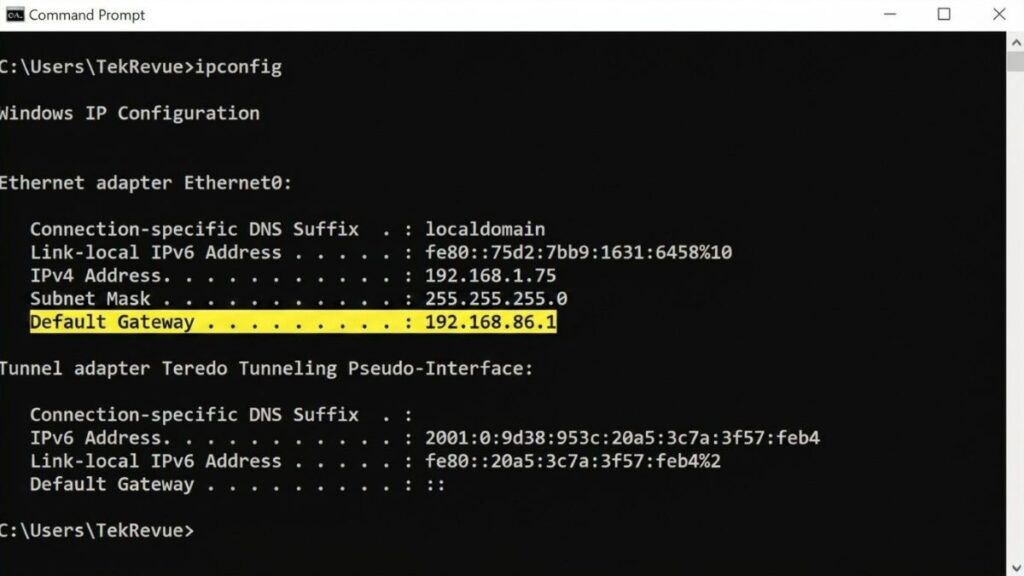
If none of that works, open Command Prompt on Windows and run ipconfig — look for “Default Gateway” under your WiFi adapter. On Mac, go to System Settings → Network → WiFi → Details → TCP/IP → Router. That number is your actual gateway IP. It might not be 192.168.86.1 if someone changed the router’s settings.
Forgot Admin Password — Factory Reset Steps
Google Nest WiFi doesn’t have a traditional admin password that you type into a web page. Your “login” is your Google account. So if you can’t get into the app, the problem is usually one of two things:
1. Wrong Google account — try logging out and back in with a different Google account
2. Complete factory reset — if the router was previously configured by someone else and you need to start fresh:
- Find the reset button on the back of the router (it’s a small circular button, sometimes recessed)
- Press and hold it for 10 seconds using a paperclip or pin
- The router’s LED will flash, then the router will restart
- Wait 2–3 minutes for it to fully reboot
- Set it up again from scratch in the Google Home app
A factory reset wipes all settings — WiFi name, password, port forwarding rules, everything. After resetting, follow the in-app setup steps to configure it again from the beginning. Before you reset, it’s worth checking whether your router firmware is up to date, since some login issues are caused by bugs fixed in newer firmware. Our router firmware update guide covers how to check this.
The Short Version
Google Nest WiFi router login works through the Google Home app, not a browser. Your login credentials are your Google account, not a username/password combo. The default gateway is 192.168.86.1, but that only shows a status page — all settings live in the app.
If you’re having trouble getting in, the most common causes are: wrong Google account, phone on mobile data instead of WiFi, or a VPN blocking local network access. Most login problems clear up once you rule those out.
If you’re coming from a traditional router and finding the app-based setup limiting — especially for things like port forwarding or custom DNS — check our guide to how port forwarding works for a primer on what’s possible and what isn’t with mesh router systems like Nest WiFi.