If you’re trying to get into your MikroTik router for the first time — or you’ve lost the admin password and need back in — here’s what you need. MikroTik routers use 192.168.88.1 as the default IP address, admin as the username, and a blank password (just leave that field empty and hit Login). For most models, that gets you straight in.
There’s one catch worth knowing upfront: newer MikroTik models ship with a unique password printed on the device label rather than a blank one. If a blank password isn’t working for you, check the sticker on the back or bottom of your router before trying anything else.
This guide covers the browser login method (WebFig), the Winbox application for Windows users, how to verify your connection before you start, and what to do if the login page won’t load. You’ll also get a model credentials table and the two security steps you should take immediately after your first successful login.
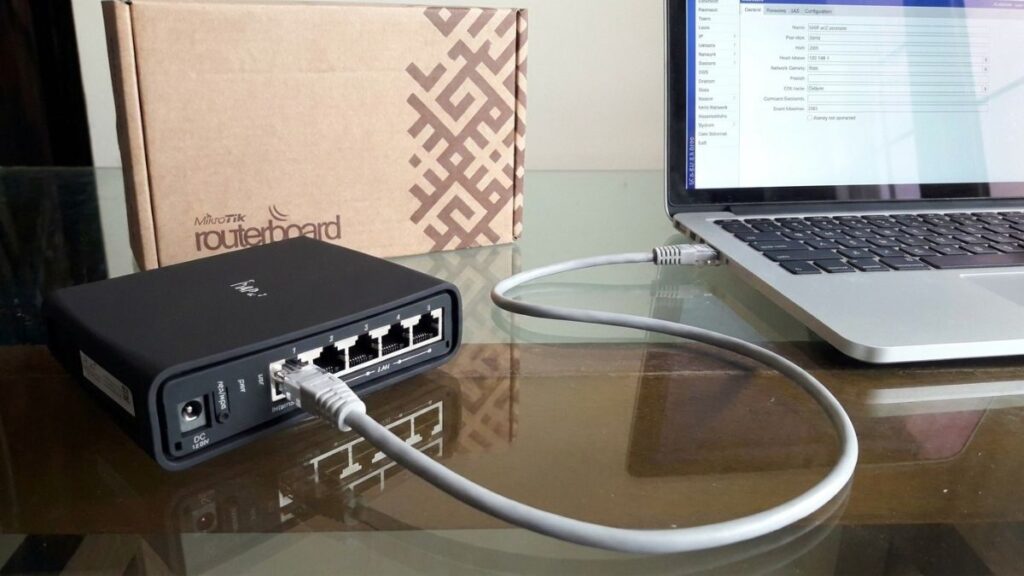
MikroTik Default Login Credentials
Before you open a browser, here’s the quick reference:
← Scroll to see full table →
| Setting | Default Value |
|---|---|
| IP Address | 192.168.88.1 |
| Admin URL | http://192.168.88.1 |
| Username | admin |
| Password | blank — leave the field empty |
These defaults apply to the vast majority of MikroTik RouterBOARD devices running RouterOS.
Newer Models: Check the Device Label First
If you type admin, leave the password blank, and get an “Authentication failed” error on your first attempt — you probably have a newer production unit. According to the MikroTik RouterOS knowledge base, models manufactured in recent production runs come with a unique password printed on the device itself rather than the traditional blank.
Flip your router over. Look for a label with the serial number. The default password is either printed explicitly, or in some cases it’s the serial number up to (but not including) the first slash. Use that instead of leaving the password field empty.
If there’s nothing on the label and a blank password still fails, someone has already changed it. Jump to the factory reset section further down.
How to Log Into Your MikroTik Router via Browser
This is the WebFig method — no software to install, works on Windows, Mac, Linux, and any smartphone with a browser. Here’s how to do it right.
Step 1: Verify Your Connection Before Opening a Browser
This step saves a lot of frustration. A quick ping test tells you whether your device can actually reach the router before you start chasing the wrong problem in a browser.
On Windows:
- Press Win + R, type
cmd, press Enter - Type
ping 192.168.88.1and press Enter - If you see replies like
Reply from 192.168.88.1: bytes=32 time<1ms— you’re connected and good to go - If you see
Request timed out— the problem is the connection, not the login page. See the troubleshooting section below before continuing.
On Mac or Linux, open Terminal and run: ping 192.168.88.1
If ping fails, fix the connection first. Opening a browser won’t help if the IP isn’t reachable.
Step 2: Open the Login Page
- Connect your device to the MikroTik router — Ethernet cable into any LAN port works best, but Wi-Fi works too if the router is already broadcasting
- Open any browser (Chrome, Firefox, Edge — it doesn’t matter)
- Click the address bar at the top of the browser window — not the search bar — and type exactly:
http://192.168.88.1 - Press Enter
You’ll see the login prompt. Enter admin in the username field, leave password blank, and click Login.
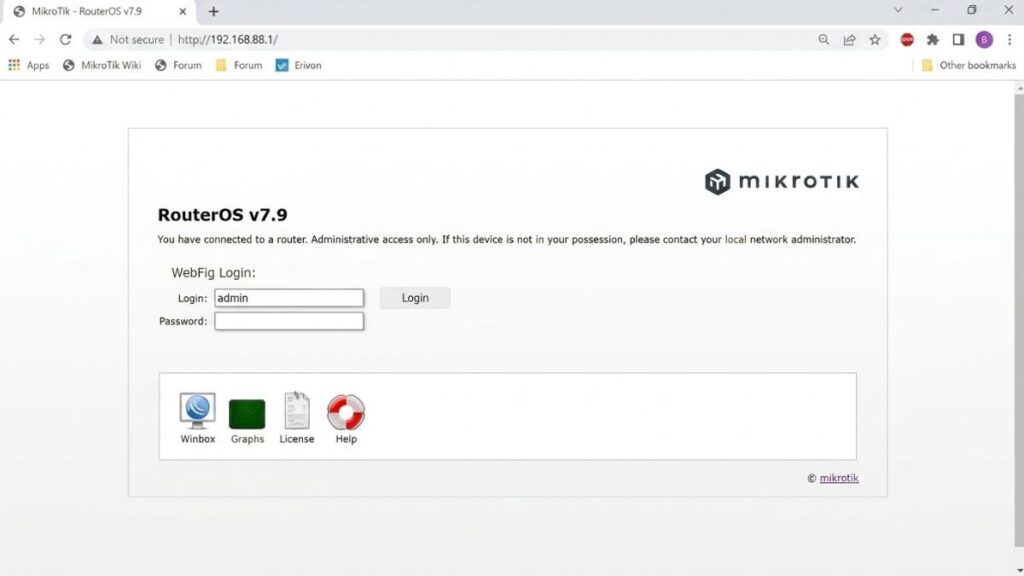
What You’ll See After Logging In: QuickSet vs WebFig
First-time users often get confused at this screen. After a successful MikroTik router login, you land on QuickSet — a simplified setup wizard that handles the basics: setting a new password, configuring your internet connection type, and naming your Wi-Fi. If you just bought this router and are setting it up for the first time, QuickSet is all you need to get running.
If you need deeper access — firewall rules, DHCP settings, VLANs, port forwarding, or anything beyond basic setup — click the WebFig button at the top right of the QuickSet screen. That opens the full RouterOS admin panel.
QuickSet is the easy lane. WebFig is everything else.
How to Log In Using Winbox (Windows Users)
Winbox is a free Windows application built by MikroTik for configuring RouterOS. It connects to your router by IP address or MAC address — which matters because MAC address discovery works even when 192.168.88.1 isn’t responding. That makes it genuinely useful for troubleshooting, not just regular use.
What Is Winbox and When Should You Use It?
The browser interface works fine for most tasks. But Winbox has two real advantages: it’s more stable when you’re making changes that could briefly interrupt the network, and it can discover your router on the local network by MAC address even before an IP is properly configured. If you’re doing a full first-time setup or recovery, Winbox is the better tool.
Download the latest version directly from mikrotik.com/download. It’s a single small executable — no installation, just run it.
Step-by-Step Winbox Login
- Download and open Winbox.exe
- Click the Neighbors tab — wait a few seconds for your MikroTik router to appear in the list
- Click on the MAC address entry for your router — this fills in the “Connect To” field automatically
- Enter
adminin the Login field; leave the Password field empty - Click Connect
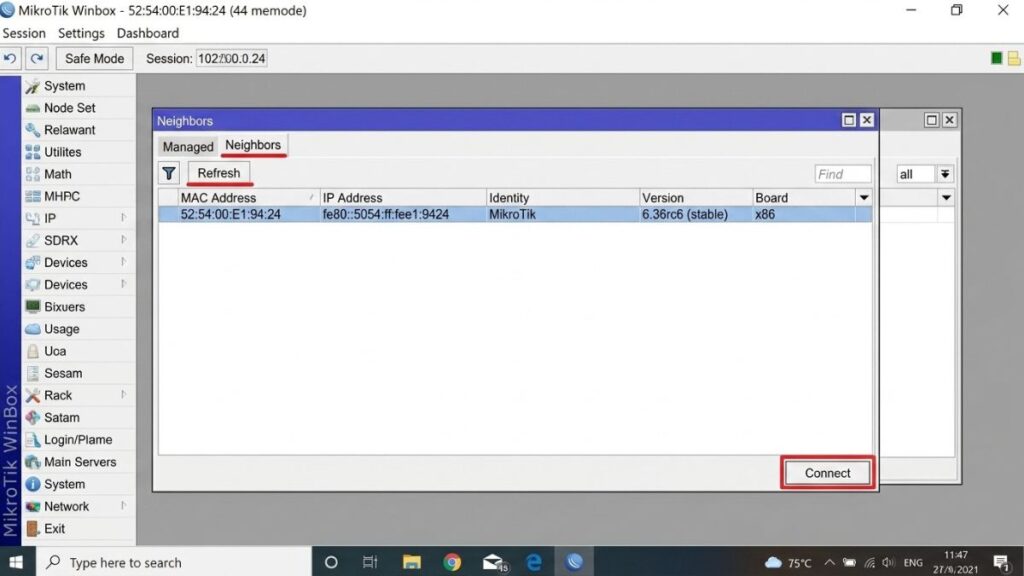
If your router doesn’t appear in the Neighbors tab after 15–20 seconds, make sure you’re connected by Ethernet cable rather than Wi-Fi and try again.
MikroTik Default Credentials by Model
Almost every MikroTik model uses the same defaults, but here’s a reference table for the most common ones:
← Scroll to see full table →
| Model | Default IP | Username | Default Password |
|---|---|---|---|
| hAP lite RB941-2nD-TC | 192.168.88.1 |
admin | blank |
| hAP ac lite RB952Ui-5ac2nD | 192.168.88.1 |
admin | blank |
| hAP ac2 RBD52G-5HacD2HnD-TC | 192.168.88.1 |
admin | blank |
| hEX RB750Gr2 | 192.168.88.1 |
admin | blank |
| hEX v3 RB750Gr3 | 192.168.88.1 |
admin | blank |
| mAP lite RBmAPL-2nD | 192.168.88.1 |
admin | blank |
| RB951-2n | 192.168.88.1 |
admin | blank |
| RB4011iGS+5HacQ2HnD-IN | 192.168.88.1 |
admin | blank |
| hAP ax2 / hAP ax3 Newer units | 192.168.88.1 |
admin | Check device label |
| CCR series Professional | 192.168.88.1 |
admin | blank |
If your model isn’t listed, start with admin and a blank password at http://192.168.88.1. That works for the overwhelming majority of devices. For detailed IP-specific login instructions, see our 192.168.88.1 login guide.
MikroTik Router Login Troubleshooting
192.168.88.1 Won’t Load in Browser
Three things cause this almost every time.
You’re typing in the wrong place. This sounds basic but it’s genuinely common. If you type 192.168.88.1 into the Google search bar, you get search results — not your router. Click the address bar at the very top of the browser (where the URL appears), type http://192.168.88.1, and hit Enter.
Your PC isn’t in the right subnet. This is the fix most guides miss entirely. If your computer has a static IP address that isn’t in the 192.168.88.x range, it can’t reach the router. Here’s how to fix it on Windows:
- Open Control Panel → Network and Sharing Center → Change adapter settings
- Right-click your Ethernet connection → select Properties
- Select Internet Protocol Version 4 (TCP/IPv4) → click Properties
- Select Use the following IP address and enter:
- IP address:
192.168.88.10 - Subnet mask:
255.255.255.0 - Default gateway:
192.168.88.1
- IP address:
- Click OK and try
http://192.168.88.1again
Not sure what IP your router is actually using? Our Gateway IP Finder tool detects it automatically. You can also follow the manual steps in our guide on how to find your router’s IP address.
You’re in the wrong port. On MikroTik routers, ether1 is the WAN port — that’s where your internet provider’s cable goes. Your computer needs to connect to any other port: ether2, ether3, ether4, or ether5. Plugging into ether1 by mistake is a common first-time setup error, and the admin page simply won’t load from there.
“Authentication Failed: Invalid Username or Password”
Work through these in order:
- Confirm you’re using
admin(all lowercase) with a completely blank password - If blank fails, check the device label for a printed password — newer units have one
- Try
admin/admin— some older models use this combination - If none of those work, a factory reset is your only option
How to Factory Reset a MikroTik Router
Press and hold the RESET button on the router for 5–10 seconds while it’s powered on. Watch the ACT LED — when it starts flashing rapidly, that confirms the reset is running. Release the button and wait for the router to reboot fully. It’ll come back with factory defaults: IP 192.168.88.1, username admin, blank password.
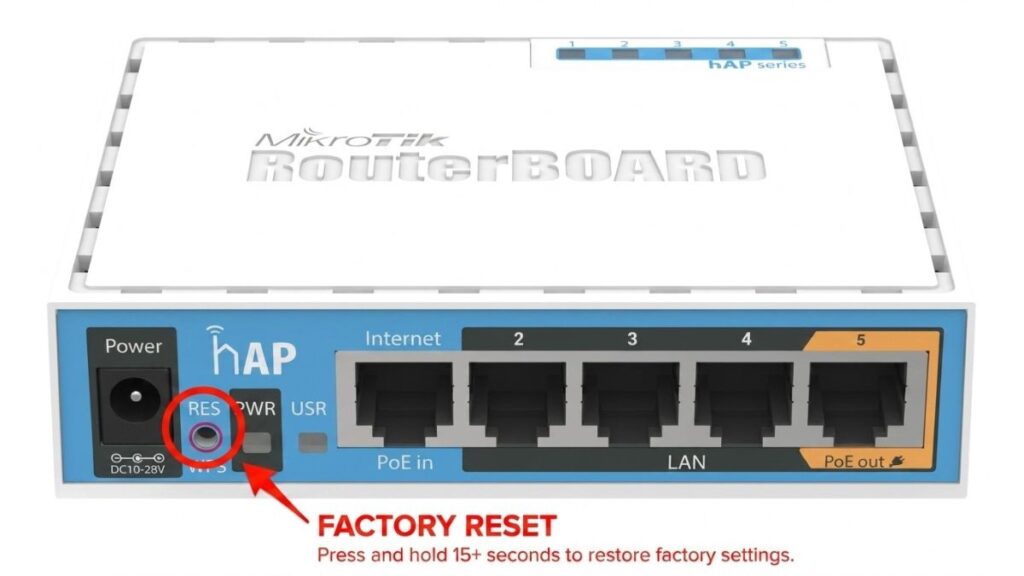
Secure Your Router Right After Logging In
Most people log in once, look around, and leave the admin password blank. That’s a real problem — any device on your network can access the admin panel without any credentials. It takes under two minutes to fix.
Change the Admin Password
Via QuickSet (easiest):
- You’re already on the QuickSet screen after logging in
- Find the Password and Confirm Password fields at the top
- Type your new password in both fields
- Click Apply Configuration
Via WebFig:
- Go to System → Users
- Click on admin in the user list
- Click Password at the top of the screen
- Enter and confirm your new password
- Click Change
Pick something at least 12 characters long. If you forget this password, a factory reset is your only way back in — MikroTik’s admin panel has no “forgot password” option.
Update Your RouterOS Firmware
After setting a password, check for firmware updates immediately. Outdated RouterOS versions have documented vulnerabilities, and updating takes about two minutes. In WebFig: go to System → Packages → Check For Updates. In Winbox: same path — System → Packages → Check For Updates.
For the full walkthrough, see our router firmware update guide. And if you’re deciding between WPA2 and WPA3 for your wireless security settings, our WPA2 vs WPA3 comparison explains which to choose and why it matters.
Wrapping Up
Getting into a MikroTik router is straightforward: go to http://192.168.88.1, log in with admin and a blank password, and you’re in. If that doesn’t work straight away, check your device label for a printed password, confirm your PC is on the 192.168.88.x subnet, and make sure you’re plugged into a LAN port rather than the WAN port.
Right after you get in: set an admin password and check for a RouterOS firmware update. Those two steps close the biggest security gaps and take less than five minutes combined.
Still locked out? Our guide on how to find your router’s IP address can help if the default IP has been changed from 192.168.88.1 at some point.