You typed 192.168.1.1 into your browser, hit Enter, and got a blank page — or a security warning you don’t know how to get past. Maybe you tried “admin/admin” and it failed. Maybe you’re not even sure which IP address to use.
Ubiquiti UniFi router login works differently depending on which device you have and how it was set up. Older UniFi hardware uses a local browser login with default credentials. Newer models like the Dream Machine and UCG series use your Ubiquiti cloud account instead. And in all cases, you may need to navigate a self-signed certificate warning before you even see the login page.
This guide covers every login path — browser, cloud, and mobile app — along with the right credentials for your device, how to find your controller IP if you don’t know it, and how to fix the most common login problems.
How UniFi Router Login Works
Most consumer routers run a small web server on the device itself. You type a local IP address like 192.168.1.1 into your browser and get a login page. UniFi is built differently.
UniFi uses a controller-based architecture. The UniFi Network Application — the software that manages your router’s settings — can run in three different places depending on your setup:
- On the router itself — for Cloud Gateway devices like the UDM, UCG-Ultra, or UDR7, the controller is built in
- On a CloudKey — a separate Ubiquiti device that runs the controller on your local network
- On a PC or server — a self-hosted installation running on Windows, Mac, or Linux
This is why simply typing 192.168.1.1 doesn’t always work. You’re not logging into the router itself — you’re logging into whichever device or service is running the UniFi Network Application. Understanding this is the default gateway concept at work in a more advanced setup.
Local Login (Browser Access)
For most home users with a Dream Machine, UCG-Ultra, or similar all-in-one device, local login works through your browser. You navigate to the controller’s IP address (or hostname), get past the certificate warning, and log in.
Cloud Login (unifi.ui.com)
If your controller has internet access and is linked to a Ubiquiti account, you can also log in remotely through unifi.ui.com from any browser on any device. This is the cloud access option — useful when you’re away from home or when you can’t remember the local IP.
UniFi Default IP, Username & Password
The credentials you need depend on which generation of hardware you have and whether the device has been adopted into a controller yet.
← Scroll to see full table →
| Device / Setup | Default IP | Username | Password |
|---|---|---|---|
| Older UniFi devices (factory default) | 192.168.1.1 |
ubnt | ubnt |
| UniFi AP (unadopted) | 192.168.1.20 |
ubnt | ubnt |
| Dream Machine / UCG series (new setup) | 192.168.1.1 |
Ubiquiti SSO email | Your UI account password |
| Self-hosted Network Server (PC/Mac) | Your PC’s local IP | admin | Set during install |
| Cloud Key Gen2 | Assigned by DHCP | Ubiquiti SSO email | Your UI account password |
Important: Once a UniFi device is adopted into a controller, the default ubnt/ubnt credentials stop working. The controller pushes its own SSH credentials to the device. If ubnt/ubnt fails, your device has already been configured — use the admin account created during setup, or your Ubiquiti SSO account.
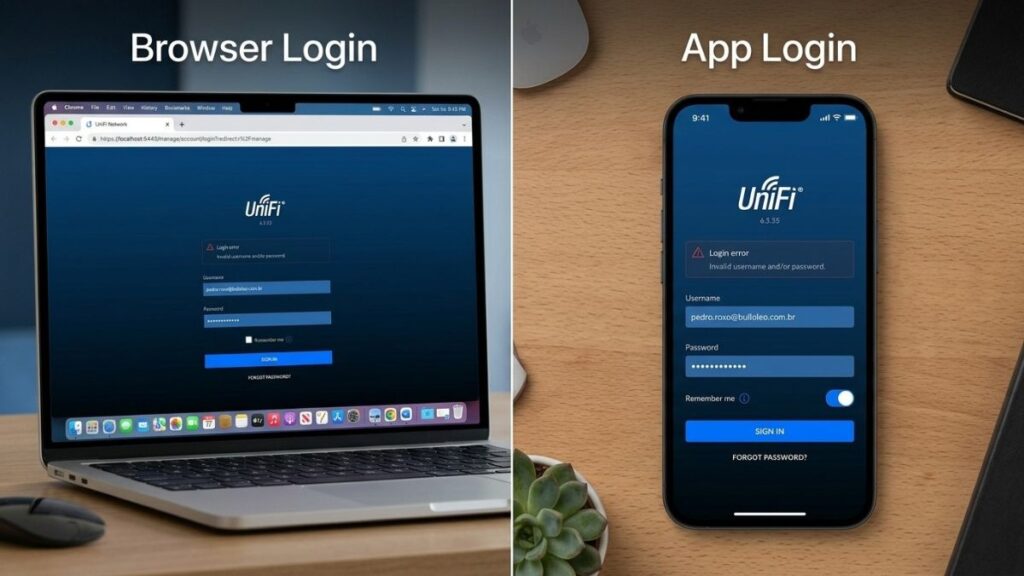
How to Log Into Your UniFi Router — Step by Step (Browser)
On PC or Mac
- Connect your computer to the UniFi network — wired via Ethernet is more reliable than WiFi for this
- Open any browser (Chrome, Firefox, Edge, Safari)
- Type the controller address into the address bar:
- Cloud Gateway (UDM, UCG, UDR): type
unifi/or192.168.1.1 - Self-hosted server: type
https://[your-PC-IP]:8443 - CloudKey: type
https://[CloudKey-IP]
- Cloud Gateway (UDM, UCG, UDR): type
- You’ll likely see a browser security warning — see the note below on how to get past it
- On the login screen, enter your Ubiquiti SSO email and password (newer devices) or ubnt/ubnt (older factory-default devices)
- If 2FA is enabled, enter the verification code sent to your email or authenticator app
- Click Sign In — you’ll land on the UniFi Network dashboard
On iPhone or Android (UniFi Mobile App)
The UniFi mobile app is the easiest way to manage your network from a phone:
- Download the UniFi Network app from the Apple App Store or Google Play Store
- Open the app and tap Sign In
- Log in with your Ubiquiti (UI) account email and password
- The app will detect your local UniFi controller automatically if your phone is on the same network
- Select your controller from the list — or tap Can’t Find Your Device → Console Manual Setup and enter the IP manually
- Tap your network to enter the dashboard
Which Port to Use (8443 vs 443 vs unifi/)
This is where many users get stuck. The right address depends on your setup:
← Scroll to see full table →
| Setup Type | Address to Use | Port |
|---|---|---|
| UniFi Cloud Gateway (UDM, UCG, UDR) | 192.168.1.1 or unifi |
443 default HTTPS |
| Cloud Key Gen2 | https://[CloudKey-IP] |
443 |
| Self-hosted (Windows / Mac / Linux) | https://[PC-IP]:8443 |
8443 |
| Self-hosted (HTTP, no certificate) | http://[PC-IP]:8080 |
8080 |
If you’re not sure which setup you have, start with unifi/ in your browser. Cloud Gateway devices respond to that hostname automatically. If that fails, try 192.168.1.1. If you’re self-hosting, use your PC’s local IP with :8443.
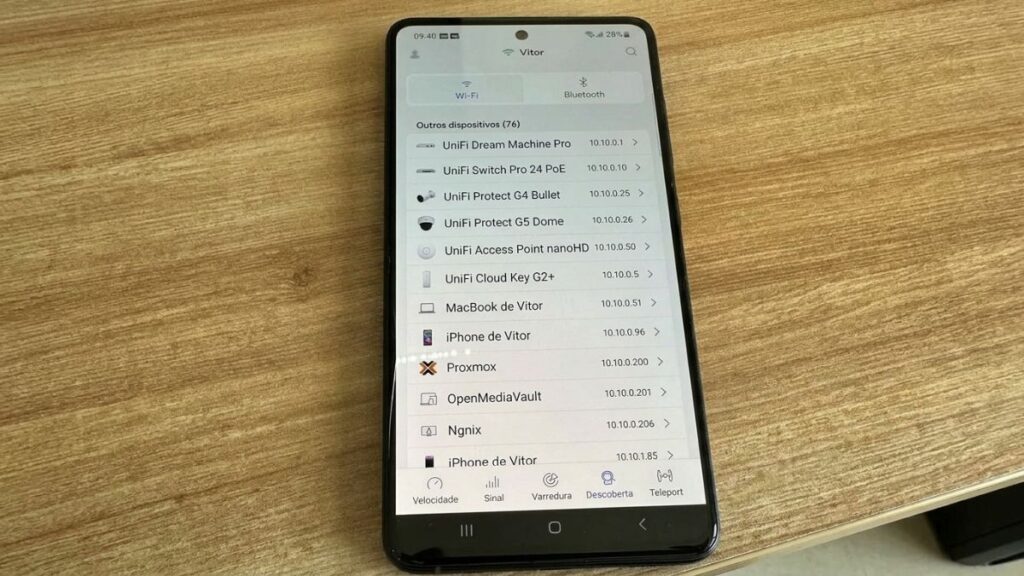
Finding Your Controller IP With the WiFiman App
If none of the standard addresses work and you don’t know your controller’s IP, the WiFiman app solves this in seconds.
- Download WiFiman (free from Ubiquiti) on iOS or Android
- Make sure your phone is connected to the UniFi network
- Open WiFiman and tap the Discover tab
- The app scans your network and lists all Ubiquiti devices — your controller’s IP address will appear next to your device name
You can also use WiFiman on Windows, Mac, and Linux as a desktop app. It’s the fastest way to locate a controller IP without digging through your router settings.
How to Log Into UniFi via Cloud (unifi.ui.com)
Cloud login gives you remote access to your UniFi controller from anywhere — no need to know your local IP address.
- Open any browser on any device
- Go to https://unifi.ui.com
- Sign in with your Ubiquiti account email and password
- If 2FA is enabled, enter the code from your email or authenticator app
- Your controllers appear on the dashboard — click your network to enter it
When to use cloud login vs. local:
- Use local access when you’re on the same network as your controller — it’s faster and doesn’t depend on internet availability
- Use cloud login when you’re away from home, when the local IP isn’t loading, or when you need to manage the network remotely
Cloud access requires the controller to have an active internet connection and to be linked to your Ubiquiti account. If your internet is down, cloud login won’t work — use local access instead.
UniFi Model Comparison
← Scroll to see full table →
| Model | Type | Login Method | IDS/IPS | Best For |
|---|---|---|---|---|
| UniFi Express (UX) | Desktop + WiFi | SSO account | Basic | Small apartments, starter setup |
| UCG-Ultra | Desktop, no WiFi | SSO account | 1 Gbps | Home / small office, up to 30 devices |
| UCG-Max | Desktop, no WiFi | SSO account | 2.3 Gbps | Home / office, full app suite |
| UniFi Dream Router (UDR7) | Desktop + WiFi 7 | SSO account | 2.3 Gbps | Home with built-in AP |
| UDM-Pro | Rack-mount | SSO account | 3.5 Gbps | SMB, up to 100 devices |
| UDM-Pro Max | Rack-mount | SSO account | 3.5 Gbps | SMB + HDD storage for cameras |
All current models use Ubiquiti SSO login — not the legacy ubnt/ubnt credentials. The ubnt/ubnt credentials only apply to older hardware in a factory-default, unadopted state.
UniFi Login Troubleshooting
Page Not Loading or Connection Refused
First, confirm your computer or phone is connected to the UniFi network — wired is best. Then double-check the address and port you’re using. If you type 192.168.1.1 and nothing loads, your controller may be on a different IP. Use the WiFiman app to find the correct address, or check your connected device’s gateway IP using our router IP finder tool.
If you’re self-hosting on a PC, make sure the UniFi Network Application service is actually running. On Windows, check Services; on Mac, check the UniFi icon in the menu bar.
ubnt/ubnt Credentials Not Working
This almost always means the device has already been adopted into a controller. Once adopted, UniFi devices no longer accept the default credentials. You need to use the admin account created during initial setup, or your Ubiquiti SSO email and password. If neither works, see the “Forgot Password” section below.
SSL Certificate Warning in Your Browser
You’ll almost always see a security warning the first time you access a UniFi controller locally. It says something like “Your connection is not private” or “This site is not secure.” This is normal — UniFi uses a self-signed certificate by default, not one issued by a public certificate authority.
To get past it:
- Chrome: Click Advanced → Proceed to [IP address] (unsafe)
- Firefox: Click Advanced → Accept the Risk and Continue
- Safari: Click Show Details → visit this website
The connection is still encrypted — the warning just means the certificate isn’t verified by a third party. It’s safe to proceed on your own local network. If you want to find your router’s IP address to confirm you’re hitting the right device, that guide walks you through it.
Forgot Your Ubiquiti Account Password
- Go to https://account.ui.com
- Click Forgot Password
- Enter the email address linked to your Ubiquiti account
- Check your inbox for a reset link and follow the steps
If you’re using a local-only admin account (not SSO), click Forgot Password on the local login screen instead. UniFi will send a reset email to the address configured for that account.
Per Ubiquiti’s official policy: if you can’t recover access and you’re the account owner, there’s no backdoor. You’ll need to factory reset all devices and start fresh.
2FA Code Not Arriving
If you enabled two-factor authentication and the code isn’t arriving:
- Check your spam or junk folder for the email code
- If you’re using an authenticator app (Google Authenticator, Authy), make sure the time on your phone is synced correctly — a clock drift of more than 30 seconds causes 2FA codes to fail
- If you’re locked out completely, log into account.ui.com from a trusted browser session (where you’re still logged in) and temporarily disable 2FA under Security → Two-Factor Authentication
- If you can’t access account.ui.com either, contact Ubiquiti support at support.ui.com
Inherited Someone Else’s UniFi Setup
If you bought a used UniFi device or took over a network from someone else, the previous owner’s credentials won’t be recoverable. Ubiquiti does not have access to user passwords.
Your only option: factory reset all devices, uninstall the controller software if self-hosted, and set up from scratch. After resetting, devices return to factory-default state and can be adopted into a new controller with a new account.
How to Factory Reset a UniFi Router
A factory reset wipes all configuration and returns the device to out-of-box state. Use this as a last resort when you’re fully locked out.
Steps:
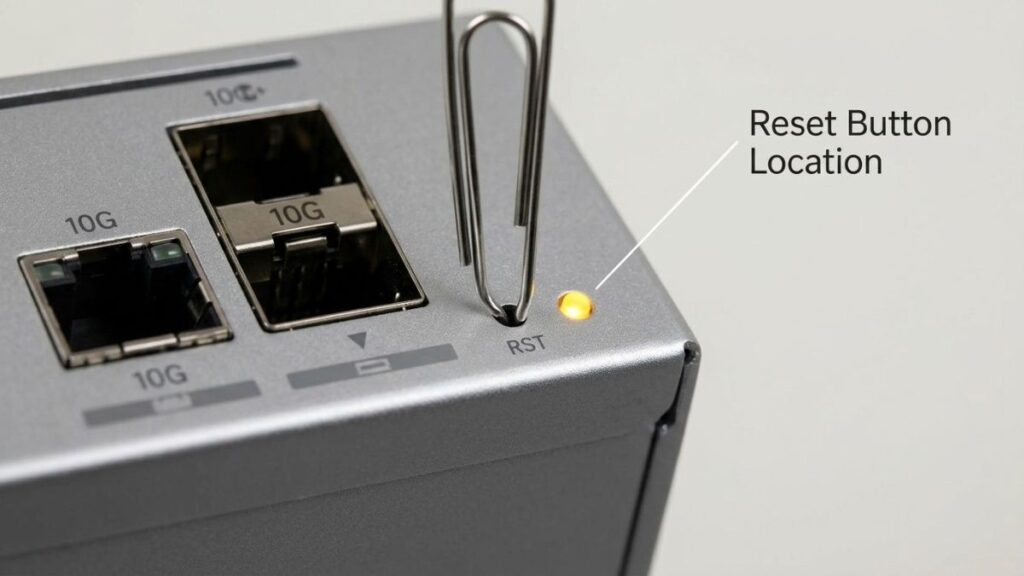
- Locate the reset button — on most UniFi devices it’s a small pinhole on the back or bottom panel; on Dream Machine models it’s a physical button on the bottom
- With the device powered on, press and hold the reset button for 10 seconds using a paperclip or pin
- Release when the LED starts flashing — the device will reboot
- Once the LED shows a steady white or blue (depending on model), the reset is complete
- Open the UniFi app or browser and set up the device from scratch
Note: A factory reset removes the device from your controller entirely. You’ll need to re-adopt it and reconfigure all settings. Back up your controller configuration before resetting if you can still access it — go to Settings → System → Backup.
What You Can Control in the UniFi Dashboard
Once you’re logged in, the UniFi Network dashboard gives you more control than most consumer routers. Key settings include:
- WiFi networks — create multiple SSIDs, set passwords, enable WPA3, configure band steering
- VLANs — segment your network for IoT devices, guests, and work devices separately
- Guest network — set up an isolated guest WiFi network with bandwidth limits and portal login
- Firewall rules — block or allow traffic between network segments
- Port forwarding — open ports for gaming, servers, or remote access tools
- DHCP and DNS — assign static IPs, change DNS servers, configure DHCP ranges
- IDS/IPS — intrusion detection and prevention (available on UCG-Ultra and above)
- VPN — WireGuard and OpenVPN server built in on Cloud Gateway models
- Content filtering — block categories of sites across the whole network or per device
- Traffic stats — see bandwidth usage per device in real time
UniFi supports both WPA2 and WPA3 encryption. For newer devices, WPA3 is worth enabling — our WPA2 vs WPA3 guide explains the difference and when to use each.
Wrapping Up
Ubiquiti UniFi router login works through your browser or the UniFi mobile app — not through a simple username/password page like most consumer routers. The right address and credentials depend on your hardware: unifi/ or 192.168.1.1 for Cloud Gateway devices, your PC’s IP with :8443 for self-hosted setups, and your Ubiquiti SSO account for anything purchased in the last few years.
If you’re stuck finding the right IP, the WiFiman app pinpoints your controller in seconds. If you’re locked out entirely, the account.ui.com password reset or a factory reset gets you back in.
For more help with your network setup, use our gateway IP finder tool to confirm your controller’s address and check which devices are on your network.