Trying to get into your Zyxel router’s admin panel and hitting a wall? You’re not alone. Whether you’re setting up your router for the first time, trying to change your Wi-Fi password, or you’ve just forgotten the admin password — this guide covers everything.
For most Zyxel routers, the login address is 192.168.1.1, the default username is admin, and the default password is 1234. But there’s a catch: if your ISP handed you the router, those defaults might not work at all. We’ll cover that too.
By the time you’re done reading, you’ll know how to get in, what to do if it’s not working, and what to change once you’re logged in.
Zyxel Router Default Login Credentials
The default login details for most Zyxel routers are:
- IP Address: 192.168.1.1
- Username: admin
- Password: 1234
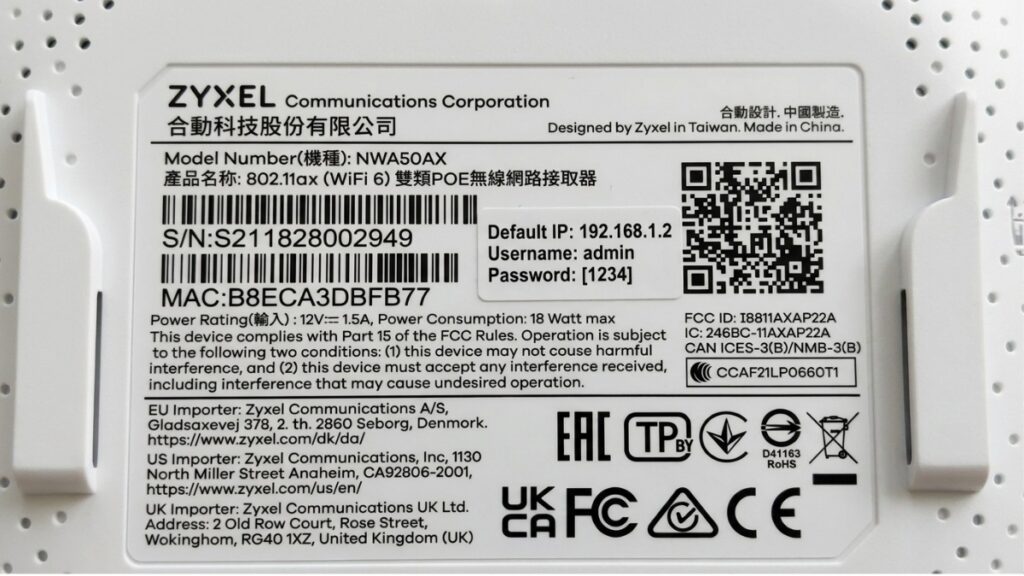
That said, Zyxel has been moving away from “1234” on newer models. Routers released in the last few years — particularly the AX, DX, and EX series — come with a randomly assigned password printed on the label stuck to the bottom or back of the device. Always check the label first.
Here’s a quick reference for the most common Zyxel models:
| Model Series | Default IP | Default Username | Default Password |
|---|---|---|---|
| VMG1312 | 192.168.1.1 | admin | 1234 |
| VMG3925 / VMG3926 | 192.168.1.1 | admin | 1234 |
| VMG4825 / VMG8924 | 192.168.1.1 | admin | 1234 |
| AMG / XMG Series | 192.168.1.1 | admin | 1234 |
| EMG3525-T50B | 192.168.1.1 | admin | 1234 |
| NBG6515 / NBG6816 | 192.168.1.1 | admin | 1234 |
| NBG7815 (Armor G5) | 192.168.1.1 | admin | label on device |
| DX3301-T0 | 192.168.1.1 | admin | label on device |
| EX3300-T0 | 192.168.1.1 | admin | label on device |
| AX1800 / AX3000 Series | 192.168.1.1 | admin | label on device |
| P-2812HNU | 192.168.1.254 | admin | 1234 |
| P-660HN-T1A | 192.168.1.1 | admin | 1234 |
| VMG8823 / VMG8624 | 192.168.1.1 | admin | label on device |
Not sure which model you have? The model number is on the same label as the password — check the bottom or back of the device.
How to Log Into Your Zyxel Router — Step by Step
The process is the same whether you’re using a laptop, desktop, or phone. Here’s exactly what to do.
From a Computer (Windows or Mac)
- Connect your computer to the Zyxel router — either with an Ethernet cable plugged into one of the LAN ports, or by joining the router’s Wi-Fi network.
- Open a web browser (Chrome, Firefox, or Edge all work fine). Do not use the search bar — use the address bar at the very top.
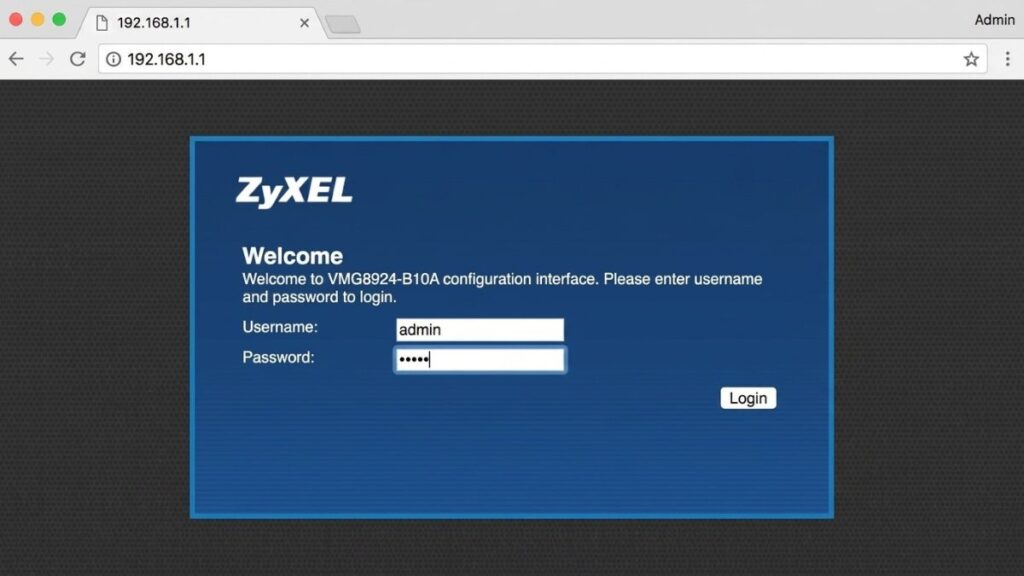
- Type
192.168.1.1into the address bar and press Enter. If that doesn’t load, try192.168.0.1or192.168.1.254. - A login screen will appear. Enter your username and password. If you haven’t changed them, try
adminand1234, oradminand the password on the device label. - Click Login. You’re in.
Pro tip: If you’re not sure which IP your router is using, you can find your router’s IP address in about 30 seconds using your device’s network settings — or use our gateway IP finder tool which detects it automatically.
Some Zyxel models also respond to the hostname http://myrouter.zyxel.com instead of an IP address. If the IP isn’t loading, try that URL in your browser — it works on select NBG and AX series models.
From a Phone (iPhone or Android)
- Connect your phone to your Zyxel router’s Wi-Fi network.
- Open Safari (iPhone) or Chrome (Android).
- Tap the address bar at the top — not the search bar — and type
192.168.1.1. - The login page will load. Enter
adminas the username and either1234or the label password. - Tap Login.
Keep in mind: managing router settings on a small screen can be fiddly. If you’re making multiple changes, a laptop is easier. But for a quick password change or a login check, the phone works fine.
If Your Zyxel Was Provided by Your ISP — Read This First
This is the part most guides skip, and it’s the reason a lot of people get stuck.
When your internet provider hands you a Zyxel router, there’s a good chance it’s running ISP-customised firmware — not Zyxel’s standard software. That means the login IP, the username, and the password might all be different from the defaults listed above.
Here’s what to do if you got your router from an ISP:
- Check the back label first. ISP-provided routers usually have the admin login details printed right there — often a custom URL instead of 192.168.1.1.
- Try the Zyxel defaults anyway. Some ISP routers still use
admin / 1234. - If neither works, call your ISP. They control the firmware, so they hold the credentials. Zyxel’s own support team won’t be able to help you with ISP-branded hardware — that’s official Zyxel policy.
This trips up a lot of people. The router says “Zyxel” on the front, so they assume the Zyxel defaults work. They don’t — not always.
Not sure what your actual gateway IP is? Use our gateway IP finder tool to detect it instantly without guessing.
Zyxel Router Login Not Working? Fix It Here
If the login page isn’t loading or your password isn’t accepted, one of these fixes will usually sort it out.
Wrong IP Address
This is the most common problem. Your router’s IP might not be 192.168.1.1. Try these in order:
192.168.1.1192.168.0.1192.168.1.254
If none of them load, find your router’s IP address the proper way. On Windows, open Command Prompt and type ipconfig — look for the Default Gateway value. That’s your router’s IP.
Password Not Accepted
A few things to check:
- Try
admin/1234— it still works on the majority of Zyxel models - Try
admin/ the password printed on the device label (newer models) - Check Caps Lock — passwords are case-sensitive
- Clear your browser cache and try again in an incognito/private window
- Try a different browser entirely
If you previously changed the password and can’t remember it, a factory reset is your only option (see below).
Login Page Won’t Load
- Make sure you’re connected to the router — check the Wi-Fi or Ethernet connection
- Use a wired Ethernet cable if possible; it’s more reliable for admin access
- Type the IP directly into the address bar — don’t search for it in Google
- Disable any VPN you’re running; VPNs can block access to local network addresses
Factory Reset — Last Resort
If nothing else works, a factory reset will wipe all settings and restore the original defaults.
- Make sure the router is powered on.
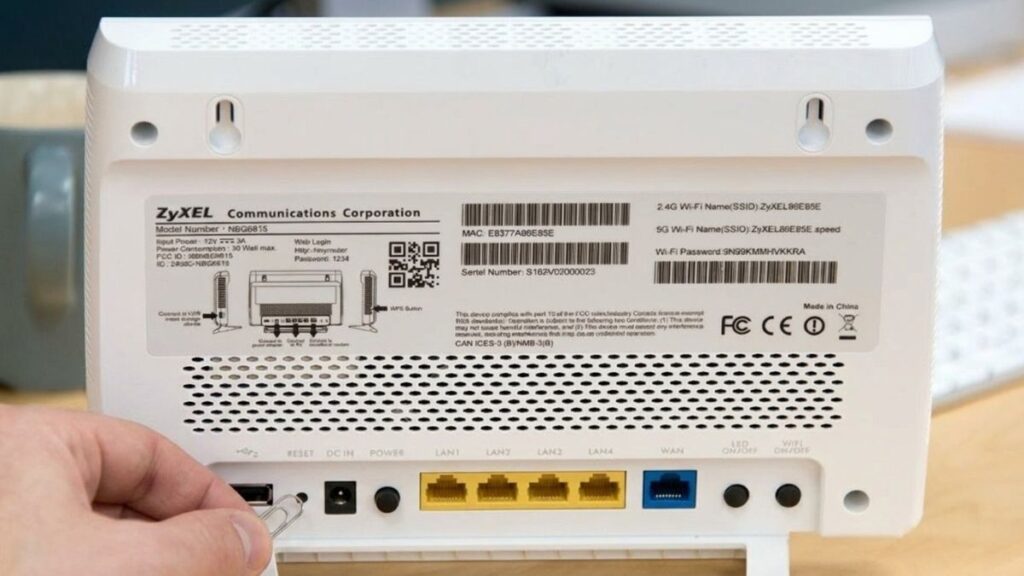
- Find the reset button — it’s a small pinhole on the back or bottom of the device.
- Use a paperclip or pin to press and hold it for 10–15 seconds until the LED lights blink or turn off.
- Release and wait 2–3 minutes for the router to reboot.
- Log in using the default credentials from the table above.
One important warning: a factory reset erases everything — your Wi-Fi name, password, port forwarding rules, and any other settings you’ve configured. Don’t do this unless you’re prepared to set everything up again from scratch.
⚠️ Security Note: Why You Should Change “1234” Immediately
The default password “1234” is widely known — it’s published on hundreds of websites including this one. Zyxel routers running old firmware with default credentials have been targeted in real-world botnet attacks. In 2023, Zyxel patched multiple critical vulnerabilities that were actively being exploited on devices still using factory defaults.
The moment you log in, change two things:
- The admin password — go to Maintenance > User Account (or System > Password, depending on your model) and set something strong
- Your Wi-Fi password — default SSIDs and passwords make your network easier to target
A few minutes now saves a lot of headaches later.
What to Do After You Log In
You’re in. Here’s what to tackle first.
Change Your Wi-Fi Password
Navigate to Network Settings > Wireless > General. You’ll see your Wi-Fi network name (SSID) and a security section where you can update the password. Click Apply when done.
If your router has both 2.4GHz and 5GHz bands, you’ll see a checkbox that says “Keep the same settings for 2.4G and 5G networks.” Uncheck it if you want to set different names and passwords for each band.
Change the Admin Password
Go to Maintenance > User Account (some models show this under System or Management). Change the password from “1234” to something unique — a mix of letters, numbers, and symbols. Don’t use your Wi-Fi password here; they should be different.
Update Your Firmware
Outdated firmware is one of the biggest security risks on home routers. In the admin panel, go to Maintenance > Firmware Upgrade. If there’s an update available, install it. The router will reboot — that’s normal. Check out our guide on how to update your router firmware for step-by-step instructions.
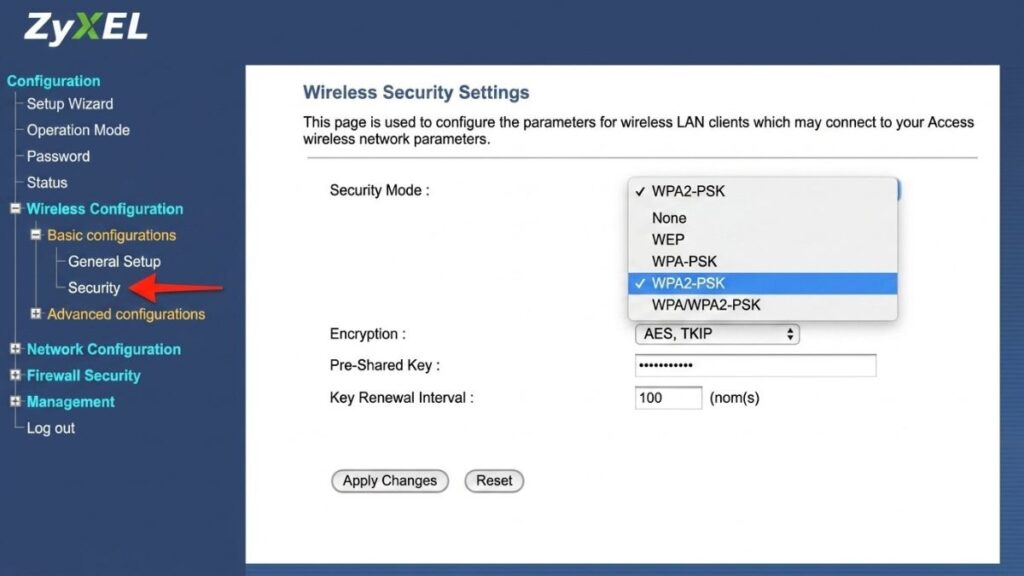
While you’re in settings, it’s worth reviewing your wireless security mode. If your Zyxel supports WPA3, use it — it’s significantly stronger than WPA2. Not sure which to pick? Our WPA2 vs WPA3 comparison breaks it down.
Quick Summary
Getting into your Zyxel router comes down to three things: the right IP address (usually 192.168.1.1), the right credentials (admin / 1234, or the label password on newer models), and making sure you’re connected to the router’s network before you try.
If you’re stuck on the wrong IP, use our gateway IP finder to detect the correct address in seconds. And once you’re in — change that “1234” password before you do anything else.
Sources: Zyxel Support Campus EMEA – Web GUI Access Guide · Zyxel Support Campus USA – VMG Series Configuration