I’ve helped a lot of people get into their router settings, and 192.168.2.2 is one that throws folks off because it’s a less common default gateway than the usual suspects like 192.168.1.1 or 192.168.0.1. But if your router is using 192.168.2.2 as its admin address, this guide walks you through everything — logging in from a PC or phone, fixing the most common problems, and making your network actually secure once you’re inside.
192.168.2.2 Router Login – Admin Page
What Is 192.168.2.2?
192.168.2.2 is a private IPv4 address that some routers and network devices use as their default gateway — the address you type into your browser to reach the router’s admin control panel.
It belongs to the 192.168.0.0/16 private address block defined under RFC 1918 private address ranges. That’s the set of IP ranges reserved for internal networks — your home or office network — and it means 192.168.2.2 can never be reached directly from the internet. It only works from inside your own local network, which is actually a good thing for security.
Here’s the most important thing to know: 192.168.2.2 is not a website. It’s a local address. If you’re not connected to the same router’s Wi-Fi (or plugged in via Ethernet), it simply won’t load. That’s not a bug — that’s how private IP networking works.
Most home routers that use the 192.168.2.x subnet assign themselves .1 as the gateway (192.168.2.1), but some models — particularly certain Belkin, SMC, and Edimax configurations — use .2 instead, either as the primary gateway or as a secondary admin interface. Devices like IP cameras, smart hubs, and ADSL modems on the same subnet sometimes use this address too.
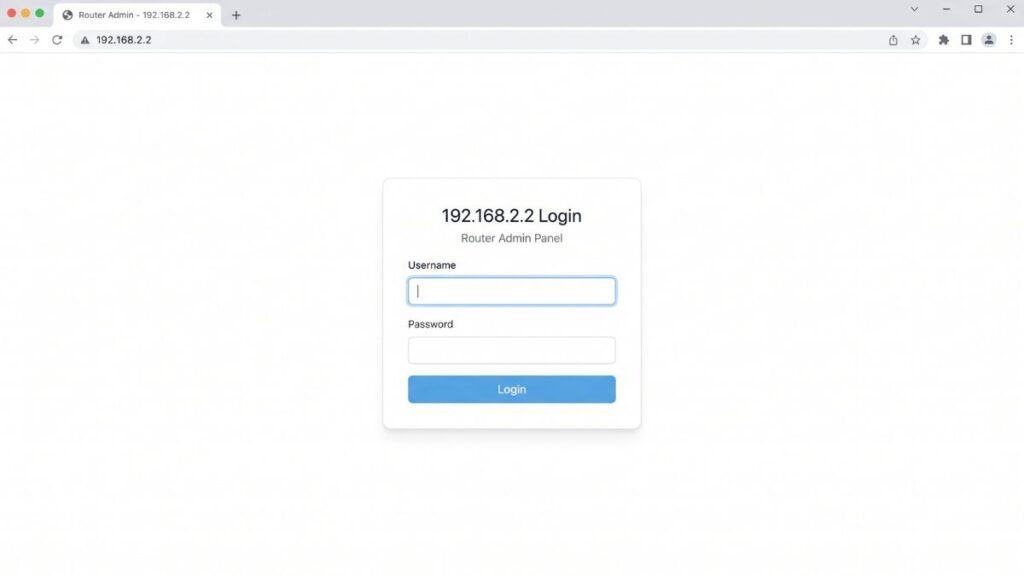
Default Login Credentials for 192.168.2.2
Before you type anything into a browser, find the sticker on the bottom or back of your router. That label always wins — it’s the most accurate source for your specific device’s credentials.
That said, here are the most common factory defaults by brand:
| Brand | Default Username | Default Password |
|---|---|---|
| Belkin | (leave blank) | (leave blank) or admin |
| SMC Networks | admin | admin or smcadmin |
| Edimax | admin | 1234 |
| Zyxel | admin | 1234 |
| D-Link | admin | (leave blank) |
| TP-Link | admin | admin |
| Tenda | admin | admin |
| Netgear | admin | password |
| Linksys | admin | admin |
| Cisco | cisco | cisco |
Heads up:Default passwords are case-sensitive. Admin and admin are different. If you’ve previously changed your credentials and forgotten them, skip down to the factory reset section.
How to Log In — Desktop or Laptop (PC & Mac)
This works in any modern browser: Chrome, Firefox, Edge, Safari — doesn’t matter.
- Connect to your router’s network. Either plug in an Ethernet cable directly or join the Wi-Fi. You can’t reach 192.168.2.2 from a coffee shop or a different network.
- Open your browser.
- Click the address bar — the long bar at the very top where URLs go.
⚠️ Common mistake: Don’t type 192.168.2.2 into the search bar on Google or Bing. That searches the web for the number and won’t open your router. You need the address bar — the one that shows the full URL of the current page.
- Type exactly:
http://192.168.2.2and press Enter. - A login prompt will appear — either a browser pop-up box or a dedicated login page depending on your router.
- Enter your username and password. Check the router label if you haven’t changed them.
- Click Login, OK, or Sign In (varies by brand).
You’re in. The admin dashboard should load within a few seconds.
How to Log In — Mobile Phone
iPhone (iOS)
- Go to Settings → Wi-Fi and make sure you’re connected to the correct router’s network.
- Open Safari (Safari works most reliably for router admin pages on iOS).
- Tap the address bar at the top and type:
192.168.2.2 - Tap Go.
- When the login page loads, enter your credentials.
- Tap Login.
💡 Tip for iPhone users: If Safari redirects you to a search engine instead of loading the router page, make sure you typed the full address including the dots — 192.168.2.2 not 192 168 2 2.
Android
- Open Settings → Wi-Fi (or Connections → Wi-Fi) and confirm you’re on the right network.
- Open Chrome or your default browser.
- Tap the address bar and type:
http://192.168.2.2
(Addinghttp://tells Chrome this is an address, not a search.) - Tap the arrow or Go.
- Enter your router credentials on the login page.
- Tap Login or Submit.
Troubleshooting — 5 Reasons 192.168.2.2 Isn’t Working
If you’re trying to access 192.168.2.2 and the router login page won’t load, you’re not alone. Below are the most common issues and how to fix them quickly.
1. 192.168.2.2 Is Not Your Router’s IP Address
Cause: Your router might use a different gateway address entirely.
Fix: Locate your actual router IP first. Windows users open Command Prompt and type ipconfig — check Default Gateway. Macs go System Settings → Network → Wi-Fi connection → Details → Router field. iPhone owners tap ⓘ next to Wi-Fi network for Router info. Android requires tapping network name → expand Advanced → find Gateway. Use that address instead of 192.168.2.2.
2. You’re Typing It Into the Search Bar
Cause: Browsers get clever — maybe too clever — defaulting to search for anything resembling a non-standard URL.
Fix: Target the address bar specifically (showing current page URL), clear everything, then type http://192.168.2.2. http:// prefix forces browser recognition as a network address.
3. Wrong Username or Password
Cause: Defaults changed previously, or capitalization trips you up during entry.
Fix: Test combinations like admin/admin, admin/password, admin/1234, blank/blank carefully. Locked out completely? Factory reset solves it in five minutes. No panic needed.
4. Browser Cache Is Interfering
Cause: Stale cached data makes login pages fail or display incorrectly.
Fix: Launch Incognito/Private window and test 192.168.2.2 immediately. Success there means clear regular browser cache: Chrome goes Settings → Privacy → Clear browsing data → check Cached images + Cookies → Clear data.
5. A Device Conflict — Something Else Is Using 192.168.2.2
Cause: DHCP assigned .2 to another device (laptop, smart TV) while router uses 192.168.2.1 or .254 instead.
Fix: Tricky scenario most overlook. If 192.168.2.2 shows device interface instead of router admin, find actual gateway via ipconfig/network settings first. Check DHCP client list there. Full guide at how to find your router’s IP address.
Factory Reset Guide
If you’re completely locked out of 192.168.2.2 — wrong password, changed settings you can’t undo — a factory reset gets you back to square one.
Before you reset: Back up your current settings if you can still access the panel. Write down your ISP login credentials (PPPoE username/password) if you use them, because those get wiped too.
What gets deleted: Everything you configured — Wi-Fi name, passwords, port forwarding rules, custom DNS, guest network settings. The router goes back to factory defaults.
How to do it:
- Keep the router powered on.
- Find the Reset button — usually a tiny pinhole on the back or bottom.
- Use a straightened paperclip or a pin to press and hold it.
- Hold for 10–30 seconds depending on brand:
- Belkin: Hold 10 seconds until the router restarts
- SMC: Hold 15 seconds
- Edimax / Zyxel: Hold 20 seconds
- Most other brands: 10–30 seconds until the lights flash
- Release and wait for the router to fully restart (1–2 minutes).
- Log back in using factory default credentials from the label on the router.
What to Do After Logging Into 192.168.2.2
Getting in is step one. Here’s what you should actually do once you’re inside the admin panel.
1. Change the Admin Password
This is the most important thing. Default router passwords are publicly listed online — leaving yours unchanged is like putting a house key under the doormat.
- In the admin panel, look for Administration, System, Management, or Advanced Settings.
- Find Admin Password, Router Password, or Change Login Password.
- Enter the current password.
- Choose a new password — at least 12 characters, mix of letters, numbers, and symbols. Following how to create a strong password guidelines is worth the two minutes.
- Save changes.
- Write the new password somewhere safe (not on a sticky note on the router, though).
2. Change Your Wi-Fi Password
Go to Wireless Settings → Security (varies by brand). Find the passphrase/pre-shared key field and update it. Make it something you can remember but that a neighbor can’t guess.
3. Set WPA2 or WPA3 Encryption
While you’re in Wireless Settings, check your security mode. If it says WEP or WPA (original), change it immediately — those are outdated and easily cracked. Choose WPA2-PSK (AES) at minimum. If your devices support it, WPA3 security standard is even better.
4. Check Connected Devices
Under DHCP Client List, Connected Devices, or Attached Devices (depending on your router brand), you’ll see every device currently on your network. If you spot something you don’t recognize — especially a device you can’t account for — it may be a neighbor freeloading. You can learn more about how to see who’s on your network to investigate further. Kick unrecognized devices by changing your Wi-Fi password.
5. Set Up a Guest Network
Most modern routers let you create a separate guest Wi-Fi network. This is genuinely useful — visitors get internet access without touching your main network or its connected devices. Our guest network is literally called “GuestWifi” — simple works. Find it under Wireless → Guest Network or similar. Give it its own password and consider setting a bandwidth limit.
6. Port Forwarding (Advanced)
If you run a game server, home security camera, or other service that needs to be reachable from outside your network, you’ll find how port forwarding works in the NAT, Virtual Server, or Port Forwarding section of your router admin. You’ll need the local IP of the device and the port(s) to open.
7. Update Your Firmware
Router manufacturers occasionally push firmware updates that fix security vulnerabilities and bugs. Look for Firmware Update or Software Update under Administration or Advanced settings. If you’re on an older Belkin or SMC unit, check their support site — many older models have long since stopped receiving updates, which is worth knowing.
Common Misspellings of 192.168.2.2
People type these all the time — and none of them work:
192 168 2 2
192.168.22
192.168.2.2.
192.168.l.2
192.168.2.2/
http//192.168.2.2
192.168.2.02
192.168.2.20
192.168.2.22
Correct address:
192.168.2.2
— If the page isn’t loading, double-check you typed every digit correctly. The most common slip is confusing the lowercase letter l for the number 1.
Which Brands and ISPs Use 192.168.2.2?
Routers That Sometimes Use 192.168.2.2 as Default Gateway
Belkin is the most commonly associated brand with the 192.168.2.x subnet. Some older Belkin models default to 192.168.2.1, while others — particularly N150 and N300 series — use 192.168.2.2. SMC Networks (common in small business and apartment setups) also uses this subnet on several models. Edimax and Zyxel ADSL gateway devices occasionally land here as well.
IP cameras, smart home hubs, and NVR (network video recorder) systems sometimes default to 192.168.2.2 as well — especially devices configured to work alongside a router that already holds 192.168.2.1.
Routers That Use a Different Default Address
Most consumer routers use a different default:
| ISP / Brand | Typical Default Gateway |
|---|---|
| Xfinity / Comcast | 10.0.0.1 |
| AT&T (BGW gateway) | 192.168.1.254 |
| Verizon (FiOS) | 192.168.1.1 |
| Spectrum | 192.168.1.1 or 192.168.0.1 |
| TP-Link (most models) | 192.168.1.1 or 192.168.0.1 |
| Netgear (most models) | 192.168.1.1 or 192.168.0.1 |
| Asus | 192.168.1.1 |
| D-Link | 192.168.0.1 |
If 192.168.2.2 isn’t working for you, there’s a good chance your router uses one of those addresses instead. Run ipconfig (Windows) or check your network settings to confirm before spending time troubleshooting the wrong address.
Frequently Asked Questions
Why does 192.168.2.2 say “This site can’t be reached”?
You’re either not connected to that router’s network, or 192.168.2.2 isn’t your router’s actual IP address. Run ipconfig on Windows or check Router under your Wi-Fi settings on iPhone to confirm the right gateway address.
What’s the difference between my Wi-Fi password and my router admin password?
These are two completely separate passwords — and mixing them up is the number one cause of lockouts. Your Wi-Fi password is what you type on a phone or laptop to join the wireless network. Your router admin password is what you type at 192.168.2.2 to access the settings panel. You can change one without affecting the other. Most people only know the Wi-Fi password and have never touched the admin password.
Can I access 192.168.2.2 from my phone over cellular data?
No. Private IP addresses like 192.168.2.2 are only reachable from within the local network. If you switch to cellular (LTE/5G), your phone is on your carrier’s network — not your home network — and 192.168.2.2 won’t resolve. Connect to the router’s Wi-Fi first.
I typed 192.168.2.2 and got my ISP’s login page instead of my router. What’s happening?
Some ISPs (particularly those that provide a combo modem/router gateway device) intercept traffic on the 192.168.2.x range. Your actual router admin page may be at a different address. Check the label on your equipment — the ISP-provided device may use a different gateway, and your personal router (if you have one) may be in bridge mode.
How do I find my router IP if 192.168.2.2 doesn’t work?
Windows: Open Command Prompt → type ipconfig → look for Default Gateway
Mac: System Settings → Network → Wi-Fi → Details → Router
iPhone: Settings → Wi-Fi → tap the ⓘ next to your network → Router
Android: Settings → Wi-Fi → tap the network → Advanced → Gateway