If you’re looking up 192.168.55.1, you’re almost certainly on a fiber broadband connection from AP FiberNet (India) or MyRepublic (Singapore, New Zealand, or Indonesia) — or occasionally a Peplink router in a niche deployment. This IP address is less common than the usual 192.168.1.1 crowd, which is exactly why finding clear, accurate help for it is so hard. Most guides either ignore it entirely or lump it into a generic list. This one doesn’t. Here’s the complete walkthrough: login steps on PC and mobile, what to do when it won’t load, how to reset your router safely, and what’s actually worth configuring once you’re in the admin panel.
192.168.55.1 – Router Login Admin Page
What Is 192.168.55.1?
It’s your router’s local management address — the private IP you type into a browser to access the settings panel where you can change your Wi-Fi password, see connected devices, configure security settings, and more.
Every router on a home network assigns itself a default gateway address. Devices use this address to route traffic to the internet, and you use it to reach the admin panel. Most popular routers land on 192.168.1.1 or 192.168.0.1, but ISPs like AP FiberNet and MyRepublic configure their deployed gateways with less common subnets — like 192.168.55.1 — to avoid IP conflicts with secondary routers, range extenders, and other devices that customers might run alongside the ISP’s hardware.
The address is fully private, defined by RFC 1918 private address ranges, and completely invisible to the public internet. No one outside your home can reach it. The security risk is internal: if you leave your admin panel using the default credentials, anyone who connects to your Wi-Fi has access to your router’s full settings.
Most people don’t know this: AP FiberNet routers use a non-standard default password — vertex25 — instead of the usual admin. If you’re an AP FiberNet customer typing admin into the password field and getting an error, that’s why. The credentials are admin / vertex25 unless they’ve been changed.
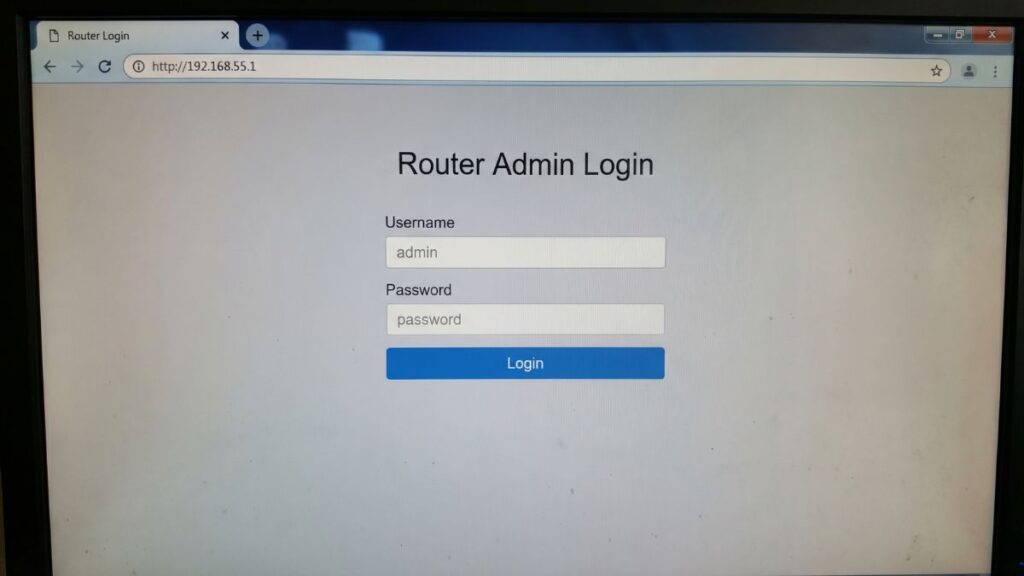
Default Login Credentials for 192.168.55.1
Always check the label on the bottom or back of your router first — credentials vary by model, and ISP-deployed hardware sometimes has a unique password on the device sticker.
| Brand / ISP | Default Username | Default Password |
|---|---|---|
| AP FiberNet (India) | admin | vertex25 |
| MyRepublic (Singapore / NZ / Indonesia) | admin | admin or (printed on label) |
| Peplink / Pepwave (some models) | admin | admin (forced change on first login) |
| Generic ISP gateway | admin | admin or (on label) |
| TP-Link (some models) | admin | admin |
| D-Link (some models) | admin | (blank) or admin |
AP FiberNet note: The documented default password for AP FiberNet routers at this IP is vertex25. This is specific to their deployed hardware — typically a customized gateway with AP FiberNet firmware. If vertex25 doesn’t work, check the sticker on the device, as newer deployments may use a unique per-unit password.
MyRepublic note: MyRepublic deploys several router models across its markets (Singapore, New Zealand, and Indonesia). The default credentials vary by model. The TG389ac (Wi-Fi Hub) and similar models typically use admin / admin, but always verify against the label on your specific unit. MyRepublic’s support page is the definitive source if the label credentials don’t work.
Peplink note: If you’re on a Peplink device using 192.168.55.1, the default credentials are admin / admin, but Peplink requires a mandatory password change on first login. If someone else set up the router, the default won’t work — a factory reset is the only path back.
How to Log In on a PC or Laptop (Windows & Mac)
- Connect to your router. Plug an Ethernet cable directly into a LAN port on the router for the most reliable connection, or join the router’s Wi-Fi network. You cannot access 192.168.55.1 from a different network — it only exists on the local network served by your specific router.
- Open your browser. Chrome, Firefox, Edge, or Safari — all work. For ISP-deployed routers like AP FiberNet and MyRepublic models, Firefox tends to handle the login page most cleanly.
- Click the address bar at the very top of the browser window — the long bar where website URLs appear.
⚠️ Critical and extremely common mistake: Typing 192.168.55.1 into the Google search box — or any search bar inside a webpage — returns search results, not your router. The address bar is the bar at the very top of the browser window, separate from any in-page search box. This single mistake accounts for most failed login attempts.
- Type
http://192.168.55.1and press Enter. Include thehttp://— some browsers interpret a bare IP as a search query without it. - The login page appears. Enter your username and password (see the table above or the sticker on your router).
- Click Login or Apply. You’re in.
If the page loads but looks broken: This occasionally happens with ISP-configured routers in Chrome. Switch to Firefox, or in Chrome, try clicking the address bar, typing http://192.168.55.1 (overriding any cached version), and pressing Enter fresh.
How to Log In on a Mobile Phone
Platform-specific steps — not a generic “open your browser” paragraph.
iPhone (iOS)
- Open Settings → tap Wi-Fi.
- Confirm you’re connected to your home network — the one your router broadcasts, not a neighbor’s or a hotspot.
- Tap the (i) icon next to your connected network name.
- Scroll down to Router — if it shows 192.168.55.1, you’ve confirmed both the right network and the right IP.
- Open Safari — it handles ISP router admin pages more reliably than Chrome on iOS.
- Tap the address bar and type:
http://192.168.55.1 - Tap Go. Enter your credentials on the login page that appears.
Android
- Open Settings → Network & Internet (Samsung: Connections → Wi-Fi).
- Tap your connected network name.
- Look for Gateway or Router in the network details — confirm it reads 192.168.55.1.
- Open Chrome or your browser of choice.
- Tap the address bar and type:
http://192.168.55.1 - Tap Go or Enter. Log in with your username and password.
💡 Mobile tip: If the router admin panel looks garbled or buttons don’t respond, tap your browser’s menu and select Request Desktop Site. ISP router interfaces are designed for desktop browsers and often render poorly on mobile, especially on smaller screens.
192.168.55.1 Not Loading? 5 Fixes for Router Login Issues
If you’re unable to access the 192.168.55.1 router login page, you’re not alone. Below are the most common issues users face and how to fix them quickly.
1. You’re Not Connected to the Right Network
Cause: Your device is connected to a different Wi-Fi network, a mobile data hotspot, or your laptop isn’t plugged into the router’s LAN port. 192.168.55.1 is only reachable from devices on that specific router’s local network — it doesn’t exist anywhere else.
Fix: Open your Wi-Fi settings, confirm you’re on your own router’s network (not a neighbor’s or a hotspot), and try the IP again. This resolves the issue most of the time.
2. The Default Password vertex25 Isn’t Working
Cause: For AP FiberNet users specifically — if vertex25 doesn’t work, either the password was changed at some point (possibly by a technician during installation), or your specific router model uses a different default.
Fix: Check the physical sticker on the bottom or back of the router — some units have a unique password printed there. If there’s no sticker or the sticker password doesn’t work either, a factory reset is the only option. Before resetting, try contacting AP FiberNet support — they may be able to reset credentials remotely or advise on the correct default for your model.
3. The Browser Is Treating the IP as a Search Query
Cause: Modern browsers — especially Chrome — sometimes redirect bare IP addresses to a search engine instead of loading them as web addresses. This is especially common if you’ve previously searched for something similar and autocomplete fills in a search URL.
Fix: Always type the full address: http://192.168.55.1. The http:// prefix is the signal that tells the browser this is a local web address, not a search term. If Chrome still fights you, try Firefox — it handles local IP addresses more predictably. Understanding what is a default gateway can also help you verify you have the correct address before troubleshooting further.
4. Your Router’s LAN IP Has Been Changed from 192.168.55.1
Cause: A technician, previous user, or ISP remote configuration may have changed the LAN gateway to a different address, especially in MyRepublic or AP FiberNet deployments where ISPs sometimes update router configurations remotely.
Fix: Find the actual current gateway. On Windows, open Command Prompt and type ipconfig — the “Default Gateway” row shows the real address. On Mac, go to System Settings → Network → your connection → Details → TCP/IP. On iPhone, tap (i) next to your network in Wi-Fi settings; on Android, look under advanced Wi-Fi details for “Gateway.” Use the address that appears there. A complete platform-by-platform guide on how to find your router’s IP address covers every operating system.
5. Too Many Failed Login Attempts Have Temporarily Locked the Panel
Cause: Some ISP-deployed routers — particularly customized firmware builds used by AP FiberNet and similar providers — implement a temporary lockout after several consecutive failed login attempts as a security measure.
Fix: Wait 5–10 minutes without attempting to log in again, then try once more with the correct credentials. If you’re still locked out after waiting, a power cycle (unplug the router for 30 seconds, plug back in, wait 90 seconds) typically clears the lockout. Don’t panic — this is a feature, not a permanent block.
How to Factory Reset Your Router
A factory reset erases all custom settings and restores the router to its original state. Before you do this, write down everything you’ll need to re-enter: your Wi-Fi name (SSID), Wi-Fi password, admin password, and if your ISP requires PPPoE login credentials, those too.
Steps:
- Keep the router powered on.
- Locate the Reset button — on most AP FiberNet and MyRepublic gateways it’s a small pinhole on the back labeled “Reset.” On some models it’s a small red button accessible with a pin or paperclip.
- Press and hold the reset button using a paperclip or SIM ejector pin.
- Hold for the appropriate duration by brand:
- AP FiberNet gateway: Hold 10–15 seconds until the LEDs cycle or flash
- MyRepublic TG389ac / Wi-Fi Hub: Hold 10 seconds until the power LED flashes
- MyRepublic (other models): Hold 10–15 seconds
- Peplink / Pepwave: Hold 10 seconds until the status LED changes
- Generic ISP gateway: 15 seconds to be safe
- Release and wait 1–3 minutes for the router to fully reboot.
- Log in using the default credentials from the table above — for AP FiberNet:
admin/vertex25. For MyRepublic:admin/adminor the label credentials.
ISP-deployed router warning: If your router was configured by AP FiberNet or MyRepublic, a factory reset may also clear your broadband connection settings (PPPoE, VLAN settings, or fiber ONT configurations). In some cases the router auto-reconfigures itself after rebooting and connecting to the ISP’s provisioning server. If you lose internet after a reset, contact your ISP support — they may need to re-push the configuration to your device.
What to Do After You Log In
Once you’re inside the admin panel, here’s what’s worth doing.
1. Change Your Admin Password Immediately
The default passwords for these ISP-deployed routers — including vertex25 for AP FiberNet — are publicly documented online. Anyone on your network who knows the gateway IP can log in with default credentials. Change this now.
- Look for System, Administration, Management, or Security in the router menu.
- Find the admin password or login credentials section.
- Set a strong, unique password. A passphrase like
BlueBanyan!Fiber88is far more secure than a short random string and easier to remember. For guidance on what makes a password genuinely strong, the NIST password guidelines are the gold standard — they now prioritize length over complexity. - Save it and store it somewhere safe, ideally in a password manager.
2. Change Your Wi-Fi Password
- Look for Wireless, Wi-Fi Setup, or WLAN in the navigation.
- For AP FiberNet routers: go to Wi-Fi Setup → WiFi 2.4GHz Settings (and 5GHz separately if you have dual-band).
- Enter your new SSID (Wi-Fi name) and your new Pre-Shared Key (Wi-Fi password).
- Click Apply or Save.
- For MyRepublic routers: look under the Wireless section → select your network → update SSID and Wireless Password → Click Close to save.
Remember: your Wi-Fi password connects devices to your wireless network. Your admin password logs you into the router settings at 192.168.55.1. These are completely separate — change both.
3. Set Security Mode to WPA2 or WPA3
In your wireless settings, find Security Mode, Encryption, or Security Policy. Set it to WPA2-PSK (AES) at minimum. If your router supports WPA3 or WPA2/WPA3 mixed mode, use it — the WPA2 vs WPA3 comparison is clear: WPA3 provides substantially better protection against offline password cracking. Avoid WEP and WPA (TKIP) entirely — both are long obsolete and easily broken.
4. Check Which Devices Are Connected
Find Connected Devices, DHCP Clients, Device List, or LAN Clients in the menu. This shows every device currently using your network, usually with a hostname or device name and a MAC address. If something unfamiliar appears — especially if you’re on a fiber connection with generous speeds — it’s worth investigating. A quick reference on how to see who’s on your network explains the full process.
5. Set Up a Guest Network
A guest network lets visitors and IoT devices (smart TVs, smart speakers, cameras) use your internet without accessing your main network or your personal devices. Look for Guest Network, Guest Wi-Fi, or a secondary SSID option in the wireless settings. Not all ISP-deployed routers support this feature — if yours doesn’t, upgrading to a personal router behind the ISP gateway is an option worth considering for better control.
6. Update Firmware
ISP-deployed routers like AP FiberNet and MyRepublic gateways typically receive firmware updates pushed automatically by the ISP. However, it’s worth checking manually: look for System Update, Firmware Update, or Software Upgrade in the admin panel. Keeping firmware current is one of the most effective ways to stay protected against known vulnerabilities. The process for how to update router firmware is similar across most brands.
7. Port Forwarding (Advanced)
If you need to make a service accessible from outside your home — a game server, a NAS drive, a security camera — port forwarding is what makes it work. Look for Port Forwarding, NAT, Virtual Server, or Applications in the admin menu. Take time to understand what network ports are before opening any — every open port is a potential entry point, and only open ports you actively need.
Common Misspellings and Typos
If you searched for one of these, you’re in the right place:
192.168.55.l
192.168.55.1/
192-168-55-1
192.168.5.51
192.168.55.0
192.168.55.11
http://www.192.168.55.1
192 168 55 1
Correct address:
192.168.55.1
Which Brands and ISPs Use 192.168.55.1?
AP FiberNet — Primary Brand
AP FiberNet is an Indian fiber broadband ISP operating primarily in Andhra Pradesh and Telangana. Their deployed home gateways use 192.168.55.1 as the default LAN IP address, making it the most documented real-world use case for this address. The default credentials are admin / vertex25 — specific to AP FiberNet’s firmware build on their gateway hardware.
This is worth emphasizing: AP FiberNet’s vertex25 password is unique among ISPs and catches many subscribers off guard because every generic guide says “try admin/admin.” If you’re an AP FiberNet customer, vertex25 is your password unless a technician changed it during installation.
MyRepublic — Secondary ISP
MyRepublic is a broadband ISP operating in Singapore, New Zealand, and Indonesia, known for its fiber and gaming-focused internet plans. Some MyRepublic-deployed gateway models use 192.168.55.1 — particularly in Singapore deployments. The TG389ac (Wi-Fi Hub) and some other MyRepublic models have been documented at this IP. Default credentials vary by model — check the router label.
Frequently Asked Questions
My AP FiberNet router says “Invalid Credentials” when I type
admin / admin. What do I do? The default password for AP FiberNet routers at 192.168.55.1 is vertex25, not admin. Try admin as the username and vertex25 as the password. If that doesn’t work either, check the sticker on your router for a unique password, or contact AP FiberNet support.
What’s the difference between my Wi-Fi password and my router admin password?
Completely separate things. Your Wi-Fi password connects devices (phones, laptops, tablets) to your wireless network. Your admin password logs you into 192.168.55.1 to configure the router. Most people use their Wi-Fi password daily but never think about the admin password — which means it often stays at the factory default. Change both.
I’m a MyRepublic customer and 192.168.55.1 won’t load. What do I try?
First confirm you’re connected to your MyRepublic router’s Wi-Fi (not a mobile hotspot or a different network). Then check your router’s label for the actual gateway IP — some MyRepublic models use 192.168.1.1 instead of 192.168.55.1. Run ipconfig on Windows or check Wi-Fi settings on your phone to see what “Gateway” or “Router” shows.
Why does my browser say “Not Secure” when visiting 192.168.55.1?
Completely normal. Router admin panels use plain HTTP by default. The “not secure” warning just means the connection isn’t encrypted — on a private local network this is generally acceptable since you’re not transmitting data to the internet. If you want encrypted access, try https://192.168.55.1 — some routers support HTTPS locally.