If 10.0.1.1 is your gateway address, you’re almost certainly dealing with an Apple AirPort router — and there’s one thing almost every generic guide gets wrong about this IP: on most Apple AirPort models, you don’t log in through a web browser at all. You use the AirPort Utility app. I’ve seen a lot of people waste an hour typing 10.0.1.1 into Chrome only to get a “site can’t be reached” error — and then assume their router is broken. It’s not. This guide covers exactly how Apple AirPort login works, what to do on PC and mobile, the WatchGuard Firebox scenario, troubleshooting, factory resets, and how to secure your network once you’re in.
10.0.1.1 – Router Login Admin Page
What Is 10.0.1.1?
It’s the local management address for your router — the IP address that identifies your router on your home network and, for some models, the address you type into a browser to access the settings panel.
The address 10.0.1.1 sits inside the 10.0.0.0/8 private range — the largest of the three private IP blocks defined by RFC 1918 private address ranges. Most home routers use 192.168.x.x addresses, but Apple deliberately chose the 10.x.x.x range for AirPort routers to keep them visually distinct from the 192.168.x.x networks that secondary routers, range extenders, and DSL modems commonly use. The specific address Apple chose — 10.0.1.1 — sits just one digit away from the much more common 10.0.0.1 used by Xfinity/Comcast gateways, which confuses a lot of people.
Like all private IPs, 10.0.1.1 is invisible to the public internet. No one from outside your home can reach it. The risk is internal: anyone who connects to your Wi-Fi network could theoretically try to access your router settings.
Most people don’t know this: Apple AirPort routers are configured through the AirPort Utility app — available on Mac, iPhone, and iPad — not through a web browser. Typing 10.0.1.1 into Chrome or Safari will not open a login page on most AirPort models. The browser-based admin interface exists only on a few very old AirPort models. If you’re on a current AirPort Extreme, AirPort Express (2nd generation), or Time Capsule, you need the app.
Default Login Credentials for 10.0.1.1
The label on the bottom or back of your router is always the most reliable source. Here are the factory defaults for brands using 10.0.1.1:
| Brand / Device | Default Username | Default Password | Access Method |
|---|---|---|---|
| Apple AirPort Extreme (all generations) | (none / leave blank) | public | AirPort Utility app |
| Apple AirPort Express (2nd gen) | (none / leave blank) | public | AirPort Utility app |
| Apple Time Capsule (all models) | (none / leave blank) | public | AirPort Utility app |
| Apple AirPort Express (1st gen, A1084) | (none / leave blank) | public | Browser at http://10.0.1.1 |
| WatchGuard Firebox (Interface 1) | admin | readwrite | Browser at https://10.0.1.1 |
| RV Wi-Fi (some models) | admin | admin | Browser at http://10.0.1.1 |
Apple AirPort note — critical: For all modern AirPort models (AirPort Extreme, Time Capsule, and second-generation AirPort Express), there is no username. The password is public by default — but you enter this in the AirPort Utility app, not in a browser. When you first set up an AirPort, the app prompts you to change the password from public to something of your choosing. If someone else set up the router, the password is whatever they chose — not public.
WatchGuard note: WatchGuard Firebox appliances use 10.0.1.1 as the default IP for Interface 1 (the trusted/LAN interface). The default credentials are admin / readwrite — a non-standard password that surprises most users. Access is via the Fireware Web UI at https://10.0.1.1 or through WatchGuard System Manager (WSM) software.
How to Access Your Apple AirPort Router
Because AirPort routers are managed through an app rather than a browser, the login process is different from every other router in this series. Here’s exactly how to do it on each platform.
On a Mac (macOS)
- Connect to your AirPort’s Wi-Fi network or plug an Ethernet cable from your Mac into one of the AirPort’s LAN ports.
- Open AirPort Utility. You’ll find it in Applications → Utilities → AirPort Utility. If it’s not installed, download it from the Mac App Store (search “AirPort Utility”).
- Your AirPort device appears in the AirPort Utility interface as a graphic icon. Click it.
- Click Edit (or double-click the device icon).
- Enter the password when prompted. The default is
publicif it’s never been changed. If it has been changed and you don’t know the current password, a factory reset is required. - You’re now in the AirPort Utility settings interface, where you can change the wireless network name, password, guest network, and advanced settings.
iPhone or iPad (iOS / iPadOS)
- Connect to your AirPort’s Wi-Fi network first.
- Download AirPort Utility from the App Store if it’s not already installed.
- Open AirPort Utility. Your AirPort device should appear automatically.
- Tap the device icon.
- Enter your AirPort password when prompted (
publicby default). - You’ll see the device status and can make changes to Wi-Fi settings, security, and more.
On a PC (Windows)
This is where Apple AirPort setup gets tricky: there is no official AirPort Utility for Windows in the modern era. Apple discontinued the Windows version of AirPort Utility years ago. Your options are:
- Use a Mac or iOS device to configure the router — Apple’s intended approach.
- Use a very old Windows version of AirPort Utility (5.x) if you can find it — this still works on Windows 7/8/10 for some AirPort models.
- For the first-generation AirPort Express (A1084 model number), there is a web interface accessible at
http://10.0.1.1in a browser.
Note for Windows users: If you see “10.0.1.1” as your gateway address and you’re on a Windows PC that you can’t get into AirPort Utility on, the practical path is to use your iPhone or an iPad to access AirPort Utility. Almost everyone with an AirPort router has access to an Apple mobile device.
How to Log In on a Mobile Phone — Non-Apple AirPort Devices
If you’re seeing 10.0.1.1 on a WatchGuard Firebox or another router model (not Apple AirPort), here’s how to log in from mobile:
iPhone (iOS)
- Open Settings → tap Wi-Fi.
- Confirm you’re connected to the correct network.
- Tap the (i) icon next to your network — scroll to Router to confirm it shows 10.0.1.1.
- Open Safari and type:
http://10.0.1.1(orhttps://10.0.1.1for WatchGuard). - Tap Go. Enter credentials:
admin/readwritefor WatchGuard.
Android
- Open Settings → Network & Internet → Wi-Fi → tap your network.
- Look for Gateway — confirm 10.0.1.1.
- Open Chrome and type:
http://10.0.1.1in the address bar. - Press Enter. Log in with your device’s credentials.
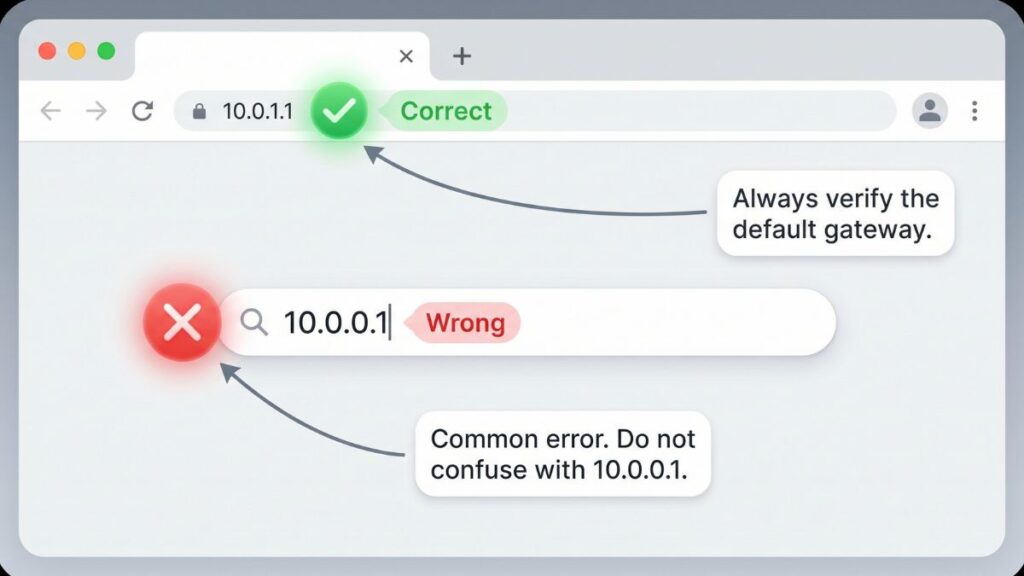
⚠️ Address bar, not search bar: Typing 10.0.1.1 into a Google search box returns search results, not your router. Always type the address into the browser’s address bar — the long bar at the very top of the browser window.
Troubleshooting: 5 Reasons 10.0.1.1 Won’t Work
If you’re unable to access the 10.0.1.1 router login page, you’re not alone. Below are the most common issues users face and how to fix them quickly.
1. You’re Trying to Use a Web Browser for an Apple AirPort
Cause: This is the most common problem by far for 10.0.1.1. Most Apple AirPort models don’t serve a web-based admin interface. Typing 10.0.1.1 into Chrome, Firefox, or Safari will give you a “This site can’t be reached” error — not because the router is broken, but because it’s not listening on a web browser port.
Fix: Use AirPort Utility on your Mac, iPhone, or iPad. Download it from the App Store or find it in Applications → Utilities on your Mac. This is the only supported way to configure modern AirPort routers.
2. You’re Confusing 10.0.1.1 with 10.0.0.1
Cause: These two addresses look nearly identical but are completely different. 10.0.0.1 is used by Xfinity/Comcast and Apple AirPort in older configurations. 10.0.1.1 (with a 1 in the third position) is the modern Apple AirPort default. One wrong digit means you’re talking to a completely different device — or nothing at all.
Fix: Double-check which address your network is actually using. On a Mac, hold Option and click the Wi-Fi icon in the menu bar — look for “Router.” On Windows, run ipconfig and look for “Default Gateway.” On iPhone, tap (i) next to your network in Wi-Fi settings. Use whichever address appears there. A complete guide on how to find your router’s IP address covers every platform.
3. The AirPort Password Has Been Changed from public
Cause: During AirPort setup, the utility prompts users to change the default public password. If someone else set up the AirPort, or if you set it up a long time ago and don’t remember what you chose, the default public won’t work.
Fix: Try public first. If that fails, try the Wi-Fi password you set for the network — some people accidentally use the same password for both. If neither works, a factory reset is the only option. See the Factory Reset section below.
4. You’re on a WatchGuard and Getting a Certificate Warning
Cause: WatchGuard Firebox appliances use HTTPS with a self-signed certificate for their web admin interface at 10.0.1.1. Your browser will display a security warning, which stops many users in their tracks.
Fix: This is safe to bypass on a local private network. In Chrome: click Advanced → Proceed to 10.0.1.1 (unsafe). In Firefox: click Advanced → Accept the Risk and Continue. The self-signed certificate triggers the warning, but you’re on a private network — there’s no external threat. Credentials are admin / readwrite for WatchGuard factory defaults.
5. The Gateway Has Been Changed from 10.0.1.1
Cause: AirPort routers allow changing the router’s LAN IP address. If someone has previously configured the AirPort with a custom IP (like 192.168.1.1 or 10.0.0.1), the default 10.0.1.1 won’t reach it anymore.
Fix: Find the current gateway address. On Mac, hold Option and click the Wi-Fi icon → look for “Router IP.” On Windows, run ipconfig → Default Gateway. On iPhone, tap (i) next to your Wi-Fi network. Understanding what is a default gateway can help clarify why the gateway address matters and what it represents in your network.
How to Factory Reset Your Router
A factory reset wipes all settings and returns the router to its out-of-the-box state. Before you reset, note that you’ll lose your Wi-Fi name, Wi-Fi password, AirPort password, guest network settings, and any port forwarding or DHCP reservations you’ve configured.
Apple AirPort Factory Reset
The reset process is slightly different depending on the model:
AirPort Extreme (3rd generation and later, square/cylindrical design) and Time Capsule:
- Keep the device plugged in and powered on.
- Find the Reset button — a small pinhole on the back, near the power port.
- Press and hold with a paperclip or pin for 10 seconds until the LED on the front flashes amber rapidly.
- Release. The device reboots.
- After rebooting (give it 2–3 minutes), open AirPort Utility. The device will appear as unconfigured, prompting you to set it up fresh. The password will be back to
public.
Air–Port Express (1st and 2nd generation, flat/wafer design):
- Keep plugged in.
- Press and hold the Reset button on the side for 10 seconds until the LED flashes amber.
- Release and wait for reboot.
AirPort Extreme (older models, dome/snow/graphite design):
- With the device powered on, press and hold the reset button on the back for 10 seconds.
- Release when the LED flashes amber rapidly.
WatchGuard Firebox Factory Reset
Warning: Resetting a WatchGuard Firebox in a production environment should only be done by a network administrator — it wipes all firewall policies, VPN configurations, and network settings.
- Power off the Firebox.
- Hold the Reset button on the front panel while powering on.
- Continue holding until the Arm/Disarm LED flashes amber (approximately 10–15 seconds).
- Release. The device boots with factory defaults.
- Connect to Interface 1 via Ethernet and access
https://10.0.1.1with credentialsadmin/readwriteto run the Setup Wizard.
What to Do After You Get In
Once you’re into your AirPort or WatchGuard settings, here’s what matters most.
1. Change the AirPort Password from public
The default password public is, by name, the least secure password imaginable. Change it immediately after your first login.
In AirPort Utility:
- Open AirPort Utility and click your device.
- Click Edit.
- Go to the Base Station tab.
- Find AirPort Base Station Password and change it.
- Set a strong password. How to create a strong password — use a passphrase like
CloudSummit!Maple77rather than a short string of characters. Store it in a password manager. - Click Update to save.
2. Change Your Wi-Fi Password
In AirPort Utility:
- Click your AirPort device → Edit.
- Go to the Wireless tab.
- Click the network you want to edit.
- Update the Network Name (SSID) and Wi-Fi Password fields.
- Click Save and then Update.
Important reminder: Your Wi-Fi password and your AirPort password are two completely different things. The Wi-Fi password connects devices to your wireless network. The AirPort password gets you into the AirPort Utility to change settings. Change both — they’re independent.
3. Set Security to WPA2 or WPA3
In AirPort Utility’s Wireless tab, look for Wireless Security. Set it to WPA2 Personal at minimum. Newer AirPort firmware supports WPA2/WPA3 Transitional — use that if it’s available. The WPA2 vs WPA3 difference matters: WPA3 protects better against offline dictionary attacks. Avoid WEP and WPA (TKIP) — both are fundamentally broken.
4. Check Which Devices Are Connected
In AirPort Utility, click your device and look for Wireless Clients or DHCP Clients in the device info pane. This shows every device connected to your network. For more detail on identifying devices from the list — especially if you see unfamiliar MAC addresses — the guide on how to see who’s on your network walks through the full process.
5. Set Up a Guest Network
Apple AirPort routers support a guest network that’s isolated from your main network — guests can use the internet but can’t reach your computers, printers, or NAS drives. In AirPort Utility:
- Click your device → Edit.
- Go to the Wireless tab.
- Check Enable Guest Network.
- Set a Guest Network Name and Guest Network Password.
- Click Save → Update.
Our guest network is named exactly “GuestWiFi” — nothing creative, just functional. A clear name helps guests connect without having to ask what the network is called.
6. Update Firmware
AirPort Utility displays a firmware update notification when Apple releases a new version — a yellow dot on your device icon in the main view. Click the device → Edit → look for the update prompt in the Base Station tab. Apple stopped releasing AirPort firmware updates after discontinuing the product line in 2018, so if you’re on an AirPort, you’re likely already on the last available firmware. For WatchGuard devices, firmware updates are critical — check WatchGuard’s portal regularly.
7. Port Forwarding
For AirPort routers, port forwarding is under Edit → Network tab → + (add) under “Port Settings.” You specify the external port, the internal IP address of the device to forward to, and the internal port. Understanding how port forwarding works before making changes prevents exposing services unintentionally. On WatchGuard, port forwarding (NAT rules) is configured in the Fireware Web UI’s policy manager — significantly more complex.
Common Misspellings and Typos
The 10.0.1.1 address generates a specific set of easy-to-make errors:
10.0.0.1
10.0.1.l
10.0.l.1
10.0.1.1/
10-0-1-1
10.0.1.0
http://www.10.0.1.1
10 0 1 1
10.01.1
The confusion between 10.0.0.1 and 10.0.1.1 is especially common because they look nearly identical at a glance.
Correct address:
10.0.1.1
(third octet is 1). Xfinity users see 10.0.0.1 (zero).
Which Brands and Devices Use 10.0.1.1?
Apple AirPort — The Primary Brand
Apple AirPort is overwhelmingly the primary brand associated with 10.0.1.1. Apple’s entire AirPort router lineup — across all generations — defaults to the 10.0.1.x subnet with 10.0.1.1 as the router’s own address.
Models using 10.0.1.1:
- AirPort Extreme (all generations: A1034, A1143, A1301, A1408, A1521) — flat white disk design evolving to the tall cylinder
- AirPort Express (1st gen: A1084, A1264; 2nd gen: A1392) — flat wafer design for portable use or audio streaming
- Time Capsule (all generations: A1254, A1302, A1409, A1470) — AirPort Extreme with built-in hard drive for Time Machine backups
Apple discontinued the AirPort product line in April 2018, but many AirPort routers remain in active use. Apple still provides AirPort Utility for macOS and iOS, and the existing hardware continues to function. If you’re using an AirPort, you’re on discontinued hardware — which means no new firmware updates or security patches from Apple. Upgrading is worth considering.
Important management distinction by model:
| Model | Admin Method | Browser access? |
|---|---|---|
| AirPort Extreme (A1521, A1408, A1301, A1143) | AirPort Utility only | No |
| Time Capsule (A1470, A1409, A1302, A1254) | AirPort Utility only | No |
| AirPort Express 2nd gen (A1392) | AirPort Utility only | No |
| AirPort Express 1st gen (A1264, A1084) | AirPort Utility + limited browser | Limited |
WatchGuard Firebox — Secondary Brand
WatchGuard Technologies makes enterprise-grade network security appliances under the Firebox brand. According to WatchGuard’s official documentation, Interface 1 on all Firebox appliances defaults to 10.0.1.1/24 with DHCP enabled, making 10.0.1.1 the management address for the trusted LAN interface out of the box.
WatchGuard models using 10.0.1.1: Firebox T-series (T15, T25, T35, T45, T55, T85), Firebox M-series (M290, M370, M470, M570, M670), and associated wireless models (T35-W, etc.).
WatchGuard is a professional security platform — if you’re managing one, you’re likely an IT administrator who knows what you’re doing. The factory-default credentials are admin / readwrite, and the management interface is the Fireware Web UI at https://10.0.1.1 or WatchGuard System Manager software.
Frequently Asked Questions
Why doesn’t a web browser work for Apple AirPort at 10.0.1.1?
Apple designed AirPort routers to be configured exclusively through their AirPort Utility app rather than a web browser admin panel. This was a deliberate design choice — Apple wanted a consistent, user-friendly configuration experience tied to their software ecosystem. It means there’s no web server running on port 80 or 443 on most AirPort models. The app is available for Mac, iPhone, and iPad.
What’s the difference between my Wi-Fi password and my AirPort password?
Completely separate things. Your Wi-Fi password (also called the network key or WPA password) connects devices like phones and laptops to your wireless network. Your AirPort password (also called the base station password) unlocks the AirPort Utility interface so you can change router settings. The default AirPort password is public until you change it. Change both.
Apple discontinued AirPort in 2018. Should I upgrade?
Probably yes, eventually. Apple no longer releases firmware updates for AirPort hardware, which means security vulnerabilities discovered after 2018 won’t be patched. Your AirPort will continue to work fine, but it’s not receiving security updates. If network security matters to you — and it should — a modern router from ASUS, TP-Link, or Eero is worth the upgrade, especially since modern options offer WPA3 support, automatic firmware updates, and better Wi-Fi speeds.
10.0.1.1 and 10.0.0.1 look almost the same. What’s the difference?
They’re different IPs entirely: 10.0.0.1 is used by Xfinity/Comcast gateways (and some older Apple AirPort configurations), while 10.0.1.1 (with a 1 in the third position) is the modern Apple AirPort and WatchGuard default. If you’re an Xfinity customer and typed in 10.0.1.1 by mistake, your correct gateway is 10.0.0.1.