If you’re trying to reach your router’s admin panel and the address is 172.16.0.1, you’ve come to the right place. This isn’t the most common router IP — most home routers use something like 192.168.1.1 or 192.168.0.1 — so when it shows up, people are often a little confused about what it is and why it’s different. I’ll explain all of that, and then walk you through how to log in from a PC, an iPhone, and an Android phone. I’ll also cover the five most common login problems and exactly what to do once you’re inside the admin panel.
172.16.0.1 – Router Login Admin Page
What Is 172.16.0.1?
172.16.0.1 is a private IP address — and it belongs to a different private range than most home users are used to seeing. While 192.168.x.x addresses are by far the most common in US homes, the 172.16.0.0/12 block is one of three private IP ranges established for local networks. Understanding what is an IP address helps here: every device on your local network gets its own private address, and your router sits at a fixed “home base” address — in this case, 172.16.0.1 — that everything else on the network uses to reach the internet.
Here’s something most people don’t know: the 172.16.0.0/12 range actually spans all the way from 172.16.0.0 to 172.31.255.255 — that’s over a million possible addresses. It’s huge, and it’s the reason you’ll see it more in business and enterprise environments than in a typical home setup. ISPs and corporate network admins sometimes use it specifically because it’s less likely to overlap with addresses that consumer devices expect. When your ISP or IT department sets up your network equipment and it lands on 172.16.0.1, that’s a deliberate configuration choice — not an error.
Like all private IP addresses, 172.16.0.1 is invisible to the public internet. You can’t reach it from outside your network, and nobody on the internet can use it to connect to your router. It only works when your device is on the same local network. That’s actually a built-in security feature — a consequence of how what is NAT works to separate your private network from the public one.
Default Login Credentials for 172.16.0.1
The brands most commonly associated with 172.16.0.1 are Top Global, 2Wire (AT&T DSL gateway hardware), Cisco, and some enterprise-grade equipment. That said, any router can be manually configured to use this address — so check the sticker on the back or bottom of your device first. It’s always the most reliable source.
| Brand | Default Username | Default Password |
|---|---|---|
| Top Global | public | public |
| 2Wire / Pace | admin | (printed on label) |
| Cisco | cisco | cisco |
| Linksys | admin | admin |
| TP-Link | admin | admin |
| D-Link | admin | (blank — leave empty) |
| Netgear | admin | password |
| Asus | admin | admin |
| Belkin | admin | (blank — leave empty) |
| Tenda | admin | admin |
Note on “blank” passwords: If the table shows a blank password, don’t type the word “blank” — just leave the password field completely empty and click Login. Some routers ship with no password set for the first login.
Still not working? The label on the back of the physical router is always the most reliable source. Credentials get changed, but the label shows what the device shipped with.
How to Log In to 172.16.0.1 on a PC or Mac
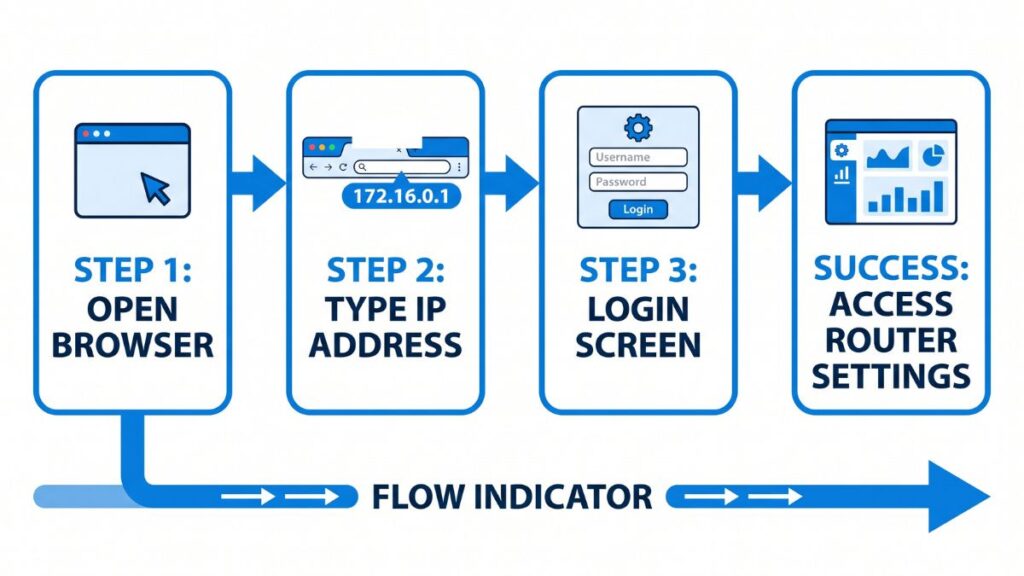
- Connect your computer to the router — either via Wi-Fi or an Ethernet cable. For any admin work, Ethernet is the better choice. If you’re changing wireless settings over Wi-Fi, there’s a real chance you’ll get disconnected before the save goes through.
- Open a browser. Chrome, Firefox, Edge, Safari — all work fine.
- Click on the address bar at the top of the browser window.
⚠️ Address bar, not search bar. This is the single most common mistake people make. If you type an IP address into Google’s search box, you’ll get search results — not your router. Click the bar at the very top where you normally see a URL like “https://google.com,” clear it out, and type the IP there instead.
- Type
http://172.16.0.1and press Enter. - The router’s login page should load. If you see an HTTPS warning, try
http://(without the “s”) — most older router admin panels don’t use SSL. - Enter your username and password. Use the table above or your router’s label.
- Hit Login or OK.
You’re in. If the page refuses to load, head to the troubleshooting section below — there are a few easy fixes.
How to Log In to 172.16.0.1 on a Mobile Device
Most guides skip mobile instructions entirely, or lump iPhone and Android together. They’re actually a bit different, so here’s each one separately.
On iPhone (iOS)
- Open Settings and tap Wi-Fi.
- Confirm you’re connected to the correct Wi-Fi network — the one that comes from the router you’re trying to access. (If you’re on mobile data, this won’t work at all.)
- Tap the (i) icon next to your network name.
- Scroll down to Router — it should display 172.16.0.1. That confirms you’re on the right network.
- Open Safari (or Chrome for iOS — both work).
- Tap the address bar and type
172.16.0.1, then tap Go. - Enter your credentials on the login screen that appears.
On Android
- Open Settings → Network & Internet (some phones call this Connections or Wi-Fi & Network).
- Tap Wi-Fi, then tap the name of your network or a gear/info icon next to it.
- Look for Gateway or Router IP — confirm it shows 172.16.0.1.
- Open Chrome or your Android browser.
- Tap the address bar, type
172.16.0.1, and press the search/go key. - If it tries to search instead of navigating, type
http://172.16.0.1with the full prefix. - Enter your username and password at the login page.
Quick tip for both platforms: Don’t be on mobile data when you try this. Private IP addresses like 172.16.0.1 are only reachable on a local Wi-Fi connection — mobile data routes through your carrier’s network and can’t see your home router at all.
Troubleshooting: 5 Problems (And How to Actually Fix Them)
If you’re unable to access the 172.16.0.1 router login page, you’re not alone. Below are the most common issues users face and how to fix them quickly.
1. The Page Just Doesn’t Load at All
Cause: Your device is either not connected to the router’s network, or 172.16.0.1 isn’t actually the router’s current IP address.
Fix: Open Command Prompt on Windows (Windows key + R, type cmd, press Enter) and run ipconfig. Look for the line that says Default Gateway — that’s your actual router IP. On a Mac, go to System Preferences → Network → Wi-Fi → Advanced → TCP/IP and look for Router. Use whatever IP is listed there instead. It might be 172.16.0.1, or it might be something different entirely. To understand what is a default gateway and why it matters, that Cloudflare explainer is a good read.
2. The Browser Turns It Into a Google Search
Cause: You typed the IP in the search box instead of the address bar, or your browser auto-searched it.
Fix: Click the very top bar of your browser window (where website addresses appear), and make sure you’re replacing — not appending to — whatever’s already there. Type http://172.16.0.1 with the full http:// prefix. That forces the browser to treat it as a web address rather than a search query.
3. “This Site Can’t Be Reached” or Connection Refused
Cause: The router’s admin interface might be configured to listen on a non-standard port, or a firewall is blocking the request.
Fix: Try http://172.16.0.1:8080 — some router admin panels are configured on port 8080 instead of the default port 80. Also check whether your computer’s firewall or antivirus is blocking local network connections. Temporarily disabling it for a test is fine. If you’re on a corporate laptop, IT policy might be restricting access to private IP ranges.
4. Login Page Loads But Your Credentials Don’t Work
Cause: The default password was changed — possibly by a previous user, an ISP technician, or you (and you’ve since forgotten).
Fix: Don’t panic — this happens all the time. First, check the physical label on your router. If the label’s credentials don’t work either, you’ll need to do a factory reset. Jump down to the Factory Reset section for the exact steps. You won’t lose your internet service — you’ll just need to reconfigure your settings from scratch.
5. You Log In Fine But Keep Getting Kicked Out
Cause: You’re connected over Wi-Fi, and when you save certain settings (especially wireless settings), the router briefly restarts its Wi-Fi, dropping your connection.
Fix: Plug in a physical Ethernet cable from your computer to one of the LAN ports on the back of the router. This keeps you connected to the router’s admin panel even when the wireless radio resets. Every time I’ve needed to make a batch of changes, I’ve used a cable — saves a lot of frustration.
Factory Reset Guide
A factory reset erases all your custom settings — your Wi-Fi name, password, port forwarding rules, any parental controls, custom DNS, everything. Your internet service won’t be permanently cut off, but you’ll need to reconfigure your network from zero.
Before you reset: Take a photo of your current settings or write down your Wi-Fi name, password, and any port forwarding rules. Five minutes of prep now saves an hour of guesswork later.
Steps:
- Make sure the router is powered on. Don’t reset it while it’s off — some routers won’t fully reset that way.
- Find the Reset button on the back or bottom of the unit. It’s usually a recessed pinhole so you don’t accidentally press it. Grab a straightened paperclip, a SIM ejector pin, or a toothpick.
- Press and hold the reset button for the following duration based on your brand:
- Cisco: 10–15 seconds until the LED flashes
- 2Wire / Pace: 10 seconds
- TP-Link: 10 seconds
- Linksys: 10–15 seconds
- D-Link: 10 seconds
- Netgear: 7 seconds, then release and wait 30 more
- Release the button and wait 60–90 seconds for the router to fully reboot.
- Navigate back to
http://172.16.0.1using the default credentials from the sticker or the table above.
What to Do After You Log In
Getting in is the first step. Here’s what actually matters once you’re inside.
1. Change Your Admin Password
Leaving the default “admin/admin” or “public/public” credentials in place is one of the most common home network security mistakes. Anyone who connects to your Wi-Fi — a guest, a neighbor who guesses your password — can potentially get into your router if the admin login is still set to the default.
- Log in to the router at 172.16.0.1.
- Look for Administration, System Tools, Management, or Security in the nav menu — the label varies by brand.
- Find Router Password, Admin Password, or Login Password.
- Enter your current password, then set a new one.
- Make it strong: 12+ characters, a mix of letters, numbers, and symbols. You can learn how to create a strong password that’s actually memorable without being guessable.
- Save the changes and log back in with the new credentials.
Write it down somewhere physical. If you forget the admin password, factory reset is your only recovery path.
2. Change Your Wi-Fi Password
Go to Wireless or Wi-Fi Settings and update your network password. Make it something you can type on a phone without wanting to throw it across the room — but not something obvious like your address or last name. While you’re in there, also check the SSID (your network’s visible name). Consider changing it from the default if it still shows the router brand or model — that’s basically advertising which vulnerabilities to look for.
Quick clarification that trips everyone up: Your Wi-Fi password — the one your phone uses to join the network — is entirely separate from the router admin password — the one you use to get into 172.16.0.1. They don’t have to match, and they probably shouldn’t.
3. Set WPA2 or WPA3 Security Mode
In your Wireless settings, find the Security Mode or Authentication dropdown. Set it to WPA3 if your router supports it — it’s the current standard and significantly more resistant to brute-force attacks. If WPA3 isn’t available, WPA2-AES is solid. The comparison between WPA2 vs WPA3 is worth reading if you want to understand the difference. Whatever you do, avoid WEP or plain WPA (without the “2”) — those are considered broken at this point and shouldn’t be used.
4. Check Which Devices Are Connected
Look for DHCP Client List, Connected Devices, or Device Manager in the admin panel. This shows every device on your network, usually with a hostname, IP, and what is a MAC address for each one. It’s a fast way to spot anything unexpected — an unfamiliar device name, an unknown MAC address, something connecting at odd hours. If you see something you don’t recognize, change your Wi-Fi password. That kicks everything off the network and only devices with the new password can reconnect.
5. Set Up a Guest Network
If your router supports it (most do), a guest network is one of the best things you can do for day-to-day network hygiene. It gives visitors their own isolated Wi-Fi that can’t see your main network’s devices — your printers, NAS drives, smart home gadgets, and computers all stay hidden. Look for Guest Network or Guest Zone in the Wireless settings. Our guest network at home is named something embarrassingly simple, but simple means people can actually connect without asking three times. You can set up a guest network in about five minutes flat.
6. Port Forwarding
If you’re running a game server, remote desktop, home security camera, or any service that needs to be reachable from the internet, you’ll need port forwarding. Go to Advanced → Port Forwarding (or Virtual Server on some interfaces). You’ll enter the internal IP of the target device, the external port number, and the protocol (TCP, UDP, or both). Understanding what network ports are before you start is genuinely helpful — opening the wrong port on a home network can create real exposure.
7. Update Your Firmware
This is the one everyone skips and shouldn’t. Go to Administration → Firmware Update or Software Update. Run the check and install any available updates. Router firmware patches fix real security vulnerabilities — the kind that get exploited in the wild. Getting into the habit of checking how to update router firmware once every few months is one of the easiest wins for home network security.
Common Misspellings of 172.16.0.1
The 172 prefix is less familiar to most people, which means typos are common. None of these variations will work:
172.16.o.1
172.16.0.l
172.16.l.1
l72.16.0.1
172.160.1
172.16.01
17216.0.1
172.16.0.1.
172-16-0-1
www.172.16.0.1
http //172.16.0.1
172.16.0.10
172.16.1.0
Correct address:
172.16.0.1
— IP addresses are made up entirely of numbers and dots.
Which Brands and ISPs Use 172.16.0.1?
172.16.0.1 sits in the 172.16.0.0/12 range, which is less common in consumer home setups and more frequent in business, ISP-provisioned, and enterprise environments.
Brands that commonly use 172.16.0.1 as a default gateway:
- Top Global — uses public/public as default credentials
- 2Wire and Pace (AT&T DSL gateway hardware) — some models in this family default to 172.16.0.1, though AT&T’s more common gateway is 192.168.1.254
- Cisco — enterprise and SMB routers frequently use the 172.16.x.x range, particularly in managed network deployments
- Some ISP-provisioned ADSL and fiber gateway modems — especially equipment configured specifically for a business or small office installation
Brands that sometimes land here (depending on configuration):
- Linksys, TP-Link, D-Link, and Netgear can all be manually configured to use 172.16.0.1, even if their factory default is a 192.168.x.x address. If a network admin changed the gateway IP, that’s the address you’ll see.
Frequently Asked Questions
Why does 172.16.0.1 open a different page than I expected?
A: Some ISPs use 172.16.0.1 for their own equipment management interface rather than a standard consumer router admin page. If you see your ISP’s portal instead of a router admin panel, you may need to contact them for login credentials, or check whether there’s a separate router behind the modem.
What’s the default username and password for 172.16.0.1?
The most common default for Top Global devices (which often use this IP) is username: public, password: public. For other brands, check the table above or the label on the physical device. The label is always the most reliable source.
Is my Wi-Fi password the same as my router admin password?
No — and this is probably the most common point of confusion in all of router management. Your Wi-Fi password is what your phone or laptop uses to join the network. Your admin password is what you type to get into the router’s settings at 172.16.0.1. They’re completely separate, stored separately, and should ideally be different from each other.
Why does 172.16.0.1 look different from the usual 192.168.x.x addresses I see?
There are actually three private IP address ranges in common use. The 192.168.x.x range is the most familiar to home users, but 172.16.0.0–172.31.255.255 is another fully valid private range, and 10.x.x.x is the third. Your router just happens to be configured to use an address from the 172.16.x.x block instead of the more common one.
My internet works fine, but 172.16.0.1 won’t load in the browser. Why?
Working internet doesn’t necessarily mean your gateway is 172.16.0.1. Run ipconfig on Windows or check your Wi-Fi details on your phone to see what your actual Default Gateway is. If it’s a different IP, use that one instead. Also make sure you’re not adding “www.” or searching in Google — type the IP directly into the browser address bar.