Most router guides on the internet are written for 192.168.1.1 or 192.168.0.1. If you’ve landed here, you’re dealing with something slightly different — 192.168.18.1 — and the guides for those other addresses won’t help you. This IP is used by a specific set of routers, most notably Huawei LTE and fiber gateways deployed by regional ISPs across Asia, Africa, and some parts of Europe, as well as certain TP-Link and D-Link models. I’ll walk you through the full login process on PC and mobile, what to do when it won’t load, how to reset the router, and how to actually lock down your network once you’re in.
192.168.18.1 – Router Login Admin Page
What Is 192.168.18.1?
It’s your router’s local administrative address — the IP you type into a browser to open the settings panel where you can manage your Wi-Fi, passwords, connected devices, and more.
Every router on a home network assigns itself a private IP address called the default gateway. The gateway is the address your devices use to communicate with the router, and it’s also how you access the admin panel. While most routers land on 192.168.1.1 or 192.168.0.1, manufacturers and ISPs occasionally choose addresses in less-congested subnets like 192.168.18.1 to avoid IP conflicts in homes or offices where multiple network devices might overlap.
The “18” subnet — 192.168.18.x — is the key thing to note here. It’s easy to accidentally type 192.168.1.81 or 192.168.1.18 and wonder why nothing loads. The order of digits matters exactly.
Like all private router gateways, this address is defined by the RFC 1918 private address ranges and is invisible to the public internet. Nobody outside your home can reach it. The security risk is internal — anyone who connects to your Wi-Fi can try to log in with default credentials if you haven’t changed them.
Most people don’t know this: 192.168.18.1 is particularly common on Huawei B-series LTE routers (like the B315s and B525) distributed by Globe Telecom in the Philippines and by various ISPs across Southeast Asia and Africa. If you’re on one of those networks and wondering why the “standard” router IPs don’t work — this is why.
Default Login Credentials for 192.168.18.1
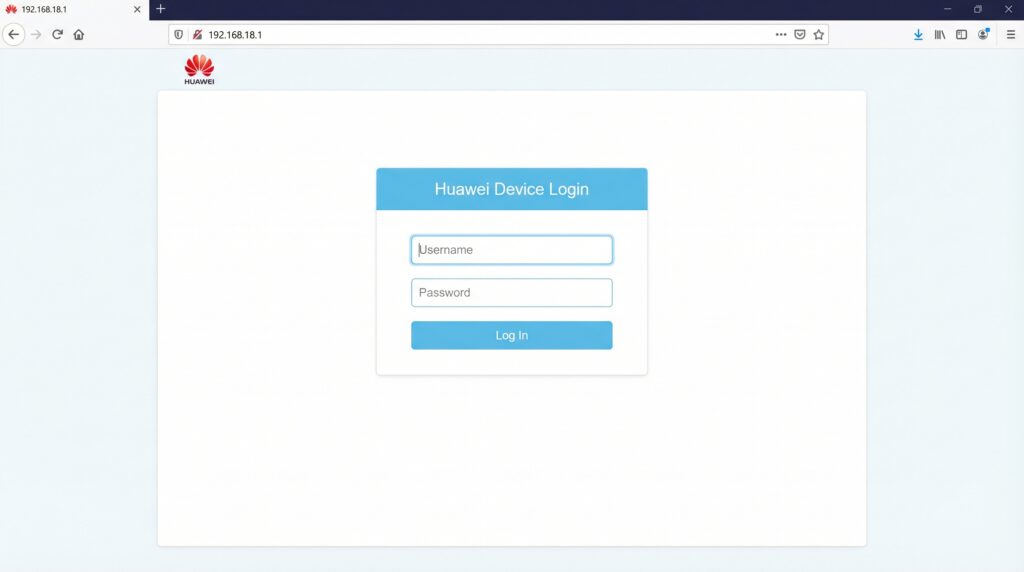
Always check the label on the back or bottom of your router first — credentials vary by model and some ISP-deployed units have unique passwords printed on the sticker. The table below covers the most common defaults:
| Brand | Default Username | Default Password |
|---|---|---|
| Huawei (ISP-deployed) | admin | admin or (printed on label) |
| TP-Link | admin | admin |
| D-Link | admin | (blank) or admin |
| ASUS | admin | admin |
| Netgear | admin | password |
| Cisco | admin | admin or cisco |
| Linksys | admin | admin |
| Tenda | admin | admin |
| Nokia (ISP gateway) | admin | admin or (on label) |
| Generic/White-label ISP | admin | admin or (on label) |
Huawei ISP gateway note: Huawei routers deployed by ISPs (Globe, Huawei B315s, B525, and similar LTE/fiber units) frequently use a unique password printed on the device label rather than a universal default. Flip the router over and look for a sticker that shows the admin password — it often looks like a short alphanumeric string. If the label only shows the Wi-Fi password and not an admin password, try admin as both the username and password.
TP-Link note: Some TP-Link models using this subnet require you to set your own admin password on first login instead of using a preset default. If you get a “set new password” prompt, that’s expected behavior.
How to Log In on a PC or Laptop (Windows & Mac)
- Connect to your router first. Plug in an Ethernet cable or join the router’s Wi-Fi network. If you’re not on the same network as the router, the admin page won’t load — full stop.
- Open your browser. Chrome, Firefox, Edge, and Safari all work. For this type of router, Firefox often handles the login page most cleanly.
- Click the address bar at the very top of the browser window — the long bar where website URLs appear.
⚠️ This is the most common mistake: Typing 192.168.18.1 into the Google search box (or any search bar) will return search results, not your router. You need to type it into the browser’s address bar at the top of the window — not the search box inside a page.
- Type
http://192.168.18.1and press Enter. Thehttp://prefix matters — some browsers interpret bare IP addresses as searches without it. - A login page will appear. Enter the username and password from the table above, or from the sticker on your router.
- Click Login. You’re in.
If the page loads but immediately redirects to your ISP’s portal instead of a local login screen, see the troubleshooting section below — this is a known issue with some ISP-deployed Huawei gateways.
How to Log In on a Mobile Phone
Here’s what actually works on each platform — not just vague “open a browser” instructions.
iPhone (iOS)
- Open Settings → tap Wi-Fi.
- Confirm you’re connected to your home network (the one your router broadcasts).
- Tap the (i) icon next to your connected network name.
- Scroll down to Router — if it shows 192.168.18.1, you’re on the right network with the right IP.
- Open Safari — it handles router admin pages more reliably than Chrome on iOS.
- Tap the address bar at the top and type:
http://192.168.18.1 - Hit Go. Enter your credentials when the login page appears.
Android
- Open Settings → Network & Internet (Samsung: Connections → Wi-Fi).
- Tap your connected network name.
- Look for Gateway or Router in the network details — confirm it shows 192.168.18.1.
- Open Chrome or your browser of choice.
- Tap the address bar and type:
http://192.168.18.1 - Tap Go or Enter. Log in with your credentials.
💡 Mobile tip: If the admin panel looks garbled or form fields don’t respond on mobile, tap your browser’s menu (three dots) and select Request Desktop Site. Router admin interfaces are built for desktop browsers and sometimes render poorly on mobile screens.
Troubleshooting: 5 Reasons 192.168.18.1 Won’t Load
1. You’re Not Connected to the Right Network
Cause: Your device is on a different Wi-Fi network, a cellular connection, or a mobile hotspot. The private IP 192.168.18.1 only exists on the local network served by that specific router.
Fix: Open your Wi-Fi settings and make sure you’re connected to your own router’s network — not a neighbor’s, not your phone’s hotspot. Once connected, try the IP again. This is the cause of most failed login attempts.
Fix: Open your Wi-Fi settings and make sure you’re connected to your own router’s network — not a neighbor’s, not your phone’s hotspot. Once connected, try the IP again. This is the cause of most failed login attempts.
2. The Page Redirects to Your ISP’s Login Page Instead
Cause: This is specific to ISP-deployed gateways, especially Huawei units from Globe Telecom and similar providers. Some ISPs configure the router so that port 80 traffic gets intercepted and redirected to a customer portal instead of the local admin panel.
Fix: Try the full address with a port number: http://192.168.18.1:8080 — some ISP-configured Huawei routers host the local admin panel on port 8080 instead of the standard port 80. Alternatively, try using a wired Ethernet connection instead of Wi-Fi, which sometimes bypasses the redirection. If neither works, contact your ISP — some providers intentionally lock local admin access on their hardware.
Fix: Try the full address with a port number: http://192.168.18.1:8080 — some ISP-configured Huawei routers host the local admin panel on port 8080 instead of the standard port 80. Alternatively, try using a wired Ethernet connection instead of Wi-Fi, which sometimes bypasses the redirection. If neither works, contact your ISP — some providers intentionally lock local admin access on their hardware.
3. Your Router’s IP Has Been Changed from 192.168.18.1
Cause: A technician, previous user, or ISP configuration update may have changed the LAN gateway to a different address.
Fix: Find the actual current gateway. On Windows, open Command Prompt and type ipconfig — the “Default Gateway” line shows the real address. On Mac, go to System Settings → Network → your connection → Details. On iPhone, tap (i) next to your network; on Android, check advanced Wi-Fi details. Use whatever address appears under Gateway or Router. If you need a more thorough walkthrough, this guide on how to find your router’s IP address covers every platform.
Fix: Find the actual current gateway. On Windows, open Command Prompt and type ipconfig — the “Default Gateway” line shows the real address. On Mac, go to System Settings → Network → your connection → Details. On iPhone, tap (i) next to your network; on Android, check advanced Wi-Fi details. Use whatever address appears under Gateway or Router. If you need a more thorough walkthrough, this guide on how to find your router’s IP address covers every platform.
4. Browser Is Redirecting the IP to a Search Engine
Cause: Modern browsers — especially Chrome — sometimes misinterpret numeric addresses without http:// as search queries, particularly if you’ve typed the IP before and autocomplete filled in something different.
Fix: Always use the full format: http://192.168.18.1. Clear your browser’s address bar history if autocomplete is substituting a different URL. If Chrome keeps fighting you, try Firefox — it handles local IP addresses more predictably. Understanding what is a default gateway can also help you verify you’re working with the right address before troubleshooting further.
Fix: Always use the full format: http://192.168.18.1. Clear your browser’s address bar history if autocomplete is substituting a different URL. If Chrome keeps fighting you, try Firefox — it handles local IP addresses more predictably. Understanding what is a default gateway can also help you verify you’re working with the right address before troubleshooting further.
5. The Router’s Admin Interface Is on a Non-Standard Port
Cause: Some ISP-configured routers — particularly Huawei LTE units — are set up with the web admin on port 8080 or 8443 instead of the default port 80.
Fix: Try these alternative addresses one at a time:
http://192.168.18.1:8080
https://192.168.18.1:8443
http://192.168.18.1:8181
If one of those loads the login page, that’s your router’s actual admin URL — bookmark it.
Fix: Try these alternative addresses one at a time:
http://192.168.18.1:8080
https://192.168.18.1:8443
http://192.168.18.1:8181
If one of those loads the login page, that’s your router’s actual admin URL — bookmark it.
How to Factory Reset Your Router
A factory reset wipes all custom settings and restores the router to its out-of-the-box state. Before you do it, write down your current Wi-Fi name (SSID), Wi-Fi password, any port forwarding rules, and your ISP connection details (PPPoE username and password if applicable) — you’ll need to re-enter them after the reset.
Steps:
- Keep the router powered on.
- Find the Reset button — on most Huawei LTE routers it’s a pinhole on the back; on TP-Link and D-Link units it’s usually labeled “Reset” on the rear panel.
- Press and hold the reset button using a paperclip or SIM ejector pin.
- Hold for the right duration per brand:
- Huawei (B315s, B525, etc.): Hold 3–5 seconds until the indicator light changes; some models require 10 seconds
- TP-Link: 10 seconds
- D-Link: 10 seconds
- ASUS: 5–10 seconds until power LED flashes
- Netgear: 7–10 seconds
- Linksys: 10 seconds
- Generic ISP gateway: 15 seconds to be safe
- Release and wait 1–2 minutes for the router to fully reboot.
- Log in using the default credentials from the table above or from the router’s label.
💡 ISP router warning: If your router was provided by your ISP (especially a Huawei unit from Globe or a similar carrier), a factory reset may erase the ISP’s PPPoE settings, which means you could lose internet until you re-enter your ISP login credentials. If you don’t have those credentials handy, contact your ISP before resetting.
What to Do After You Log In
Once you’re in, here’s what’s actually worth doing.
1. Change Your Admin Password
Default admin passwords are public knowledge. Anyone who joins your Wi-Fi can try them. Change the admin password first — it takes two minutes and blocks a real attack vector.
- Look for System, Administration, Management, or Security in the router menu.
- Find the admin password or login credentials option.
- Set a strong, unique password. A passphrase like
GreenMango!Circuit77is far more secure than a short string of random characters, and you’ll actually remember it. The latest NIST password guidelines back this up — length beats complexity. - Save and write it down somewhere safe, or add it to a password manager.
2. Change Your Wi-Fi Password
- Find Wireless, Wi-Fi Settings, or WLAN in the navigation menu.
- Locate the password field (often labeled “Pre-Shared Key,” “WPA Key,” or “Network Key”).
- Set a new Wi-Fi password — memorable for your household but not obvious to outsiders.
- Save. Every connected device will need to reconnect with the new password.
💡 Quick reminder: Your Wi-Fi password and admin password are completely different things. Wi-Fi password connects devices to the network. Admin password unlocks the settings panel. Change both — separately.
3. Set Security to WPA2 or WPA3
In your wireless settings, look for Security Mode or Encryption. Always use WPA2-PSK (AES) at a minimum. If your router offers WPA3 or a WPA2/WPA3 mixed mode, choose that — the WPA3 security standard provides meaningfully stronger protection against the kinds of brute-force password attacks that are common on home networks. Avoid WEP and WPA — both are long obsolete.
4. Check Which Devices Are Connected
Navigate to Connected Devices, DHCP Client List, or Attached Devices. Every device on your network appears here, usually listed with a name or hostname and a MAC address. If you see something unrecognized, that’s worth investigating. Knowing what is a MAC address helps you identify each device’s hardware ID and determine whether an unfamiliar entry is a forgotten device of yours or something that doesn’t belong.
5. Set Up a Guest Network
A guest network is a separate Wi-Fi that runs on the same router but is isolated from your main devices. It’s ideal for visitors, for smart home gadgets you don’t fully trust (cameras, smart speakers, thermostats), and for anyone you want to give internet access without giving them access to your computers or shared drives. Look for Guest Network or Guest Wi-Fi in the wireless settings. Most modern routers — including Huawei LTE units — support this feature.
6. Update Your Router’s Firmware
Firmware updates patch vulnerabilities and improve stability. Look for System Update, Firmware Upgrade, or Software Update in your admin panel. Huawei ISP-deployed routers sometimes receive firmware updates pushed automatically by the carrier — but checking manually a couple times a year is still good practice. Keeping up with how to update router firmware is one of the easiest ways to stay ahead of known security issues.
7. Port Forwarding (Advanced)
If you run a game server, use remote desktop from outside your home, or access a security camera remotely, you’ll need port forwarding. Find it under Port Forwarding, NAT, Virtual Server, or Applications in the admin menu. Take time to understand how port forwarding works before you open any ports — leaving unnecessary ports open is a real security exposure.
Common Misspellings and Typos
If you searched for one of these variants, you’re still in the right place:
192.168.18.l
192.168.1.81
192.168.181
192.168.1.18
192.168.18.0
192-168-18-1
http://www.192.168.18.1
192.168 18.1
198.168.18.1
Correct IP:
192.168.18.1
Which Brands and ISPs Use 192.168.18.1?
Brands that commonly use this IP:
Huawei LTE and Fiber Gateways are the primary hardware associated with 192.168.18.1 in the wild. Specifically, the Huawei B315s, B525, and related LTE/fiber CPE (Customer Premises Equipment) units use this address when deployed by certain ISPs. Note that most standalone Huawei routers sold at retail use 192.168.1.1 or 192.168.8.1 — the 192.168.18.1 gateway appears specifically in ISP-provisioned configurations.
TP-Link uses 192.168.18.1 on a subset of models, particularly some ADSL gateway and fiber modem-router combos sold in Asian markets. TP-Link’s primary defaults are 192.168.1.1 and 192.168.0.1, so if your TP-Link shows 192.168.18.1, check the label — it may have been set by an ISP.
D-Link, ASUS, and Netgear use this IP on some regional or ISP-specific firmware builds, usually in markets where the ISP chooses a less common subnet to avoid conflicts with customers who run secondary routers.
Nokia (formerly Alcatel-Lucent) ISP gateways and some ZTE DSL/fiber units deployed by regional carriers may also use this address.
Notable ISPs known to use 192.168.18.1:
| ISP / Region | Notes |
|---|---|
| Globe Telecom (Philippines) | Huawei B-series LTE routers; 192.168.18.1 is their well-documented default |
| Various African mobile broadband ISPs | Huawei LTE CPE units with ISP-custom firmware |
| Some Southeast Asian fiber providers | TP-Link and Huawei fiber gateways with regional firmware |
| Smaller European DSL providers | Generic white-label gateways with non-standard subnets |
Frequently Asked Questions
What’s the difference between my Wi-Fi password and my admin password?
They’re completely separate. Your Wi-Fi password (also called the WPA key or network key) is what you enter on a phone or laptop to join the wireless network. Your admin password is what you enter at 192.168.18.1 to access the router’s settings. Most people use their Wi-Fi password daily but never touch the admin password — which means it often stays at the factory default. Change both.
192.168.18.1 loads my ISP’s page instead of a router login. What’s going on?
Some ISPs — particularly those using Huawei LTE gateways — intercept port 80 traffic and redirect it to a customer portal. Try http://192.168.18.1:8080 to reach the local admin panel on a different port. If that doesn’t work, contact your ISP and ask whether local admin access is available on your model.
My router label shows 192.168.18.1 but the page doesn’t load. Why?
The most common cause is that your device isn’t on the same network as the router. Check that you’re connected to that specific router’s Wi-Fi (not a different network or hotspot), then try again. Also make sure you’re typing into the browser’s address bar, not a search box.
Why does 192.168.18.1 work on some Huawei routers but not others?
Huawei makes many models, and the gateway IP is often set by the ISP through provisioning rather than being fixed in hardware. The same physical Huawei B525 router might use 192.168.1.1 when sold at retail but 192.168.18.1 when deployed by Globe Telecom, because the ISP’s firmware configuration sets the LAN gateway differently. Always check your specific router’s label.
There are two routers in my home and both are on 192.168.18.1. What do I do?
This causes an IP conflict and both routers will have problems. Put the second router in access point or bridge mode (disabling its routing function), or log into one before connecting both and change its LAN IP to something else like 192.168.19.1.