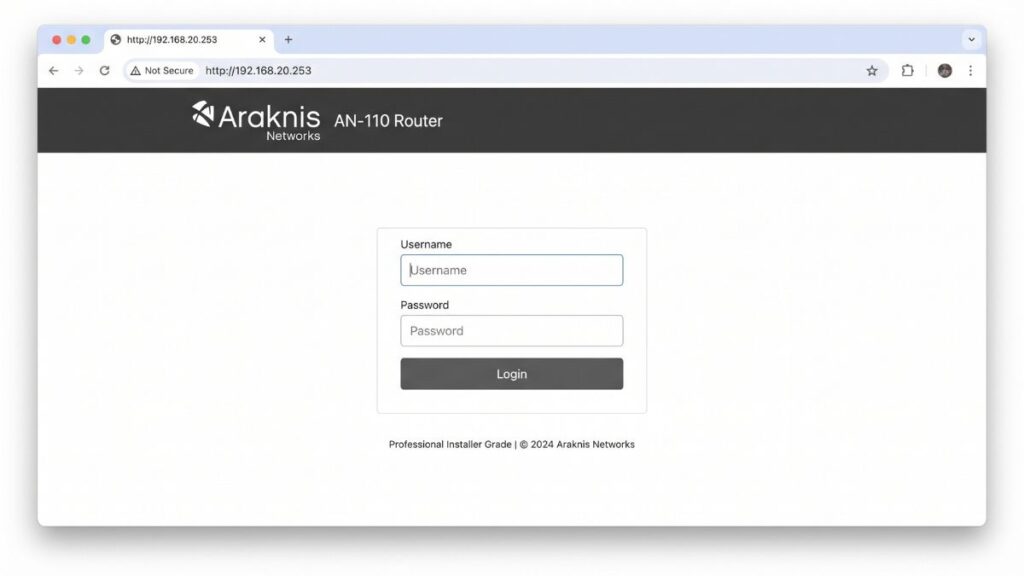
You’ve typed 192.168.20.253 into your browser and got either a login screen, a blank page, or an error. This guide handles all three. I’ll walk you through the full login process on PC, iPhone, and Android, explain five specific reasons this address won’t load and how to fix each one, cover the factory reset procedure step by step, and show you what’s worth configuring once you’re inside the admin panel.
192.168.20.253 is the default gateway for Araknis Networks equipment — a professional AV and IT networking brand installed by custom integrators in homes, boardrooms, and small businesses. If you have an Araknis router or switch, this is the address you need. And if you’re wondering why .253 instead of the usual .1 — that’s explained right below.
Router Access Panel
Type
192.168.20.253
in your browser or click the link to access the router admin page.
It works only when you’re connected to the same Wi-Fi network.
192.168.20.253 is a private IP address that serves as the default gateway for Araknis Networks routing equipment. Type it into a browser while connected to your local network and it opens your Araknis router’s admin dashboard — the control panel for network settings, Wi-Fi configuration, connected devices, firewall rules, VLANs, port forwarding, and firmware management.
Most home routers use .1 as the last octet of their gateway — 192.168.1.1, 192.168.0.1, and so on. Araknis deliberately chose .253, positioning the gateway toward the high end of the subnet. This is a common convention in professionally managed networks — it visually separates the gateway address from regular host addresses, and leaves the .1 through .252 range free for client devices. It’s the kind of detail that makes sense to a network engineer and surprises everyone else.
Like all private IPs, 192.168.20.253 is invisible to the public internet. It belongs to the reserved private address ranges defined under RFC 1918 private address ranges — addresses that exist exclusively on local networks and can’t be reached from mobile data, from other Wi-Fi networks, or from anywhere outside your home or office.
About Araknis: Araknis Networks is a brand under SnapAV, a distributor that serves professional AV and IT integrators. Araknis routers and switches are installed by dealers, not sold at big-box stores. The admin panel at 192.168.20.253 is where integrators and end-users manage the equipment. Many Araknis installations are also managed through OvrC — SnapAV’s cloud platform that gives integrators remote visibility and control.
Default Credentials for 192.168.20.253
Login to your Araknis router using 192.168.20.253 to access admin settings
The credentials for Araknis equipment are different from the generic admin/admin that most consumer brands use. Using the wrong username here is one of the most common login failures at this address.
Araknis Networks Default Credentials
Model
Default Username
Default Password
Araknis AN-110 Router
araknis
araknis
Araknis AN-310 Router
araknis
araknis
Araknis AN-510 Router
araknis
araknis
Araknis Wireless Access Points
araknis
araknis
Araknis Managed Switches
araknis
araknis
⚠️ Critical: Araknis uses araknis for both username and password — not admin. Most people arrive here expecting admin/admin and get an invalid credentials error. Use araknis for both fields.
Integrator-changed password: If a professional installer configured your Araknis equipment, they very likely changed the default password during commissioning. Contact your integrator for the current credentials. If they manage the network via OvrC, they may be able to reset your access remotely.
Other Brands at This Address
If your equipment isn’t Araknis but your gateway shows 192.168.20.253, your network was manually configured to use the 192.168.20.x subnet. Common defaults for other brands:
Brand
Default Username
Default Password
TP-Link
admin
admin
Asus
admin
admin
Cisco (small business)
admin
admin
Netgear
admin
password
D-Link
admin
(blank)
Ubiquiti / UniFi
ubnt
ubnt
Linksys
admin
admin
Belkin
(blank)
(blank)
Always check the label on the back or bottom of your device — it lists the exact factory-default credentials for your specific model.
How to Log Into 192.168.20.253 on a PC
The most common failure before credentials are even tried: typing the IP into the search bar instead of the address bar. The search bar sends your input to Google. The address bar navigates directly to the page. Both sit at the top of your browser but do completely different things.
Connect your PC to the Araknis router — via Ethernet cable or Wi-Fi. Ethernet is strongly recommended for Araknis and managed network equipment. Configuration changes over Wi-Fi can drop your connection mid-save if you modify wireless settings.
Open any browser — Chrome, Firefox, Edge, or Safari.
Click the address bar at the very top of the browser window — where URLs normally appear (like https://google.com).
⚠️ Address bar, not search bar. If pressing Enter takes you to Google results, you used the wrong field. Click the address bar at the top, clear it, and type fresh.
Type 192.168.20.253 and press Enter.
The Araknis login page should load. Enter araknis for both username and password (unless your integrator changed them).
Click Login or Sign In.
If you’re in — jump to “What to Do After You Log In.” If something went wrong, the troubleshooting section below covers the five most common causes.
How to Log Into 192.168.20.253 on a Phone
No other guide for this IP covers mobile login. Here are separate steps for iPhone and Android.
On iPhone (Safari)
Connect your iPhone to the Wi-Fi network managed by your Araknis router. Confirm you’re on the primary trusted network — not a guest SSID or secondary network on a different VLAN.
Open Safari. Tap the URL address bar at the top — not Spotlight search, not the search bar on Safari’s home screen.
Type 192.168.20.253 and tap Go.
The Araknis login page should load. Enter your credentials and tap Login.
💡 iPhone tip: If Safari routes your input to Google search instead of the page, add the prefix: http://192.168.20.253. That tells Safari to treat it as a URL, not a search term. If you’re on a multi-SSID Araknis installation, verify you’re connected to the SSID that runs on the 192.168.20.x management subnet.
On Android
Connect your Android phone to the Araknis Wi-Fi. Watch out for a common issue: Android sometimes keeps mobile data active in the background even when Wi-Fi shows connected, routing traffic through mobile data instead. Local addresses like 192.168.20.253 are only reachable through your local network — if mobile data is overriding Wi-Fi, this address will never respond.
Open Chrome or your preferred browser.
Tap the address bar at the top.
Type 192.168.20.253 and tap Go.
The admin login screen should appear. Enter your credentials and tap Login.
If Chrome shows “This site can’t be reached,” pull down your notification panel and verify mobile data is off and Wi-Fi is the active connection. On networks with multiple VLANs, also confirm your phone is on the management-accessible network segment, not a guest or isolated SSID.
If you’re unable to access the 192.168.20.253 router login page, you’re not alone. Below are the most common issues users face and how to fix them quickly.
1. You’re not on the right network segment
Cause: On professionally configured Araknis networks, this is especially likely. Araknis equipment commonly operates with multiple VLANs: a management VLAN for the router itself, separate VLANs for trusted devices, guest networks, and IoT devices. If your device is connected to a guest VLAN or secondary network segment, it won’t have access to the 192.168.20.x management subnet.
Fix: On Windows, open Command Prompt and type ipconfig. Look at the Default Gateway under your active adapter — it must read 192.168.20.253. If it shows a different address, you’re on the wrong network segment or this isn’t your actual gateway. On Mac, go to System Preferences → Network → select your connection → Advanced → TCP/IP → check the Router field. On your phone, check network info in Wi-Fi settings. Switch to the primary trusted network if needed. Also check for an active VPN — VPNs tunnel traffic away from your local network and will prevent access to any local gateway address. Disable the VPN and try again.
2. The gateway IP or subnet was changed by an integrator
Cause: Araknis equipment is professionally deployed, and integrators often customize the network to client specifications. The default 192.168.20.253 may have been changed during installation.
Fix: Run ipconfig on Windows or check TCP/IP settings on Mac to find your current Default Gateway. If you can’t access the router at all, a factory reset (below) will restore the defaults. But contact your integrator first — they may be able to fix it remotely via OvrC.
3. There’s a typo in the address
Cause: 192.168.20.253 is longer than typical home gateway IPs, and the .253 at the end is unusual. Common mistakes: 192.168.20.25 (missing the 3), 192.168.20.235 (transposed last two digits), 192.168.200.253 (extra zero in the third octet).
Fix: Type it one segment at a time: 192 . 168 . 20 . 253. The last group is 253 — not 25, not 235, not 2530. Verify in the address bar before pressing Enter. You can confirm your actual gateway with the how to find your router’s IP address method.
4. Your browser has cached a failed request
Cause: Browsers cache failed requests and serve the stored error even after the problem is fixed. Chrome is especially persistent with local network addresses.
Fix: Force a hard refresh with Ctrl + Shift + R on Windows or Cmd + Shift + R on Mac. Or open a new incognito/private window and try 192.168.20.253 from scratch. If it loads in incognito but not your regular window, clear your browser cache and cookies.
5. The router needs a restart
Cause: Araknis equipment is commercial-grade and generally stable, but the admin panel can occasionally become unresponsive while the network itself keeps working. A frozen management process is the likely culprit.
Fix: Power-cycle the Araknis router — unplug it, wait 30 full seconds, plug back in, wait 90 seconds for a full boot. For rack-mounted Araknis gear with OvrC access, your integrator can trigger a remote reboot without touching the hardware. Once fully up, try 192.168.20.253 again.
Factory Reset Guide for 192.168.20.253 Routers
If the password was changed by an installer and you can’t recover it, a factory reset restores all settings to defaults — including the gateway 192.168.20.253 and credentials araknis/araknis.
Contact your integrator first. If Araknis equipment is OvrC-managed, your integrator can likely reset or re-provision it remotely — far faster and less disruptive than a physical reset. Call them before reaching for a paperclip.
Back up your config if you can still log in. Araknis admin panels have an Export/Backup option under System or Administration. Export before resetting — it saves hours of reconfiguration.
What gets wiped:
Admin username and password (reverted to araknis / araknis)
Wi-Fi SSIDs and passwords
All VLAN configurations
Firewall rules and ACLs
Port forwarding rules
Static IP / DHCP reservations
Custom DNS settings
QoS rules
OvrC cloud pairing (requires re-commissioning by your integrator)
How to reset — Araknis routers:
Keep the unit powered on.
Locate the Reset button — a recessed pinhole on the back panel, usually labeled.
Insert a straightened paperclip or SIM ejector.
Press and hold firmly for 10–15 seconds until LED behavior changes.
Release and wait 90–120 seconds for a full reboot — Araknis units often take longer than consumer routers.
Try 192.168.20.253 with araknis / araknis.
Hold times for other brands:
Brand
Approx. Hold Time
Araknis Networks
10–15 seconds
TP-Link
10 seconds
Cisco (small business)
10–15 seconds
Netgear
7–10 seconds
Ubiquiti
10 seconds
Asus
10 seconds
Linksys
10–15 seconds
What to Do After You Log In
Once you’re in the Araknis admin panel, here’s what to prioritize.
1. Change Your Admin Password
araknis/araknis is publicly documented and known across the AV integration industry. Anyone who gets onto your network can try these credentials. Change the admin password immediately.
Log into 192.168.20.253.
Navigate to System → Admin Account or Administration → User Management.
Find Change Password or Admin Password.
Enter your current password, then your new one twice.
Use something long and memorable. Following NIST password guidelines is solid practice — length matters more than complexity.
Save and log back in with the new credentials.
2. Configure Wi-Fi Settings
If your Araknis equipment includes wireless radios or access points, go to Wireless or Wi-Fi Settings. Change the SSID to something that doesn’t identify your hardware. Set a strong passphrase.
3. Verify Encryption Mode
In wireless settings, check the Security Mode field. Minimum standard is WPA2. If your Araknis firmware supports WPA2 vs WPA3, enable WPA3 — it offers meaningfully stronger protection against brute-force attacks. WEP must be removed immediately if present.
4. Review VLAN and Segmentation
Araknis’s VLAN support is one of its strengths over consumer routers. Understanding what is a subnet mask before editing VLAN configurations here is important — a misconfiguration can isolate devices or break inter-VLAN routing unexpectedly. If your network was professionally configured, map existing VLANs carefully before changing anything.
5. Check Connected Devices
Under DHCP, LAN, or Client List, you’ll find every device that received an IP from the router. Each entry shows a name, assigned IP, and what is a MAC address — a unique hardware identifier. Look for anything unexpected. Static DHCP reservations for professional AV equipment (like control processors or NAS devices) should be left alone unless you know what they do.
6. Port Forwarding
If a service needs to be reachable from outside your network, configure it under Port Forwarding or NAT. Understanding how port forwarding works before making changes prevents the most common setup mistakes. In Araknis environments, port forwarding often pairs with a static WAN IP — confirm your WAN IP type with your ISP before configuring.
7. DNS Settings
Araknis admin panels allow custom DNS server configuration. Many integrators configure upstream DNS via servers like Cloudflare (1.1.1.1) or Google (8.8.8.8) for privacy and speed improvements. Understanding how DNS works helps you evaluate whether the existing configuration is appropriate for your needs.
8. Firmware Updates
Go to Administration → Firmware Update or System → Software Update. Install any available updates — Araknis firmware patches address security vulnerabilities and occasionally improve performance. If your unit is OvrC-managed, your integrator can also push firmware remotely during a routine maintenance window.
Common Misspellings of 192.168.20.253
The unusual .253 ending and the 20 third octet make this address more typo-prone than most. Here are the most common mistakes:
192.168.20.25
192.168.20.235
192.168.20.2530
192.168.200.253
192.168.20.253.
192.168.20.l53
19216820253
http//192.168.20.253
www.192.168.20.253
192.168.2.0253
192.168.20.253/admin
The correct address:192.168.20.253
— four numbers, three dots, third group is 20, fourth group is 253
Which Brands and Environments Use 192.168.20.253?
Primary Brand: Araknis Networks
Araknis Networks (SnapAV) is the dominant brand at this address. Araknis manufactures professional-grade routers, managed switches, and wireless access points distributed exclusively through the SnapAV dealer network. Equipment is installed by professional AV and IT integrators — in custom homes, offices, conference rooms, restaurants, and retail environments.
Key Araknis products using 192.168.20.253:
AN-110 Router — entry-level managed router for residential installations
AN-310 Router — mid-range with advanced routing, VLANs, and QoS
AN-510 Router — high-performance with enterprise-grade features
Araknis Managed Switches — 8, 16, and 24-port models for LAN segmentation
Araknis installations are typically registered on OvrC — SnapAV’s cloud management platform that allows integrators to monitor client networks, push firmware, and reboot equipment remotely.
Other Environments
The 192.168.20.x subnet with a .253 gateway also appears in enterprise and corporate networks where IT staff have assigned the 192.168.20.x range to a specific VLAN and placed the gateway at .253 by convention.
Frequently Asked Questions
What is 192.168.20.253 used for?
It’s the default gateway address for Araknis Networks routers and managed equipment. Typing it into a browser while on the Araknis network opens the admin panel for managing routing, Wi-Fi, VLANs, firewall rules, and more.
Why does Araknis use .253 instead of .1?
Placing the gateway at the high end of the subnet (.253) rather than .1 is a professional networking convention. It visually distinguishes the gateway address from regular host addresses and leaves the lower range free for client devices — a small but practical design choice for managed network environments.
What are the Araknis default credentials?
Username: araknis / Password: araknis. This is different from the universal admin/admin. If a professional installed your network, they likely changed these — contact your integrator.
My Araknis credentials don’t work. What should I do?
Confirm you’re using araknis for both fields, not admin. If that still fails, your integrator changed the password. Reach out to them — they may be able to reset access through OvrC without touching the hardware. If you have no way to contact the integrator, a factory reset will restore araknis/araknis.
What is OvrC and does it affect my local login?
OvrC is SnapAV’s cloud management platform. If your Araknis device is OvrC-registered, your integrator can manage it remotely. Your local login at 192.168.20.253 still works independently of OvrC — they’re separate access paths to the same device.